
Connected tools is where you link Argorant to the CRM, spreadsheet or sending tool you already use. Once a tool is connected, a finished export goes into it with one button and a confirmation, without downloading and uploading a CSV file.
Open the page
Open Settings, Connected tools. The page has up to five parts.
| Part | Tools | How you connect |
|---|---|---|
| CRMs and sheets | Google Sheets, HubSpot, Pipedrive | Sign in to the tool and approve access (OAuth). No key to copy. |
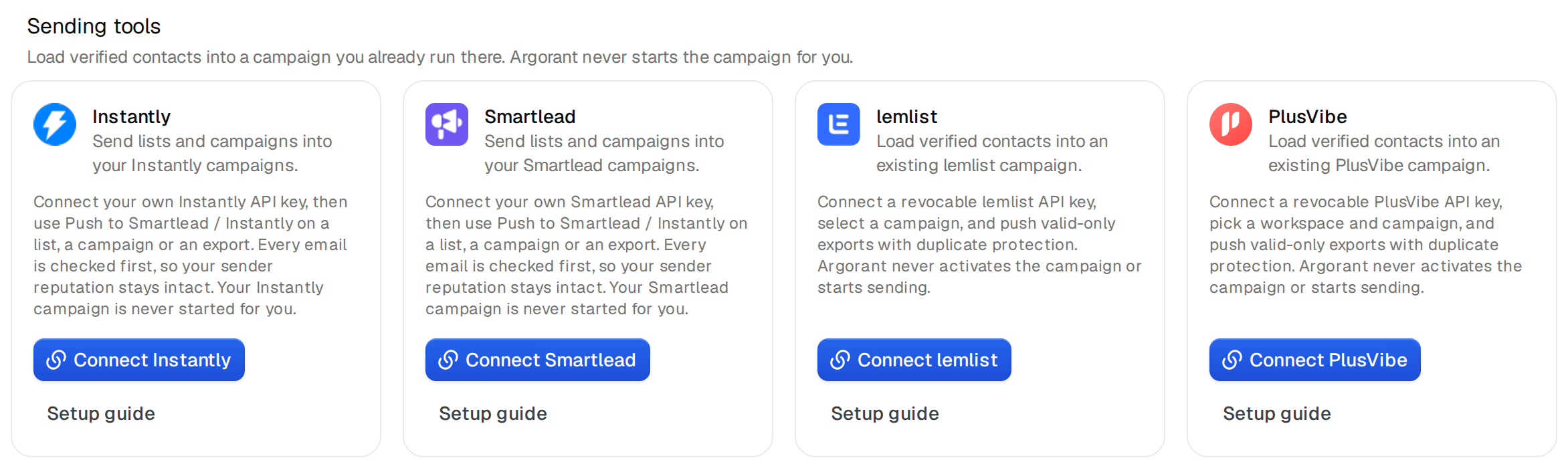
| Sending tools | Instantly, Smartlead, lemlist, PlusVibe | Paste an API key from that tool. |
| Notion and Linear | Notion, Linear | Sign in to the tool and approve access, then pick a page or a team. |
| Send an export to a connected tool | Your latest exports | Appears once a CRM or sending tool is connected. |
| Other ways to connect | Clay, Zapier, Make, n8n, Albato, the browser extension, the CLI and Postman | No stored connection here. They use an Argorant API key or export files, and each card opens a guide. A Soon tag means that app is not public in the tool's own directory or store yet. |
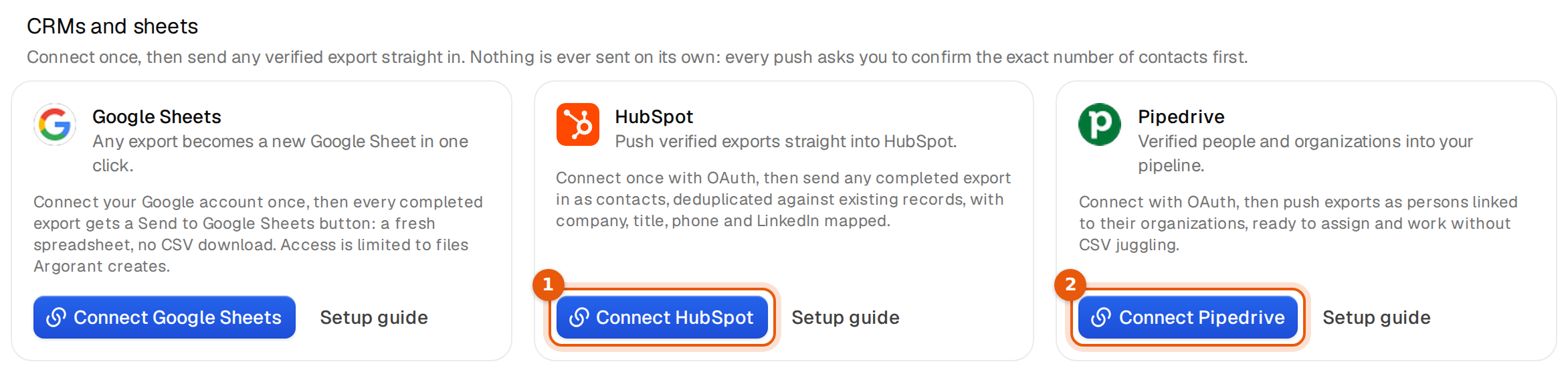
Connect a CRM or Google Sheets
- Click Connect HubSpot, Connect Pipedrive or Connect Google Sheets.
- The tool's own sign-in page opens. Sign in with the account that should receive the contacts and approve the access.
- You come back to Argorant. The card now shows Connected and a Disconnect button.
What each tool is allowed to do is kept narrow. HubSpot gets permission to read and write contacts. Pipedrive connects to your own Pipedrive company account. Google Sheets only reaches files that Argorant creates for you, nothing else in your Drive.
Connect a sending tool
- Click Connect Instantly, Connect Smartlead, Connect lemlist or Connect PlusVibe.
- A window asks for the tool's API key and says where to find it. In Smartlead it is under Settings, then API key. In Instantly it is under Settings, Integrations, then API keys. In lemlist you create it under Settings, Integrations, API. In PlusVibe it is under Settings, API access, and needs PlusVibe's Business plan.
- Paste the key and confirm. The key is stored encrypted and only used to send the people you choose.
Connect Notion or Linear
- Click Connect Notion or Connect Linear and approve the access in the tool.
- Back in Argorant, pick the Notion page Argorant may write to, or the Linear team the issues go to.
- Switch on the rules you want. Nothing runs until you do.
Notion takes any list with Send to Notion on the list's page, and can collect positive replies. Linear opens issues for positive replies and finished campaigns. Both are included from the Pro plan. The guides: Notion and Linear.
Send an export
When at least one CRM or sending tool is connected, the part Send an export to a connected tool lists your latest exports. A finished export has one Push to … button per connected tool and a Download button. An export that is still running shows its progress instead.

- Click Push to HubSpot (or the tool you want) next to the export.
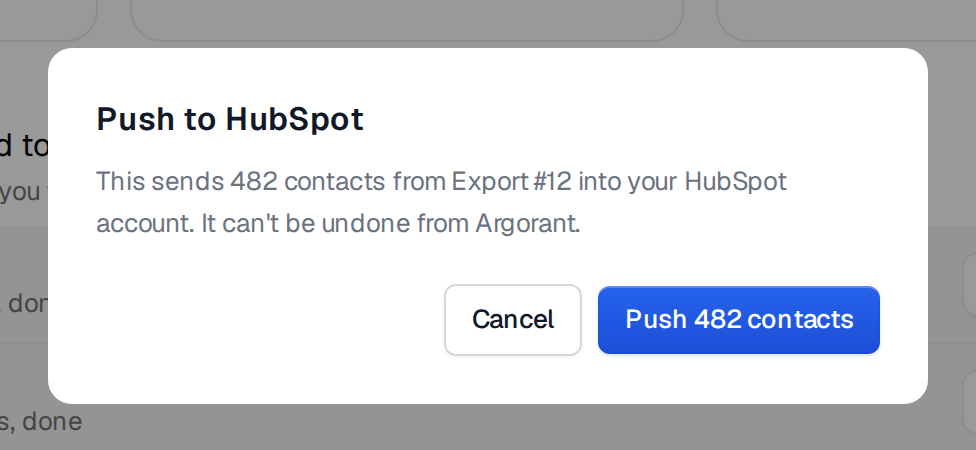
- A window says exactly how many contacts go into which account. For a sending tool you also pick the campaign in that tool.
- Click the button with the number, for example Push 482 contacts. Click Cancel to stop.
- A note confirms that the export is being pushed and gives the push number.
Google Sheets works from the Exports page instead: a finished export there has a Send to Google Sheets button that creates a new spreadsheet. The Exports page also has Push to your sequencer for the sending tools.
What gets sent
- CRMs get every row of the export file. Sending tools get only the addresses that passed the check as valid, so catch-all and risky addresses stay out of your campaigns.
- Phone numbers only travel when the export itself included them.
- Argorant never starts a campaign in a sending tool. You start it there when you are ready.
- Up to 100,000 contacts go in one push.
Which tool for what
| You want to | Use | What arrives |
|---|---|---|
| Hand people to sales in the CRM | HubSpot or Pipedrive | Contacts or persons, matched on email so nobody is added twice |
| Review a list with your team before anyone emails it | Google Sheets or Notion | A new spreadsheet per export in your own Google Drive, or one Notion database per list |
| Turn positive replies and finished campaigns into work items | Linear | One issue per positive reply and per finished campaign, in the team you picked |
| Email people from the tool you already send with | Instantly, Smartlead, lemlist or PlusVibe | Leads in a campaign you pick, valid addresses only, campaign not started |
| Run it all on its own | An API key with Zapier, Make, n8n or Albato | Whatever your flow does: replies, lists, campaigns or export files |
| Look people up while you browse | The browser extension | Who works at the company whose website you are on, and checked emails you reveal |
How access is kept safe
- You approve every CRM connection in the CRM itself, on its own page. Argorant never sees your CRM password.
- Access is kept to what a push needs. In HubSpot that is reading and writing contacts; in Google Drive it is only the files Argorant creates.
- API keys of sending tools are stored encrypted and used only when you push.
- You can remove access from either side. Click Disconnect in Argorant, or remove the Argorant app in the tool's own settings. Either way, pushes stop at once.
Disconnect
Click Disconnect on the tool's card and confirm. Pushes to it stop working; contacts already sent stay in the tool. You can reconnect any time. Under Settings, then Workspace, the danger zone can disconnect every tool at once. For Notion and Linear, Disconnect stops their rules at once. To take the access back inside Notion or Linear as well, remove Argorant there.
Plans
Every plan sees every tool. On the free plan, a Connect button opens the upgrade screen. Pushing contacts into a CRM or sending tool is included from the Pro plan, and so are Notion and Linear; on smaller plans the push answers with this message:
CRM pushes are included from the Pro plan. You can still download the CSV.
Common mistakes
- The push buttons are missing. No CRM or sending tool is connected yet, or the export is still running.
- Connected with the wrong account. Disconnect, sign out of the tool in your browser, and connect again with the right one.
- A teammate cannot see your connection. Connections belong to the person who made them. Each teammate connects their own account.
- A sending tool rejects the key. The key was revoked in that tool or copied incompletely. Connect again with a fresh key.
- No campaigns to pick. Create the campaign in the sending tool first; Argorant only fills existing campaigns.
What happens next
The push runs in the background and the contacts appear in the tool within minutes. The tool guides go into detail: HubSpot, Pipedrive, Smartlead, Google Sheets, Notion and Linear. For the apps and the extension, see Zapier, Make, n8n, Albato and the browser extension; Which key goes where says which of them needs a key.