
Analytics shows what your campaigns produce: how many emails went out, who replied, how many replies were positive, and how many addresses bounced or opted out. You can look at all campaigns together or at one.
Open it
- For all campaigns, click Analytics in the sidebar under Outreach, or the Analytics tab on the Campaigns page.
- For one campaign, open it and stay on the Overview tab. It shows the same numbers for that campaign, with buttons for the last 7, 30 or 60 days.
Pick campaigns and a period
- Click All campaigns and tick the campaigns you want. Leave it empty to include all.
- Choose Last 7 days, Last 30 days or Last 60 days.
- Clear filters appears once you picked campaigns. Refresh at the top loads the latest numbers.
Every number on the page uses the same period. Days are counted in UTC, and today may still be incomplete.
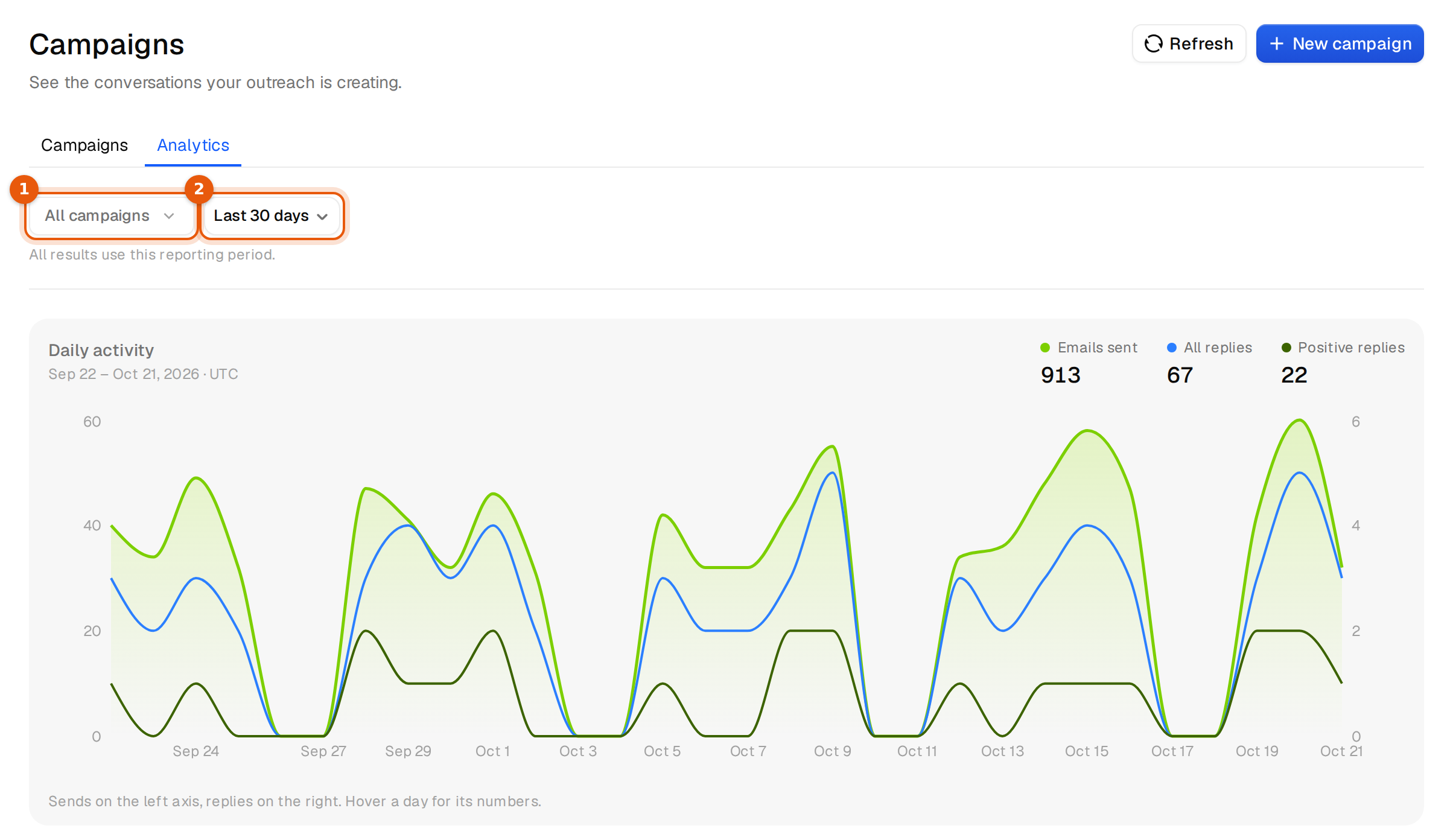
Daily activity
The chart shows emails sent as a filled line, and replies and positive replies as lines, all on the same scale from 0. Far fewer people reply than get an email, so the reply lines sit much lower than the sends, true to scale. A dot marks every day with a reply. The totals for the period sit at the top right: Emails sent, People who replied and Positive replies. Under the period you see the Reply rate: every reply, out-of-office and other automatic replies included, as a share of the people contacted. Hover a day to see its numbers. Gaps on weekends are normal when the campaigns skip weekends.
Your campaign outcomes
| Number | What it counts |
|---|---|
| Emails sent | Every email that went out in the period. |
| People who replied | Everyone who replied in the period, out-of-office and other automatic replies included. A person who replied twice counts once. |
| Positive replies | People whose reply is labelled Interested or Meeting request. |
Replies to emails sent before the period count too. A reply on 3 October to an email from 28 September counts in the October numbers.
How contacted leads responded
These rates count people, not emails. The base is everyone who got at least one email in the period, shown as 566 contacted campaign leads · selected period. Each person counts once, even if they replied twice. Under each rate you see the count behind it, for example 67 / 566 leads.
Above the rates you see how many of the replies are positive, for example 32.8% of replies are positive with 22 of 67 replies under it.
| Rate | Share of contacted people who |
|---|---|
| Reply rate | replied in any way, out-of-office and other automatic replies included |
| OOO / auto rate | only sent an automatic reply, such as an out-of-office note |
| Bounced leads | bounced |
| Opted-out leads | asked to stop |
The reply rate is the one reply rate in Argorant. The campaign list, a campaign's Overview, the API and your AI assistant count it the same way.
A dash instead of a percentage means nobody was contacted in the period yet. It is not 0%.
What your replies say
The breakdown sorts every reply in the period into one group by its label, out-of-office notes included, for example Interested, Out of office, Unsubscribe and Other replies. Each person counts once. Each group shows its share of all replies and its count. Labels you switched off in Settings are not listed; their replies count under Other replies.
Next to it, the Bounces chart shows delivery failures and opt-outs per day, including those from earlier campaigns.
The row below adds Automatic replies, Bounces, Opt-outs and Appointments booked for the same period.
Campaign performance
- The menu switches between Event counts (emails sent, replies, positive, OOO / auto, bounces, opt-outs) and Lead response rates (reply rate, OOO / auto rate, positive as a share of all replies, bounced and opted out, per campaign, based on the people it contacted in the period).
- Click a column header to sort. Search campaigns filters the rows by name.
- Click a campaign name to open it.
Reading the numbers well
- Compare campaigns on the Reply rate. It counts every reply, out-of-office notes included, the same way everywhere in Argorant.
- Wait for at least a few hundred people contacted before you compare two campaigns. Small numbers jump around.
- A bounce rate above a few percent points to an old or unchecked list. See Bounce protection.
- The same person in two campaigns counts once in each campaign.