
Every AI tool reaches the same Argorant account. Most of them connect through Argorant's connector, where you approve access once on Argorant's own screen and never copy a key. A few work better with a private key and the Argorant command line. This page shows which way each tool uses and how to do it.
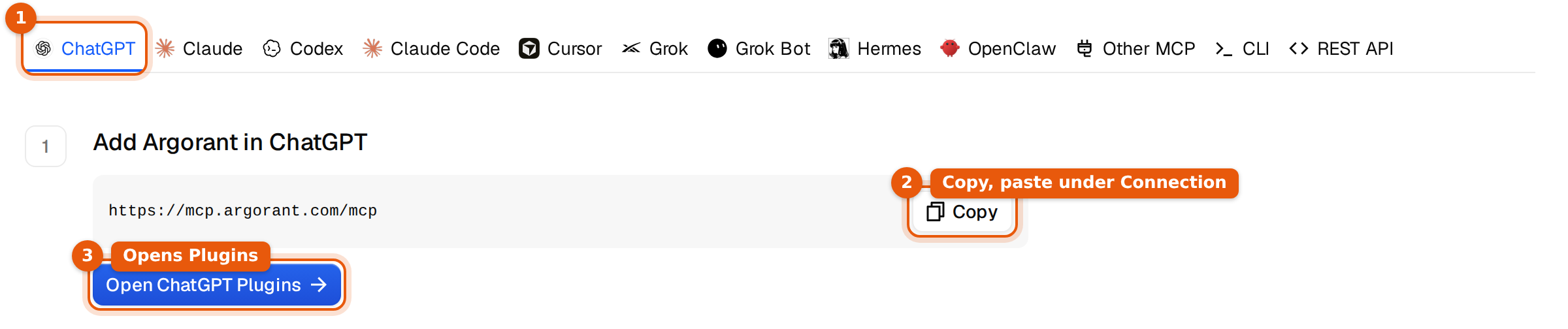
The connector address is the same for every tool:
https://mcp.argorant.com/mcpOpen AI connections in the app and pick your tool. Each tab shows the steps, the address or command to copy, and a button to open the tool.
Which way for which tool
| Tool | How it connects | Where you add it |
|---|---|---|
| ChatGPT | The Argorant plugin, approved on Argorant's screen | The Argorant plugin, then Connect |
| Cursor | Connector, approved on Argorant's screen | Customize, then MCPs, or an entry in .cursor/mcp.json |
| Grok | Connector, approved on Argorant's screen | Connectors, then New Connector, then Custom |
| Grok Bot | An Argorant plugin when the Bot offers one, otherwise the command line with your private key | The Bot's Settings, then Plugins |
ChatGPT
- Open the Argorant plugin in ChatGPT and click Connect.
- On Argorant's screen, sign in or create your account, check the list of permissions, then click Connect Argorant.
- Start a new chat, type @ and pick Argorant, then ask.
This works with a free ChatGPT account too. In a Business or Enterprise workspace an admin may have to allow the plugin first. The full guide is Set up Argorant in ChatGPT with a connector.
Cursor
Open Customize, then MCPs in Cursor and add Argorant with the address. Or merge this entry into .cursor/mcp.json and keep the servers you already have:
{
  "mcpServers": {
    "argorant": { "url": "https://mcp.argorant.com/mcp" }
  }
}
Cursor opens Argorant's sign-in. Your browser then asks whether to open Cursor again. Allow it, that is the last step of the sign-in. Turn Argorant on for the agent and ask. More in Set up Argorant in Cursor.
Grok
In Grok, open Connectors, choose New Connector, then Custom. Name it Argorant and paste the address. Sign in on Argorant's screen and click Allow access. Turn the connector on in your chat and ask. If your account has no custom connectors, a prompt cannot add one, so use Argorant in the app instead. More in Set up Argorant in Grok.
Grok Bot
Ask Grok Bot to set up Argorant. It checks for an Argorant plugin first. If there is one, sign in under Settings, then Plugins, and attach it with @. If the Bot uses the command line instead, give it your private key through a secure secret request or by taking over its computer. Never paste the key into the chat. More in Set up Argorant in Grok Bot.
A first prompt that works everywhere
Check my Argorant account. Then ask me who I sell to, which roles I need and in which countries. Show a free count and five masked examples. Ask me before you spend any credits.The tool checks your account (free), counts matching people (free) and shows a masked preview (free). Nothing is revealed or exported until you say yes. Revealing a new contact costs 1 credit, and an export costs 1 credit per person with a working email.
Common mistakes
- The tool is not switched on in the chat. The AI then guesses from memory. In ChatGPT, mention @Argorant. In Grok and Cursor, turn the connector on for that chat or agent.
- A key pasted into a chat. Use the OAuth MCP connection when your client supports custom remote MCP servers. Otherwise use the CLI from a Node/npm-enabled terminal, or REST from an authorized HTTP environment. Pasting a personal key into a chat does not create a connection or bypass the client's restrictions.
- The sign-in never returns to the app. Allow pop-ups, and for Cursor allow the browser to open the app again.
- ChatGPT does not offer the plugin. Open the Argorant plugin in ChatGPT again. In a workspace, ask your admin to allow it.
Same account, same rules
Whatever the tool, it is one account, one credit balance and the same lists. Connecting another tool does not add credits. You can see and disconnect every connected app in Settings, then AI connections.
 ChatGPT
 Argorant
 .cursor/mcp.json
 Grok
 Grok Bot