
Argorant is a published plugin in ChatGPT. You open it once, click Connect, approve it on Argorant's own screen, and then call it in a chat by typing @Argorant. There is no key to copy. ChatGPT works with your real Argorant account, so the credits, lists and exports are the same ones you see in the app.
Who can do it
- On the Argorant side any account with a confirmed email address, including a trial account. Counting and previewing are free.
- On the ChatGPT side a free ChatGPT account works too. In a Business or Enterprise workspace an admin may have to allow the Argorant plugin first.
Step by step
Open AI connections in Argorant and pick the ChatGPT tab. The Open the Argorant plugin button takes you straight to the plugin in ChatGPT. This is the same link:
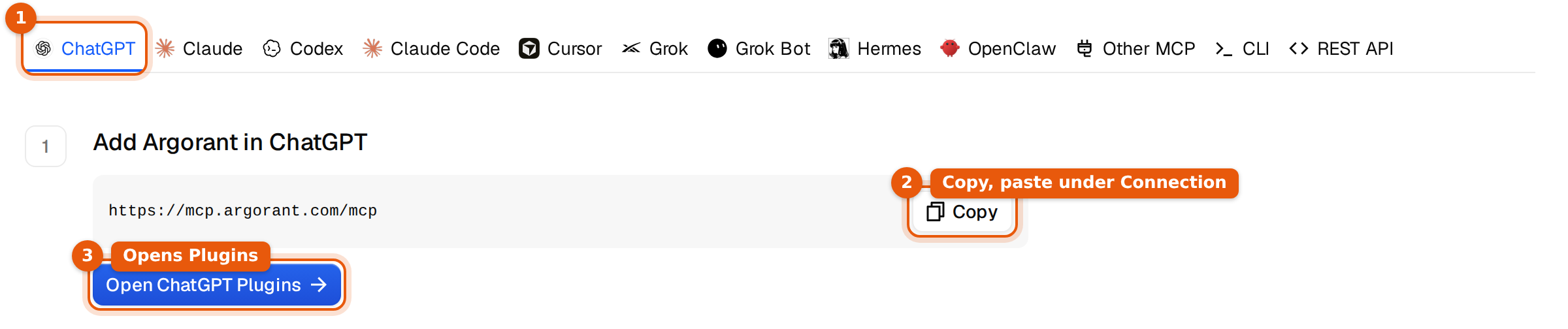
https://chatgpt.com/plugins/plugin_asdk_app_6af63f9232148191bbbec5433d3b9405- Open the Argorant plugin in ChatGPT and click Connect. Argorant's sign-in and permission screen opens.
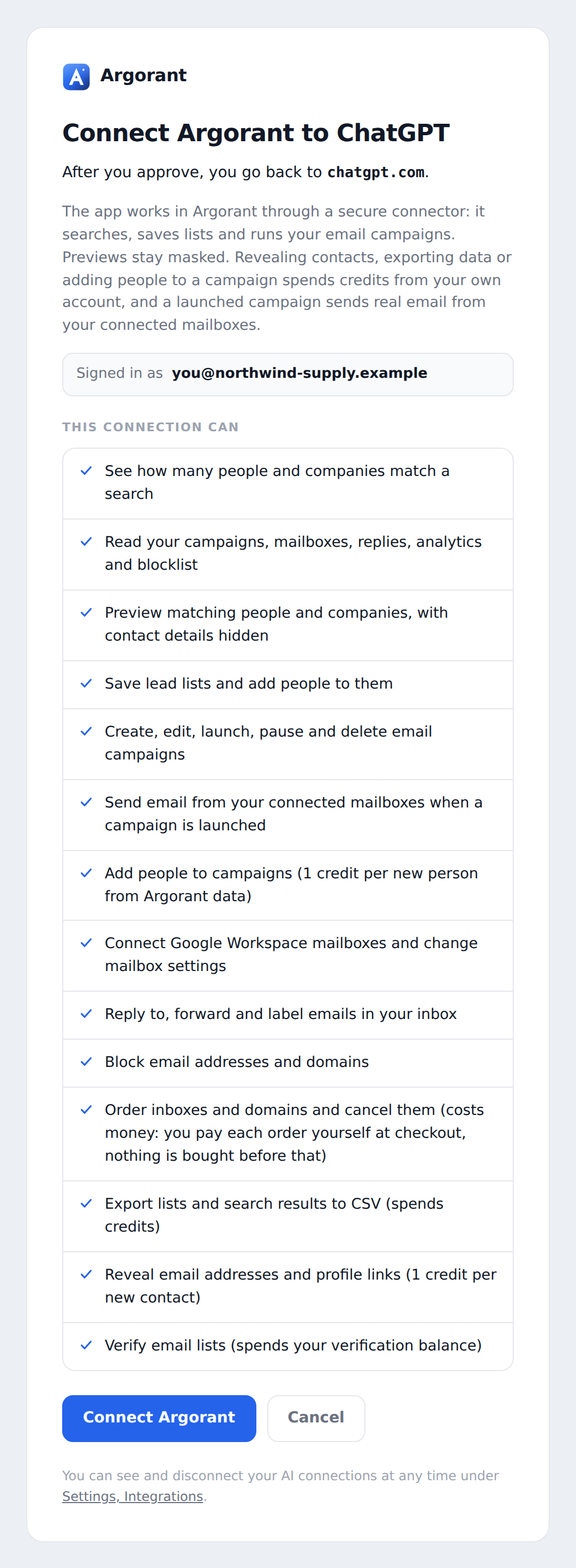
- Sign in to Argorant, or create your account. Check the Signed in as line and the list under This connection can, then click Connect Argorant. You are sent back to ChatGPT.
- Start a new chat, type @ and pick Argorant (or add it with + in the message box). Then ask.
What Argorant's screen asks, and why
The screen is headed Connect Argorant to ChatGPT and names the address you return to (chatgpt.com). It lists what the connection can do, because the plugin acts with your real account: count and read your campaigns and replies, preview people with contact details hidden, save lists and run campaigns that send real email from your connected mailboxes, add people to campaigns at 1 credit per new person, export to CSV (spends credits), reveal emails and profile links at 1 credit per new contact, and check email lists from your verification balance. Approving spends nothing. If the heading names another app, or a yellow note says Argorant has not checked the app, click Cancel.
Using it in a chat
The plugin applies to the message you mention it in. For a follow-up that needs Argorant again, type @Argorant again, or ChatGPT may answer from memory. When ChatGPT is about to run an action that changes something, such as saving a list, revealing contacts or starting an export, it asks you to confirm. Read the numbers before you confirm.
Prompts to try
@Argorant check my account.ChatGPT calls the account check: the connected account, your role, credits left and today's limits used. Free. This is your connection test.
@Argorant how many partners at accounting firms in the UK?A count of people by title, industry and country. People, not companies. Free.
@Argorant show five of them, I want to check the titles.A masked preview: initials, job, company, place and department. No emails, phones or profile links. Free.
@Argorant how many people do you have at northwind-supply.example?ChatGPT looks up one company domain. You get how many people Argorant has there, how many have a work email and a few masked rows with job titles. Free. It is not the company's total staff.
@Argorant save all of them as a list called "UK accounting partners".ChatGPT asks you to confirm, then saves the whole search as a private list. Free, nothing sent, no contact details shown.
@Argorant reveal 10 of them. What will it cost?ChatGPT should tell you that each person whose email is new to your account costs 1 credit, and that people you unlocked before are free. After your yes it shows name, job, company, work email and profile link, plus what it cost.
@Argorant export the list, at most 250 people, and email me when the file is ready.A CSV export of the saved list. 1 credit per person with a working email, people exported before are skipped. ChatGPT checks the status and gives you the link.
What it costs
Search, counts and masked previews do not deduct credits. Account permissions and rate limits still apply. Reveals, exports and new campaign people use your normal credits. Connecting ChatGPT does not add credits or change your plan. During the trial and without a plan, searches and counts through an AI assistant are limited to 20 a minute, 1,000 counts and 1,000 search rows a day per account. On a plan there is no daily limit for them, only a speed limit.
Common mistakes
- No @Argorant in the message. ChatGPT then answers from memory and the numbers are guesses. Mention it again in every message that needs it.
- A temporary chat. Temporary chats do not use plugins. Start a normal chat.
- ChatGPT does not offer the plugin. Open the Argorant plugin in ChatGPT again. In a workspace, ask your admin to allow it. Still blocked? Use Argorant in Claude, whose Free plan includes one custom connector.
- The sign-in window was blocked. Allow pop-ups for chatgpt.com and click Connect again.
- A key pasted into the chat. It does not create a connection and it exposes the key. Revoke it under Settings, then API keys.
Disconnect
In Argorant, open Settings, then AI connections, and click Disconnect next to ChatGPT under Connected apps. ChatGPT loses access at once. You can also remove the plugin in ChatGPT under Plugins.
Custom GPTs and actions
A custom GPT can also call Argorant's REST API as an action with an API key, for example to share fixed ICP rules with a team. That is a separate setup with a key, described in Use Argorant in ChatGPT without a connector.
What happens next
Lists, exports and spent credits from ChatGPT show in the app as if you had clicked them yourself. Set your rules in spending guardrails for agents.
 ChatGPT
 Argorant