
A signature is the short block under an email: your closing line, your name, your role and maybe a link to your website. In Argorant every mailbox can have its own. You write it once with a few variables, and each mailbox fills in its own name. Put {{signature}} where you want your signature to appear. That works in the first email, in follow-ups and in replies. Where you do not write it, nothing is added.
Add the signature
- Open Inboxes and find the mailbox.
- Click the three dots at the end of its row and choose Edit sender.
- Scroll down to Signature, below Cold emails, Warm-up and Sending.
- Fill in Title and Company if you want them in the signature, for example Head of Growth and Northwind Supply.
- Write the signature in the Signature box. If the box is empty, Start from an example fills in a good first version.
- Check the Preview under the box. It shows the signature exactly as this mailbox will send it.
- Click Save signature.
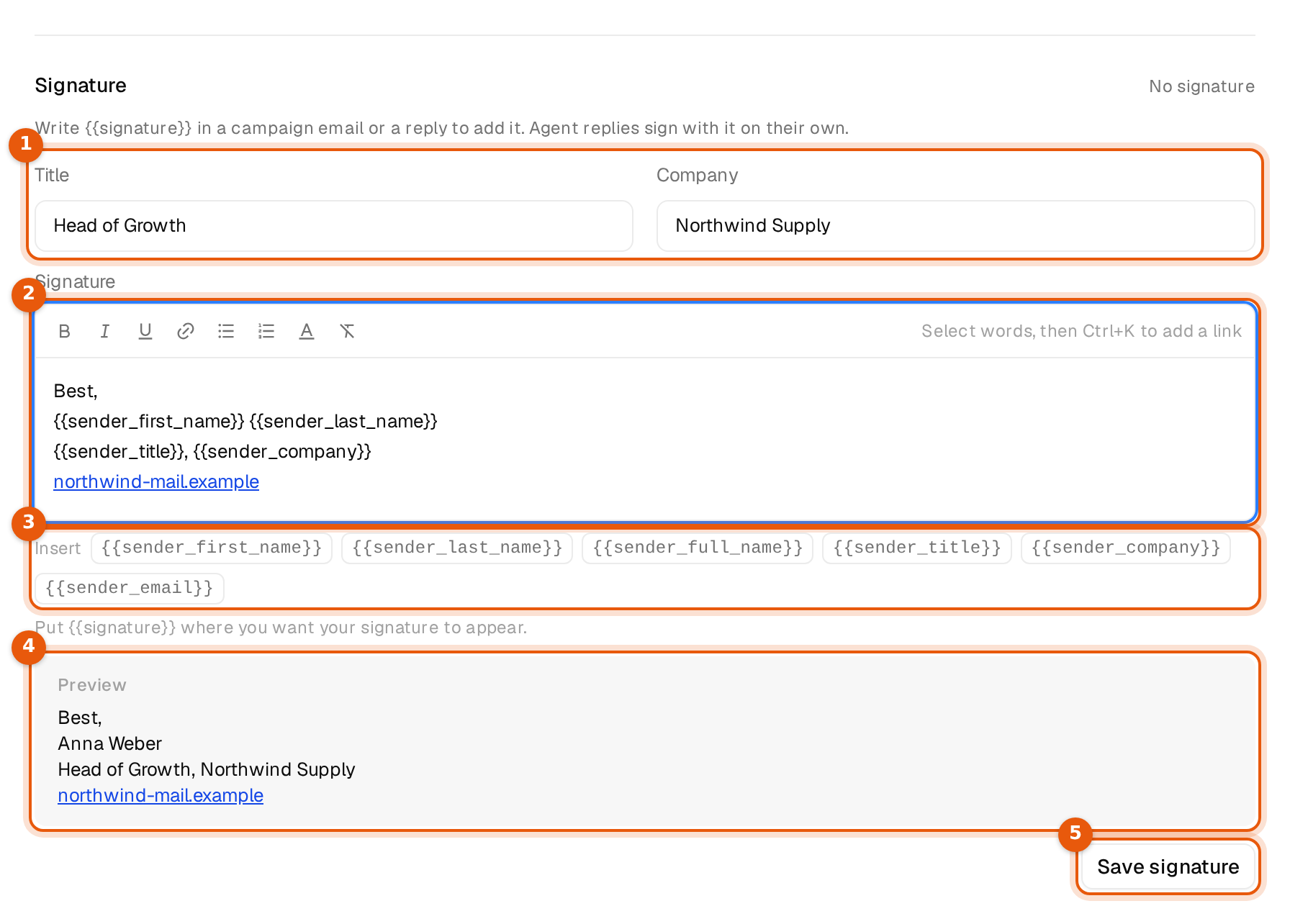
The signature saves on its own with Save signature. Save sender at the bottom of the dialog saves the other settings, such as the daily limit and warm-up, and does not touch the signature. You can do both in one visit.
The variables
A signature is fixed text with the sender variables, the same ones campaign emails use. Click a variable under the box to put it where your cursor is, or type it.
| Variable | Where the value comes from | Example |
|---|---|---|
{{sender_first_name}} | The first word of the mailbox's Display name in Edit sender. | Anna |
{{sender_last_name}} | The rest of the display name. | Weber |
{{sender_title}} | The Title field of this mailbox. | Head of Growth |
{{sender_company}} | The Company field of this mailbox. | Northwind Supply |
{{sender_full_name}} | First and last name together. | Anna Weber |
{{sender_email}} | The mailbox's address. | anna@northwind-mail.com |
In a campaign email {{first_name}} and {{company}} are the contact's. In a signature every variable is the sender's, so a signature written earlier with {{first_name}} still signs with the mailbox's name; it is saved as {{sender_first_name}}.
So this text
Best,
{{sender_first_name}} {{sender_last_name}}
{{sender_title}}, {{sender_company}}
becomes this for a mailbox named Anna Weber:
Best,
Anna Weber
Head of Growth, Northwind Supply
A line whose variables are all empty is left out. If a mailbox has no title and no company, the third line simply disappears, without a stray comma or an empty line. To change the name itself, change the Display name at the top of Edit sender and click Save sender.
Add a link
The Signature box works like a small text editor. Each line you type is a line in the email, and what you see is what the email shows.
- Type the words that should carry the link, for example Book a call.
- Select those words.
- Click the link button above the box, or press Ctrl+K (Cmd+K on a Mac).
- Type or paste the web address and press Enter.
It is even quicker to copy a web address, select the words and paste. The words then become the link. To change or remove a link, click on it and use the buttons above the box.
In the email, the link sits on your words. Every email also has a text version for mail apps that show no formatting. There the line reads as the words with the address in brackets, for example Book a call (meet.example.com/anna). More in Use {{signature}} in campaigns and replies.
Which signature a mailbox uses right now
At the top right of the Signature part you see where the mailbox's signature comes from.
| You see | What it means |
|---|---|
| This mailbox's own signature | The mailbox has its own text. It wins over everything else. |
| The workspace default signature | The mailbox has no text of its own and uses the default from Settings. A box In use now shows it with this mailbox's name. |
| The agent's signature | An AI agent answers the replies of this mailbox's campaign and has its own signature. |
| No signature | Nothing is set anywhere. {{signature}} stays empty. |
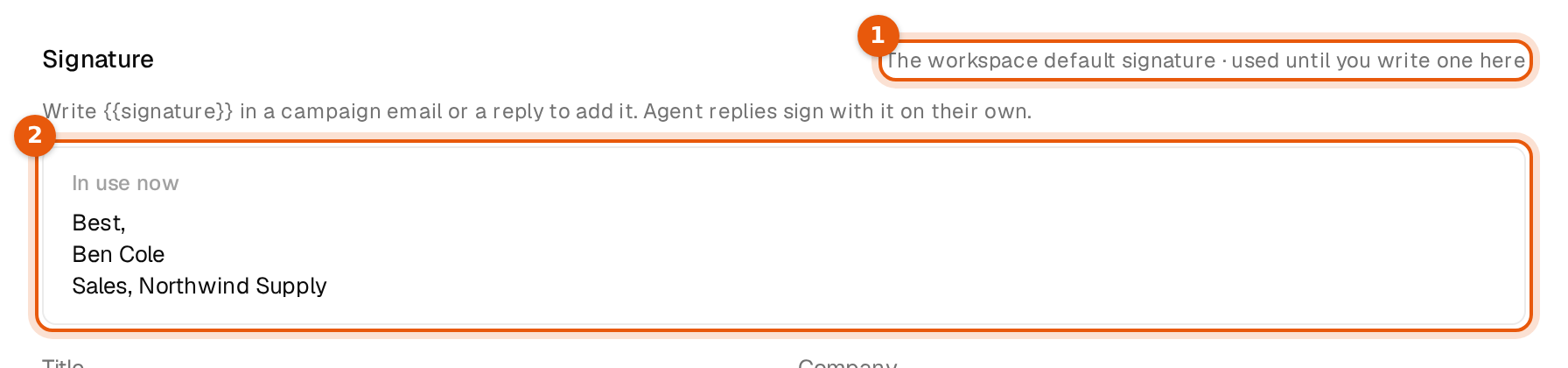
A mailbox can also keep only its own title and company and no text. The text then comes from the default, and this mailbox's name, title and company fill it. See Default signature and agent signatures.
Change or remove it
- To change it, edit the text and click Save signature again. Emails sent after that use the new version, usually within a minute.
- To remove it, click Remove signature. The mailbox then uses the default signature, if there is one. You see the notice This mailbox now uses the default signature, if there is one.
Rules and limits
- At most 2,000 characters.
- One fixed version. Spintax such as
{Best|Cheers}is not allowed in a signature. The editor says A signature is fixed text: write one version, without {a|b} variations. - Only the variables above. Any other variable is refused with a short note under the box, and so is
{{signature}}inside a signature. - Variables need two braces on each side, like
{{sender_first_name}}. - Only the workspace owner and admins can change mailboxes, and so their signatures. Members see the signature but cannot edit it.
Common mistakes
- The signature does not show up in an email. That email has no
{{signature}}. Put it where you want your signature to appear, in every step that should carry it. - The wrong name appears. The name comes from the mailbox's display name. Fix it in Edit sender and save the sender.
- Title and company are missing. They are set per mailbox. Fill them in here, or for many mailboxes at once with Set one signature for many mailboxes.