
Your signature appears where you write {{signature}}. When the email goes out, Argorant swaps it for the signature of the mailbox that sends it. If sends rotate across five mailboxes, each email carries the signature of its own mailbox. Nothing is added to any campaign on its own: an email without {{signature}} goes out exactly as you wrote it.
Put it in a campaign email
- Open the campaign and the Emails tab.
- Place the cursor where the signature should go, usually at the end of the body.
- Click Insert next to the body and choose signature under Sender. Or type
{{signature}}. - Click Save.
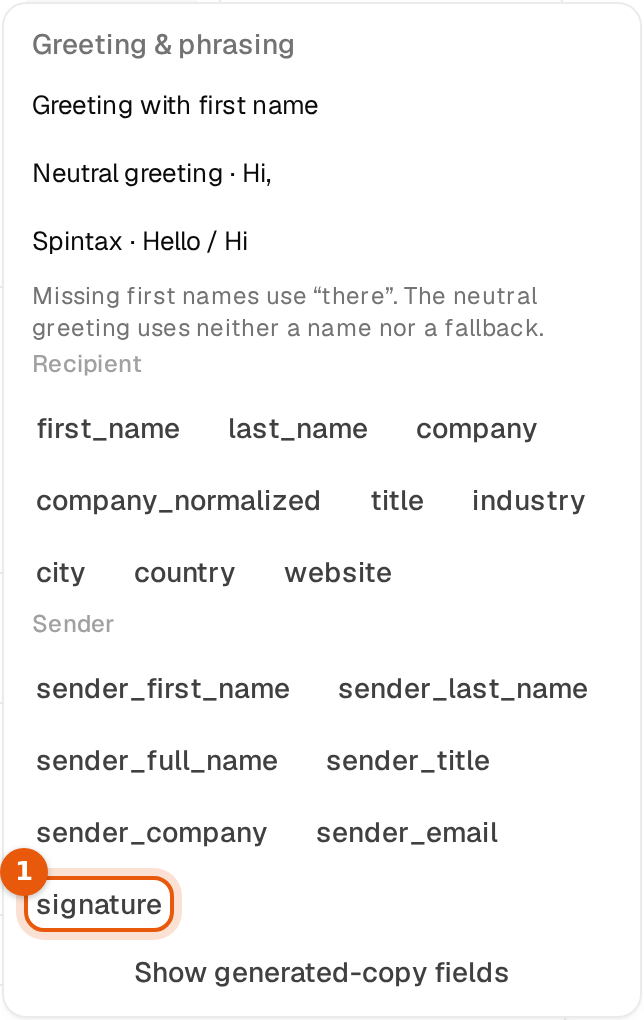
The signature only goes into the body. In a subject {{signature}} stays empty. It works in every step, the first email and follow-ups alike.
You decide per email. A step without {{signature}} goes out without a signature. If you want only a short sign-off in a step, write {{sender_first_name}} there instead.
In replies
- From the Unibox. Write
{{signature}}in your reply where it should go. It is replaced when you click send, with the signature of the mailbox that replies. The thread then shows the text that went out. - From an AI agent. Agent replies end with the mailbox signature on their own, see Default signature and agent signatures.
- A reply from the Unibox carries the signature only where you write
{{signature}}. Without any signature set,{{signature}}is simply removed.
What happens with links
To add a link, select the words in the signature editor and click the link button, see Add a signature to a mailbox. When the email goes out, the link sits on those words, in campaign emails and replies alike.
| Where | What the recipient sees |
|---|---|
| The email | Book a call as a normal link you can click. |
| The text version of the email | Book a call (meet.example.com/anna), the words followed by the short address. Mail apps that show no formatting show this version. |
| A link whose words are the address | northwind-mail.example, only once. |
| A campaign that sends no links | A signature line with a link, a web address or an email address is left out. The rest of the signature goes out. |
Check before you launch
- View preview in the email editor and test emails fill
{{signature}}the same way the real send does, with the sending mailbox's signature. - The Preview in the mailbox's Signature part shows the signature on its own, with links you can click.
Common mistakes
- The signature is missing in an email. That step has no
{{signature}}. Add it to every step that should carry it, follow-ups included. - Two signatures in a reply. The reply already had a typed signature and also
{{signature}}. Keep one. - A long address in the text version. The text version always shows the address. Link to a short address where you can.
- A signature line vanished. It held a link or an address in a campaign that sends no links, or all its variables were empty for that mailbox.