Most bad outbound campaigns are not bad because of the copy. They are bad because the list was assembled by guessing, and nobody could say afterwards why those people were on it. This guide walks the whole build once, from a sentence describing your ideal customer to a saved, counted, reproducible segment. Every step is free: searching, counting and previewing cost nothing on every tier, so the entire exercise below can be done before you spend a single credit.
Before you touch a filter: write the sentence
Write one sentence that names your buyer. Not a persona document, one sentence: "Owners of accounting firms with 1 to 50 employees in the UK." Or "Finance directors at German manufacturers above 200 employees." If you cannot write it, the filters will not save you, because every filter you set is just a clause of that sentence made machine readable.
The sentence tells you which filters you actually need. In the two examples above, one needs seniority and size and geography and industry, and neither needs a title field at all. Setting filters you do not need is the single most common way to talk yourself into a list of eleven people.
The order that makes the numbers readable
There is one filter order that works for nearly every segment, and the reason to follow it is not neatness. It is that each step constrains the next, so when the count moves you always know which change moved it. Set filters in this order, and read the count after every single step.
- Geography, because it is a business constraint rather than a targeting choice.
- Industry, one or two standardized labels.
- Company size, the narrowest band range where one message stays true.
- Seniority, the level that holds budget at that size.
- Title, only when the function matters beyond the seniority band.
- Keyword, only when the industry label is too coarse for your niche.
- Exclusions, last, after you have read a preview and seen what keeps turning up wrongly.
Step 1: Geography
Open People search and set the location filter first. Countries combine as any of these, so each one you add grows the count. The dataset covers 202 countries with the deepest coverage in Europe and North America.
Do one thing here that most people skip: select one country at a time and write the number down before you combine them. It takes two extra minutes and it tells you where your addressable market actually sits. Blended multi-country counts routinely hide the fact that one market carries ninety percent of the volume and the other three are nearly empty.
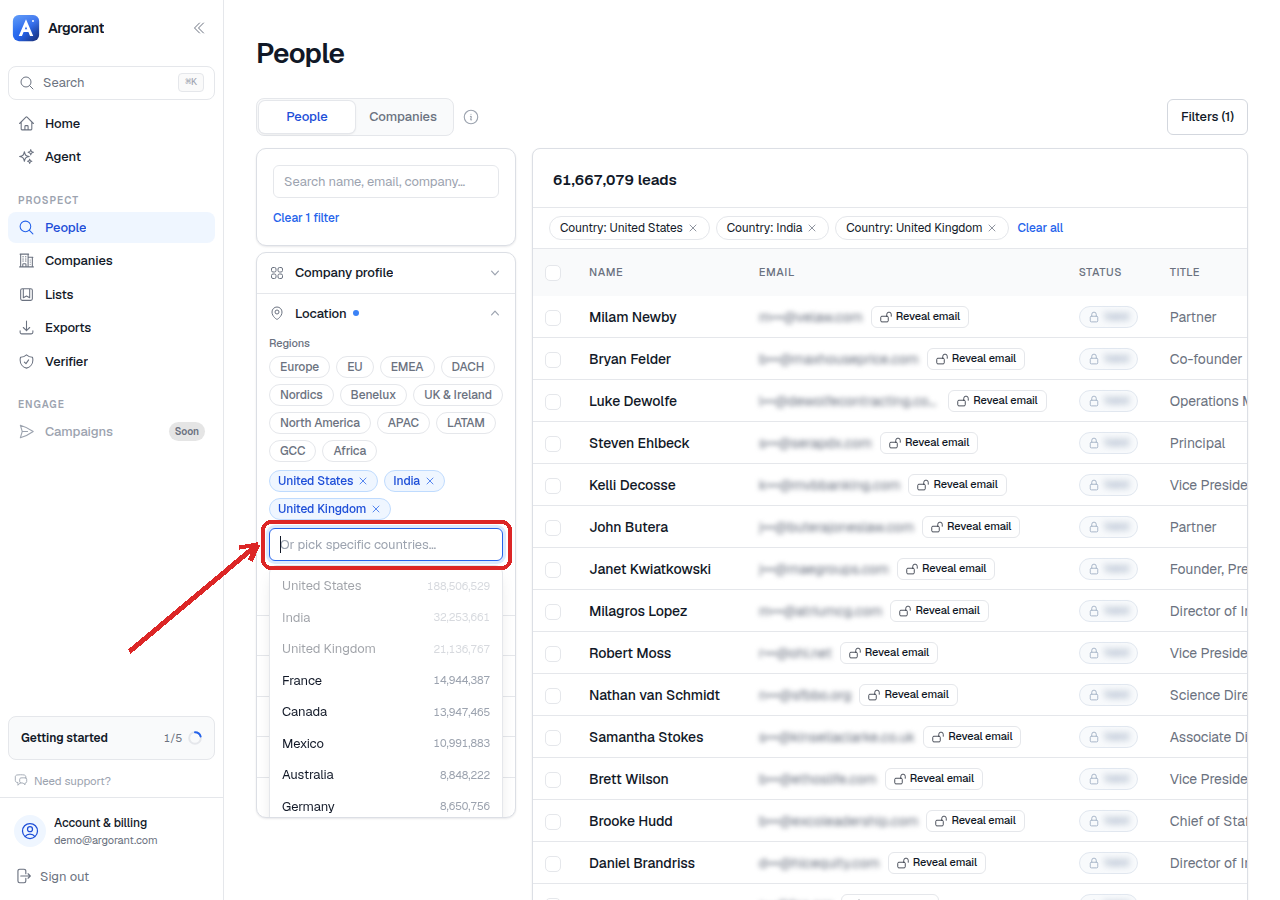
If you work in blocks rather than single markets, the region shortcuts DACH, Nordics, Benelux and EMEA select a whole block in one click. Treat them as a sizing tool. When you get to actually mailing people, come back and check the split inside the block, because language and send windows differ even when the filters do not.
Branch: you need states or cities. Location filtering goes below country level. Use it when physical proximity is part of the offer, for field sales or local services. Be aware that this is the fastest way to shrink a pool to nothing, partly because cities are small and partly because a record sits where the company sits, and headquarters cities absorb companies that operate elsewhere. Work top down: country, read the count, states, read it again, cities only if you must.
Step 2: Industry
Industries are standardized labels you pick from a list rather than free text you type and hope for. Add one. Add a second if your buyers genuinely sit in adjacent markets. Multiple industries combine as any of these, so the count grows with each addition.
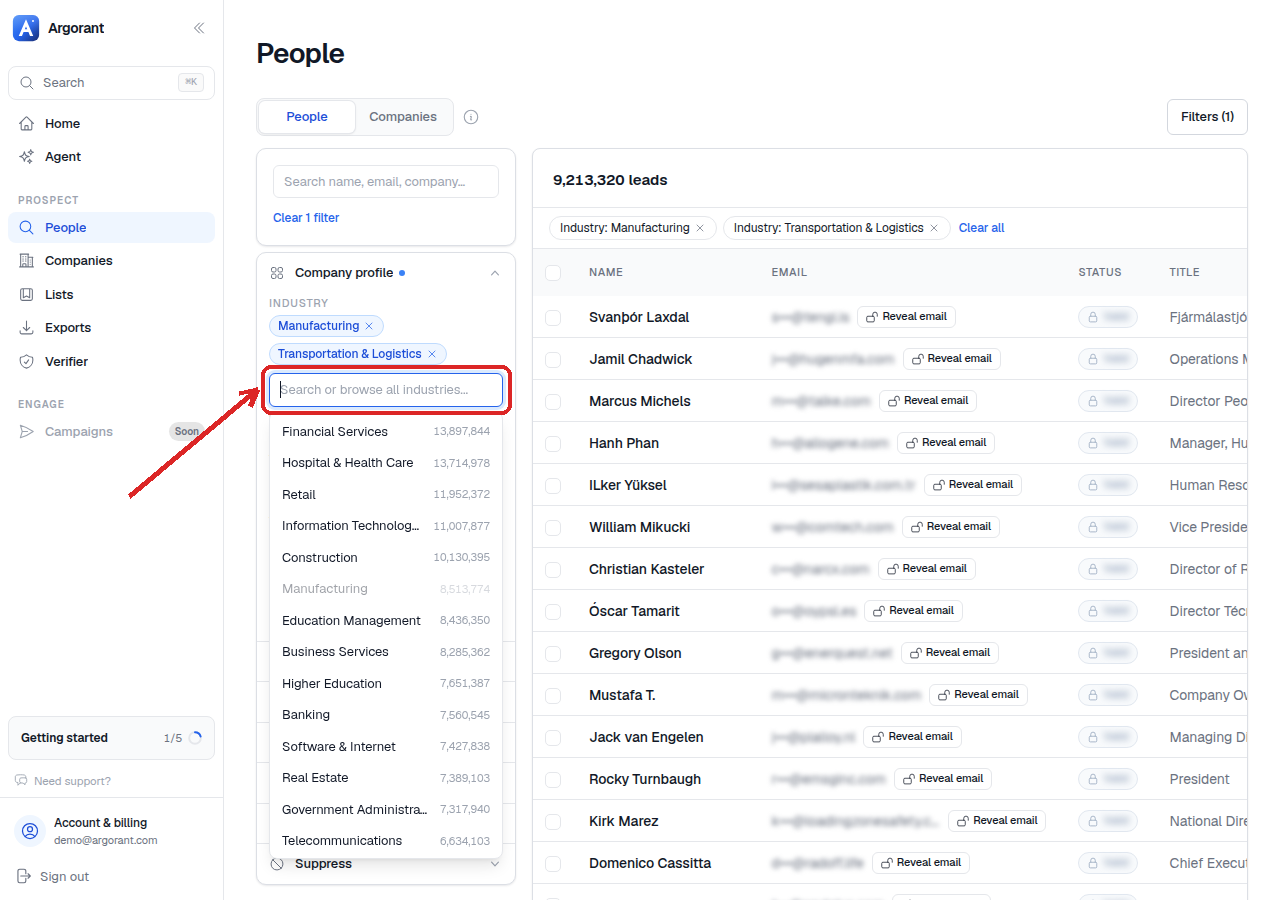
The failure mode here is selecting ten industries because the count looks healthier that way. It does look healthier. It is also how you end up paying to reveal companies you would never write to. If the label you want does not exist, or the closest one feels far too coarse for your niche, do not force it by stacking five neighbours. That is what keywords are for, and one broad industry plus one precise keyword almost always beats a pile of narrow industries.
Step 3: Company size
Size runs in employee bands from 1-10 up to 10,000+. Select one band, or several adjacent ones to form a range.
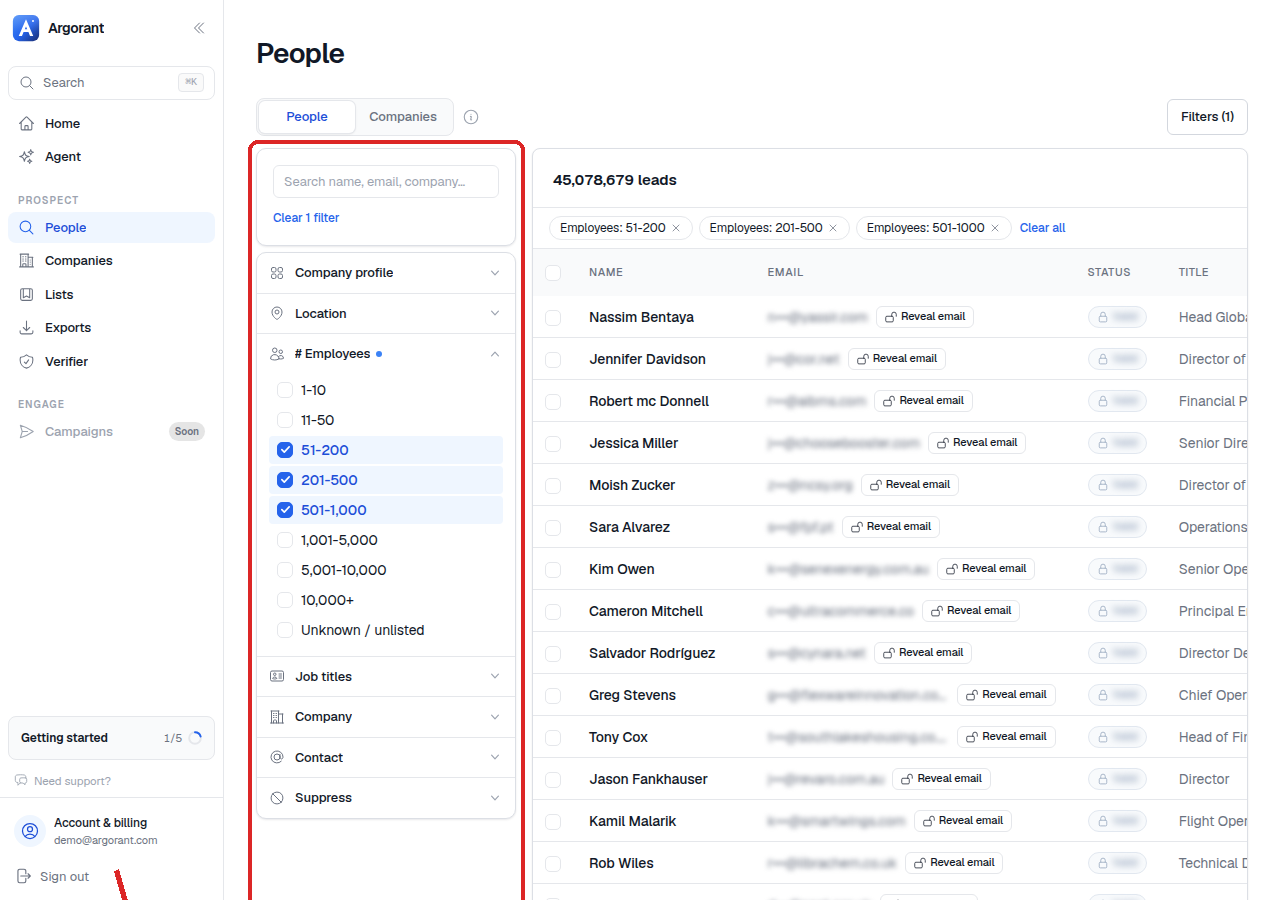
This is the filter people set most carelessly and it does more damage than any other. An 8-person company and an 800-person company have different buyers, different budgets, different buying cycles and need different first lines. Selecting everything from 1-10 to 10,000+ produces an impressive number and a campaign that speaks to nobody. The rule that holds: pick the narrowest band range where a single message stays true, and build a second list for the next range with its own copy.
Step 4: Seniority
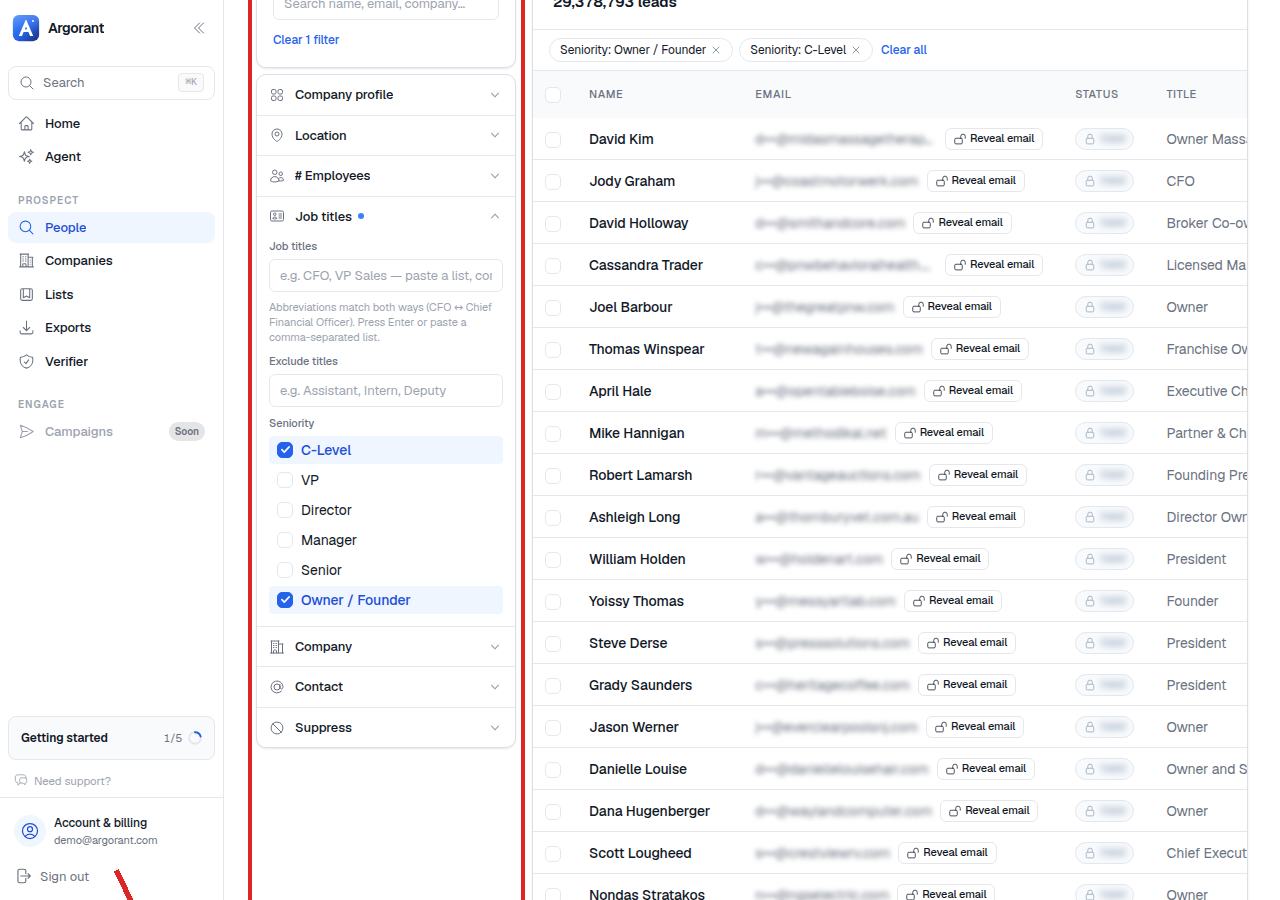
Seniority bands target authority rather than function: owner, C-level, VP, director, manager. You can select more than one.
- Owner is the right default for small and mid-sized private companies, where the owner is the entire buying committee. Owner titles vary enormously, and the seniority band handles that variation so you do not have to enumerate it.
- C-level fits enterprise-sized deals and anything that changes how the company operates.
- VP and director is the layer that owns budgets in larger organisations and is far more reachable than the C-suite.
- Manager works for products with low friction and a bottom-up adoption path.
Step 5: Titles, only if you need them
Title matching is abbreviation aware, so CFO also matches Chief Financial Officer and the long form also matches the abbreviation. You do not have to type both. Comma-separate to match any of several titles: CFO, Finance Director, Head of Finance returns people holding any one of them, not people holding all three.
Keep entries short. Fragments travel further than full strings, so Head of Marketing matches far more real-world variants than Global Head of Marketing and Communications. If you are targeting a non-English market, put the local variants into the same comma-separated list alongside the English ones.
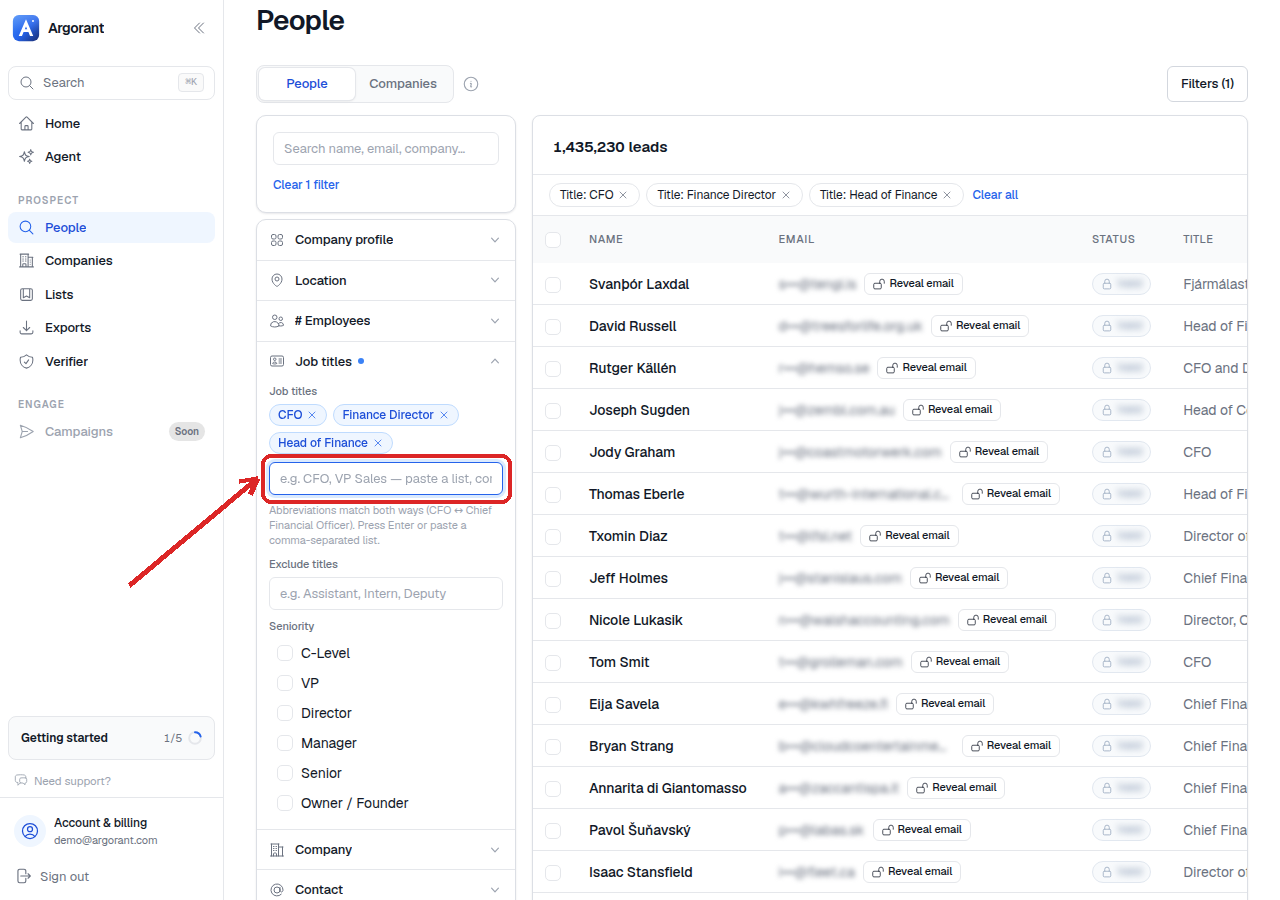
Titles and seniority answer different questions. A title says what someone does, seniority says how far up they sit. Use both only when you need a specific function at a specific level, and expect the combination to cut hard, because it applies as an additional restriction rather than an alternative.
Step 6: Keywords, only if the industry is too coarse
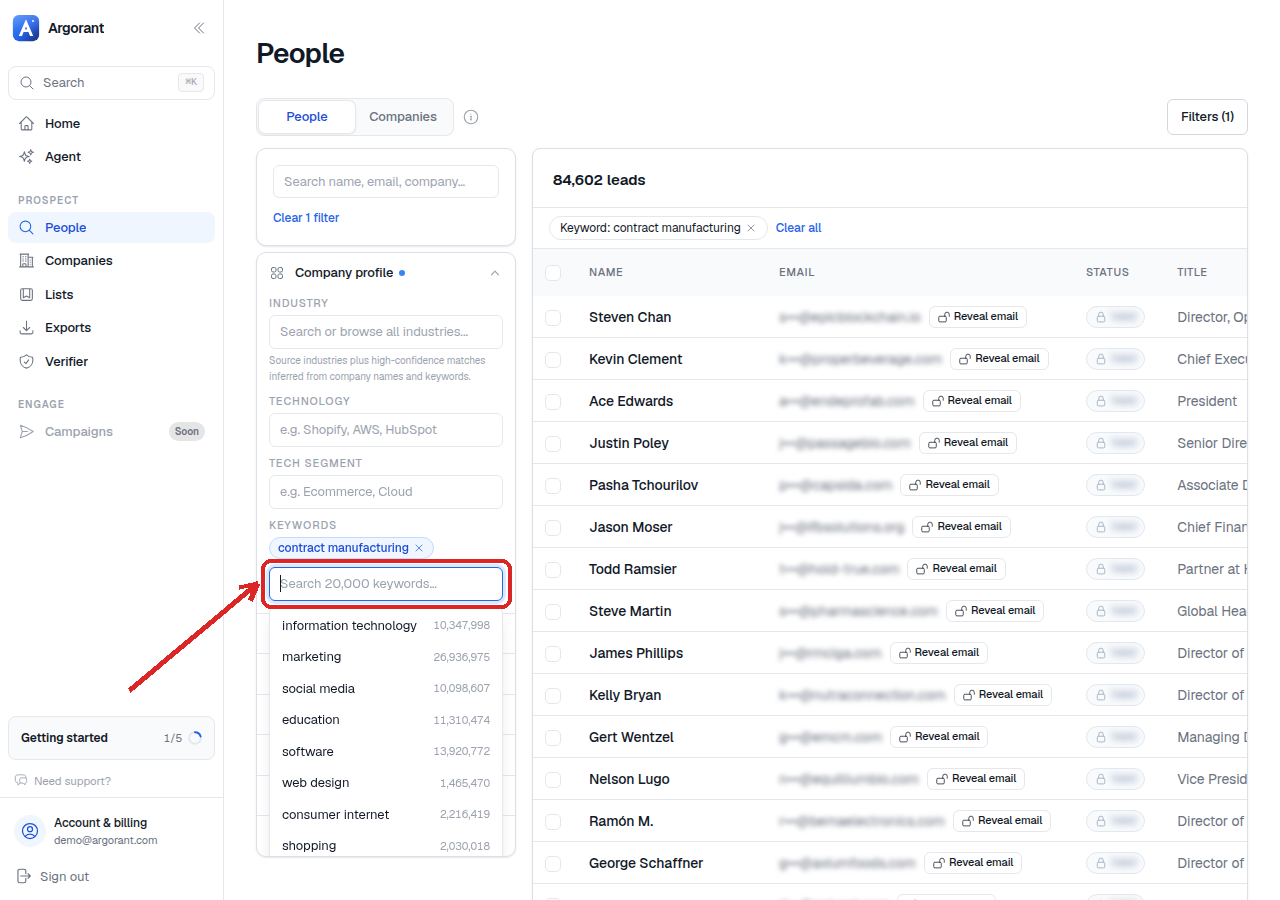
Keywords match what a company actually does rather than which box it was filed under. Good keywords describe an activity or a specialisation: cold chain logistics, dental laboratory, contract manufacturing. Bad keywords describe a quality: innovative, leading. The first kind selects a population, the second selects noise.
Step 7: Exclusions, last
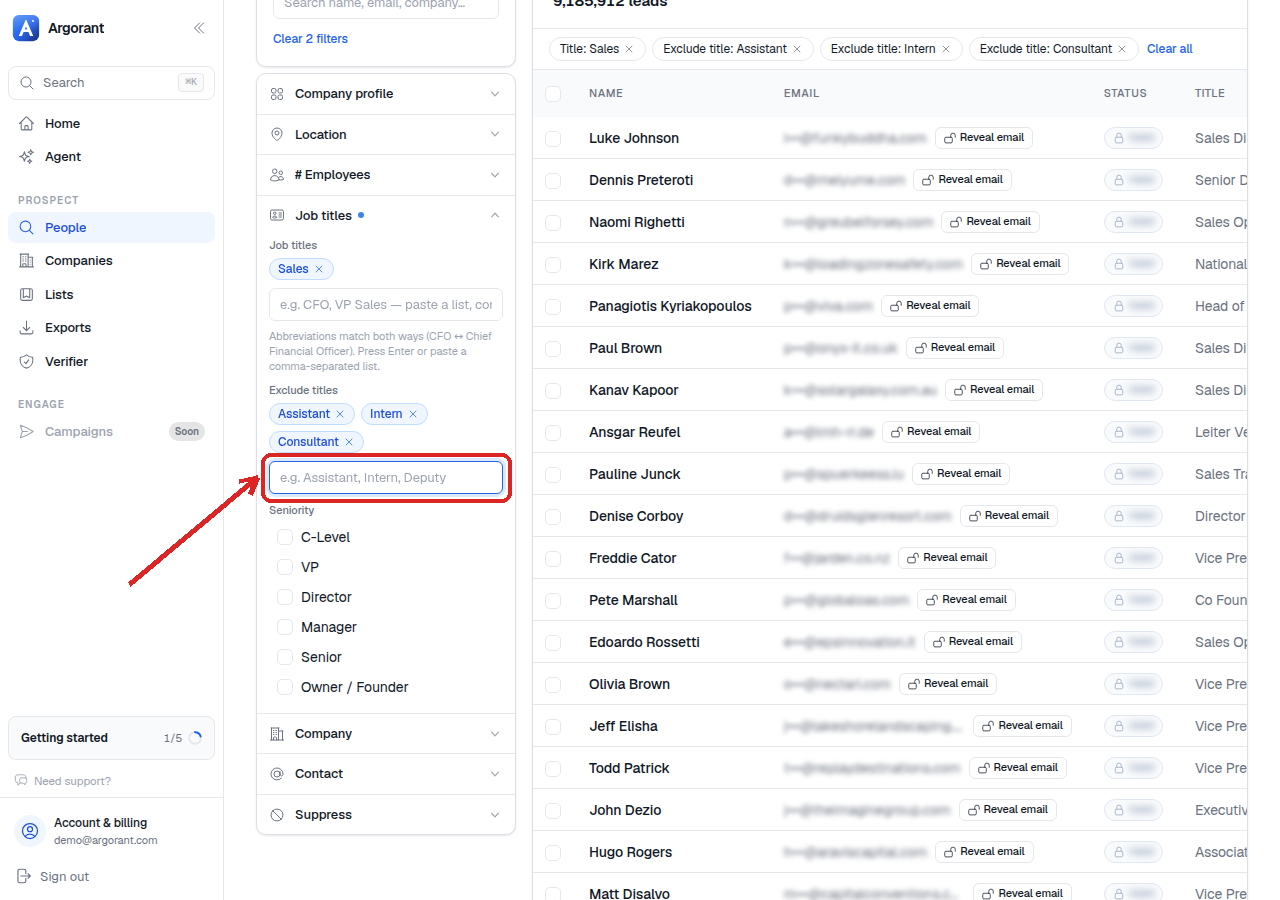
Exclusions are subtractive and apply after your positive matches, which means they can only ever shrink a count. Set them last, after you have looked at a preview, so you are cutting things you have actually seen rather than things you imagine are there. The three that pay for themselves immediately: support roles around your buyer (assistant, executive assistant, intern, trainee), adjacent functions sharing a keyword (sales representative when you searched Sales but do not sell to individual reps), and advisory or interim variants when your offer needs a permanent budget owner.
Reading the count like an instrument
The number above your results is how many people in the dataset match your current filter set right now. It reflects matching records and does not deduct contact credits; permissions, quotas and rate limits apply.
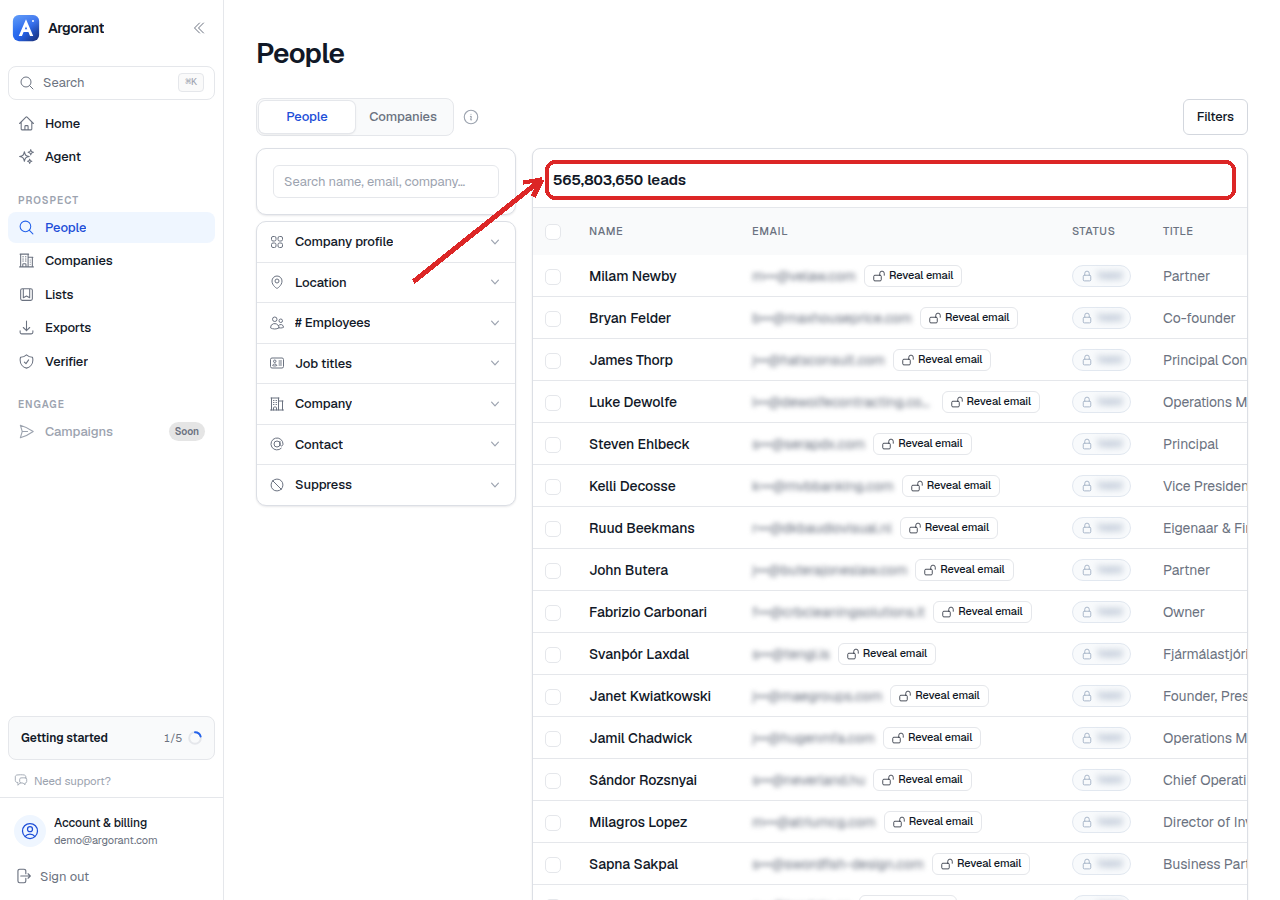
Read it as a signal, not a score:
- Millions. Your filters are describing a market, not a segment. Go add a role or a size band.
- Tens of thousands. A healthy segment and a good place to start a campaign.
- Hundreds. Tight, and often exactly right for a focused play, as long as the preview looks correct.
- Near zero. Almost always a filter conflict rather than an empty market. See the branch below.
One thing the count is not: the number of people you will end up mailing. Between the count and your inbox sit two reductions. You will normally tighten targeting further, and every address is verified at the moment you export, so anything that fails is dropped from the file. Failed addresses never cost a credit, which is why the export is usually smaller than the count and cheaper than you budgeted.
Branch: the count is too large
Narrow in this order, one filter at a time, reading the count after each change.
- Add a role or seniority. Almost always the biggest and most useful cut, because it moves you from every employee to the people who can buy.
- Add a company size range. Narrow to the bands where one message stays true.
- Tighten geography. Region to countries, then countries to states.
- Add a keyword to carve your niche out of a broad industry, rather than adding more industries.
- Exclude titles that keep appearing in the preview and are never your buyer.
After each step scroll the preview instead of just reading the number. A count that halves while the preview still shows the wrong people means you cut the wrong dimension. And resist the shortcut of fixing a large count by exporting a small random slice of it. A slice of a bad list is still a bad list, it just costs less.
Branch: the count is too small
A near-empty count is nearly always a filter problem rather than a market problem. Work down this checklist, checking the count after each change.
- Remove the exclusions first. They are subtractive and the cheapest thing to give back.
- Loosen the title, keep the seniority. A long title string matches almost nothing. Shorten it to a fragment, or drop titles entirely and let the seniority band carry the search.
- Check geography depth. City filters shrink pools sharply. Step back to state, then to country.
- Widen the size bands by one step in each direction and see how much comes back.
- Review the keyword. Overly literal or very long keywords select almost nothing. Try shorter, more common phrasing.
- Look for a filter conflict. Manager-level seniority combined with a 1-10 employee band, or an industry combined with a keyword from a different market, will collapse a count to near zero even though each filter looks reasonable on its own.
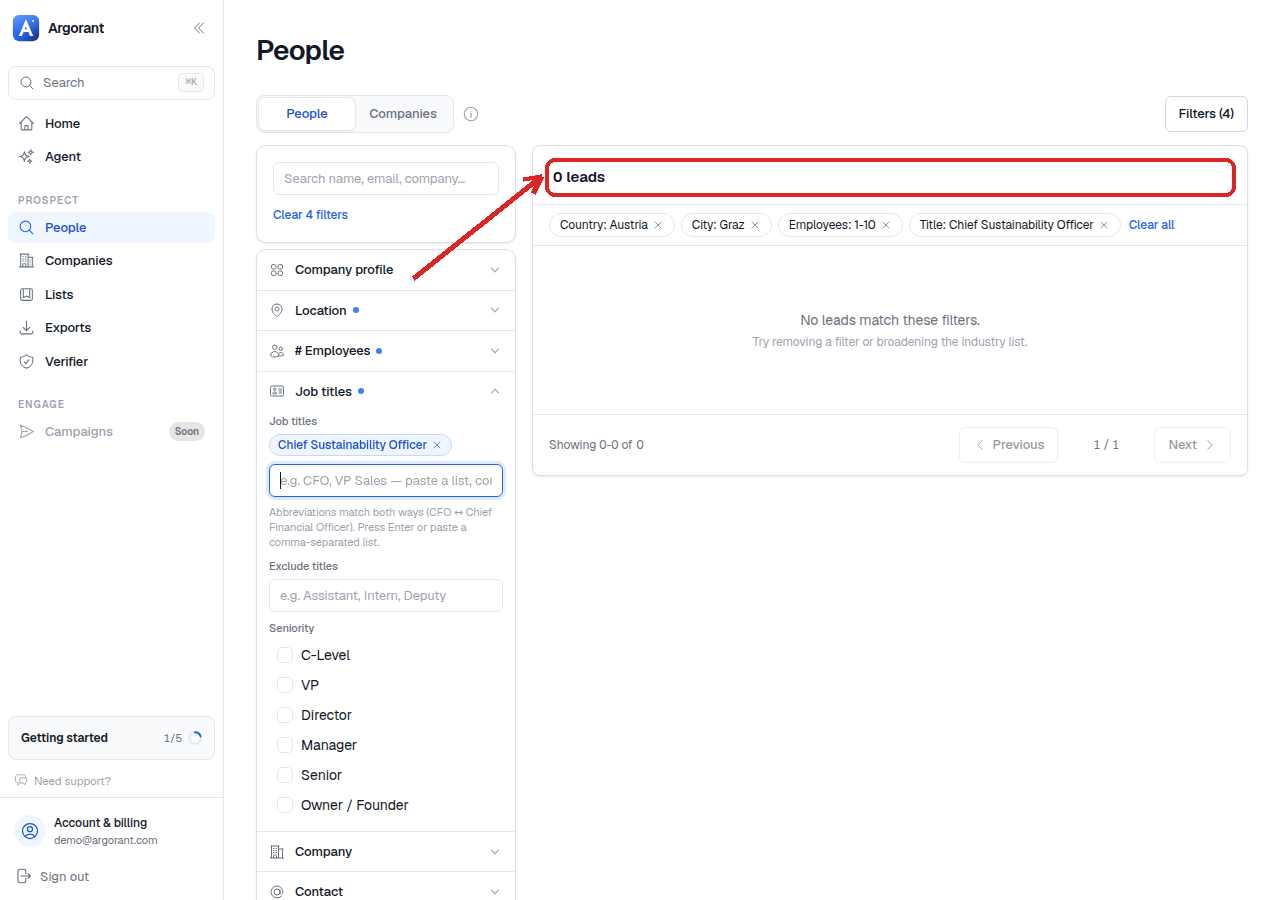
Change one thing at a time. If you loosen four filters at once and the count recovers, you have learned nothing and probably given back more precision than you needed to.
The check that prevents most bad lists
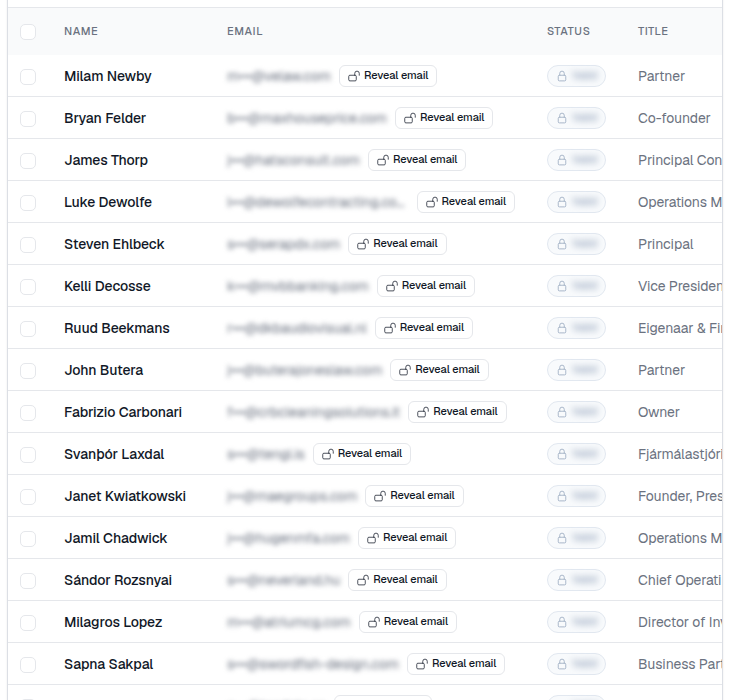
Before you save anything, scroll at least twenty redacted preview rows. Not two. The first few rows of any list look fine. Ask one question per row: would I actually send this person an email? If more than a couple fail, the filter set is wrong and no amount of copy will rescue it.
Saving the segment, and naming it so it survives
A saved list stores your filter set rather than a frozen snapshot, so when you open it next quarter it reflects the market as it is then, not as it was the day you built it. That property is what makes lists the right unit of organisation for a team, and it is why the name matters.
The scheme that holds up as a workspace grows is geography, segment, size, role:
DACH - Manufacturing 200+ - CFOUK - Accounting firms 1-50 - OwnerNordics - Logistics 51-200 - Ops Director
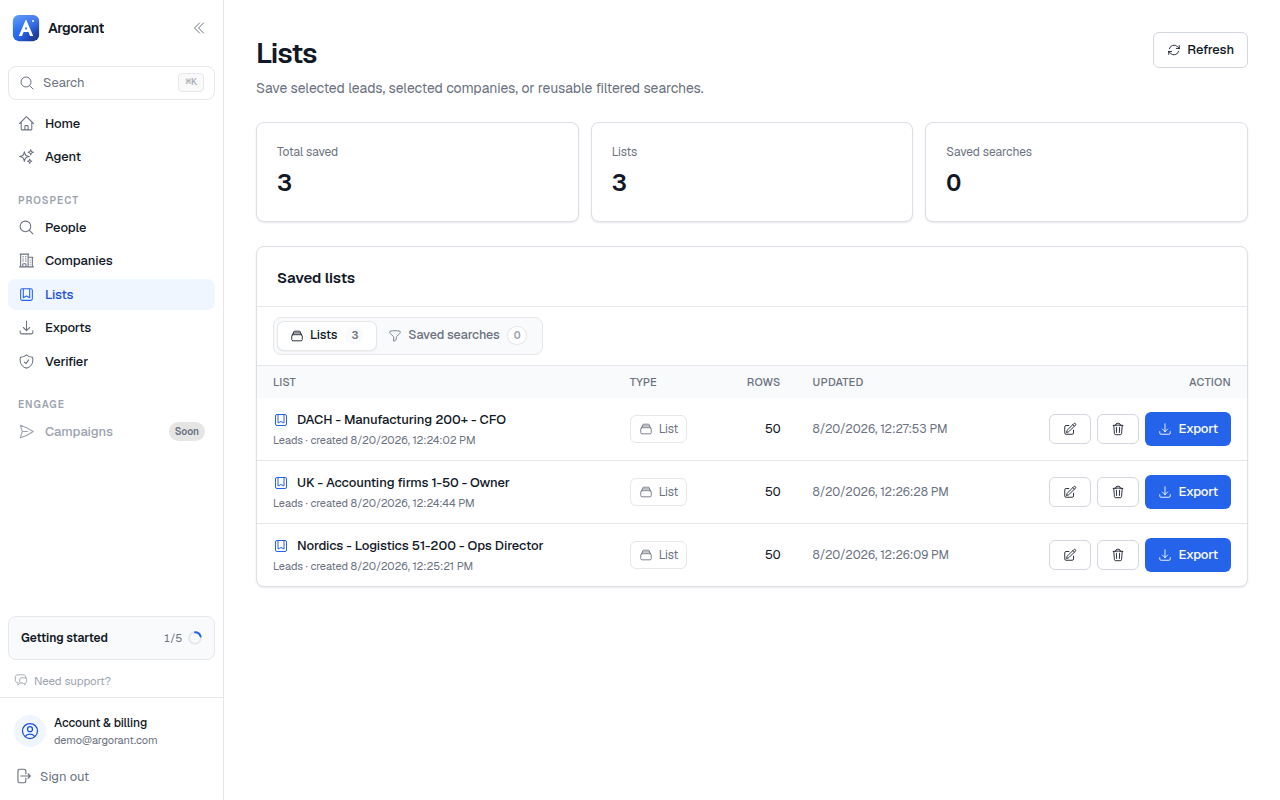
Three rules make the difference. Geography goes first, because it sorts naturally and it is what you filter for mentally when scanning Lists. Encode the size band, because size is the filter people most often forget they set. And never name a list after a campaign, like Q3 push, because the list will outlive the campaign and nobody will remember what was in it.
Keep one list per segment rather than one per send. When a campaign starts, export a fresh slice from the standing list. The list stays a definition of a market, the exports are the point-in-time artefacts.
Branch: two lists that overlap
Duplicates in outbound cost you twice, once in credits and once in credibility, because one person receiving two different sequences from you is the fastest way to look automated. Duplicates almost never come from a single search. They come from two saved lists whose filters overlap, from a country list overlapping a region shortcut covering the same markets, or from re-exporting a list later and loading both files into the same sending tool.
Make your segments mutually exclusive by construction: if two lists could catch the same company, split them by size or geography, or add an exclusion so they cannot. Then dedupe on email address at import, and keep a master suppression file of everyone you have already contacted. The working division is that Argorant is where segments live and your sending tool is where suppression lives.
What you should have now
A saved list with a name that explains itself, a count you can defend, and a preview you have actually read. Everything up to this point cost nothing. The next guide covers the opposite problem: what to do when a precise segment is too small to feed a campaign, and how to widen it without turning it back into noise.