Everything in Argorant starts with a list of people. This guide takes you from an empty search to a saved list. Searching, counting and looking at rows cost nothing, so you can follow along in your own account and try as many versions as you like.
Write the buyer down first
Before you open the app, write one sentence about who you want to reach. For example, "operations managers at US logistics companies with 50 to 1,000 employees". That sentence turns into filters almost word for word. If you need two sentences, you have two lists, and they should be built one at a time.
Set the filters
Open Search in the sidebar and pick People. The filters run down the left side, and the number at the top of the results changes every time you set one.
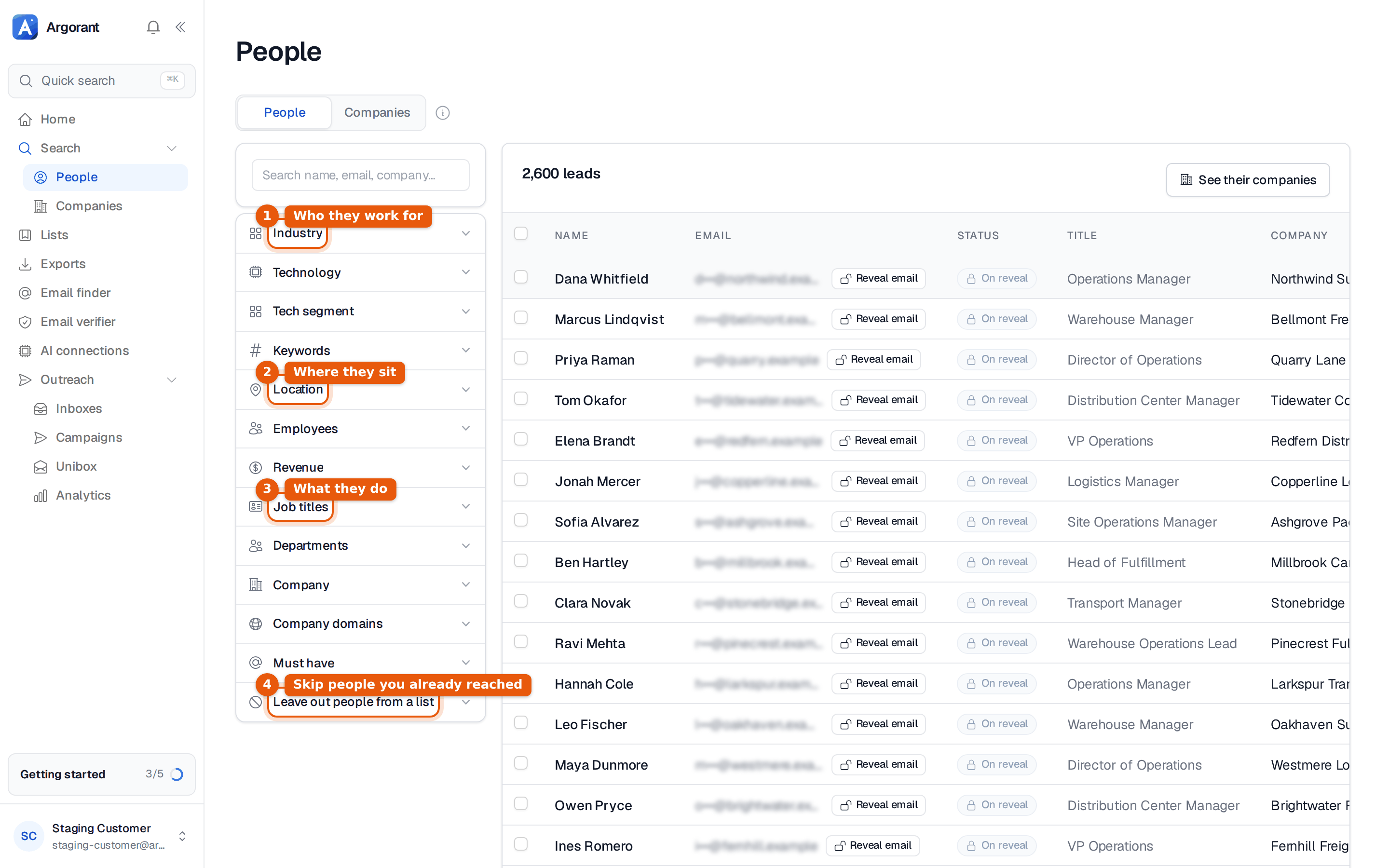
- Open Industry, type a word such as "logistics" and pick the matching industries from the list.
- Open Location and add the country. Add a state or city only if you really only cover that area.
- Open Job titles and add the titles your buyers really use, such as Operations Manager, Warehouse Manager and Director of Operations. You can paste several at once.
- Open Employees and pick the company sizes that can afford you and still decide quickly.
Keywords is useful when no industry fits well, because it matches what a company says it does. Company domains takes a list of websites you collected yourself, so the search only returns people at those companies. The help center explains each filter in detail, starting with all search filters, explained.
Read the count, then the rows
The count tells you whether you have a campaign or a test. A few hundred to a few thousand people is a good size for a first list. Tens of thousands usually means the description is still too wide, and the email you write for it will be too general. If the number is very small, widen one filter at a time and watch what changes. Your count is too large and your count is too small walk through both cases.
Then scroll through the first page. Look for titles that slipped in and do not belong. Fix them with a narrower title or an excluded title rather than by unticking rows one by one, because the filter keeps working when you run the search again next month. Emails stay hidden at this point and show On reveal. That is on purpose. Looking is free, and you only pay for contacts you take.
Leave out people you already reached
If you have sent to some of these people before, open Leave out people from a list and pick the lists you already worked. They disappear from the results, so nobody gets a second first email from you. The same idea works across the whole account with the block list, for customers, competitors and anyone who asked not to hear from you.
Save the list
Tick the people you want. To take everyone the filters found, use Select matching. A bar appears above the table.
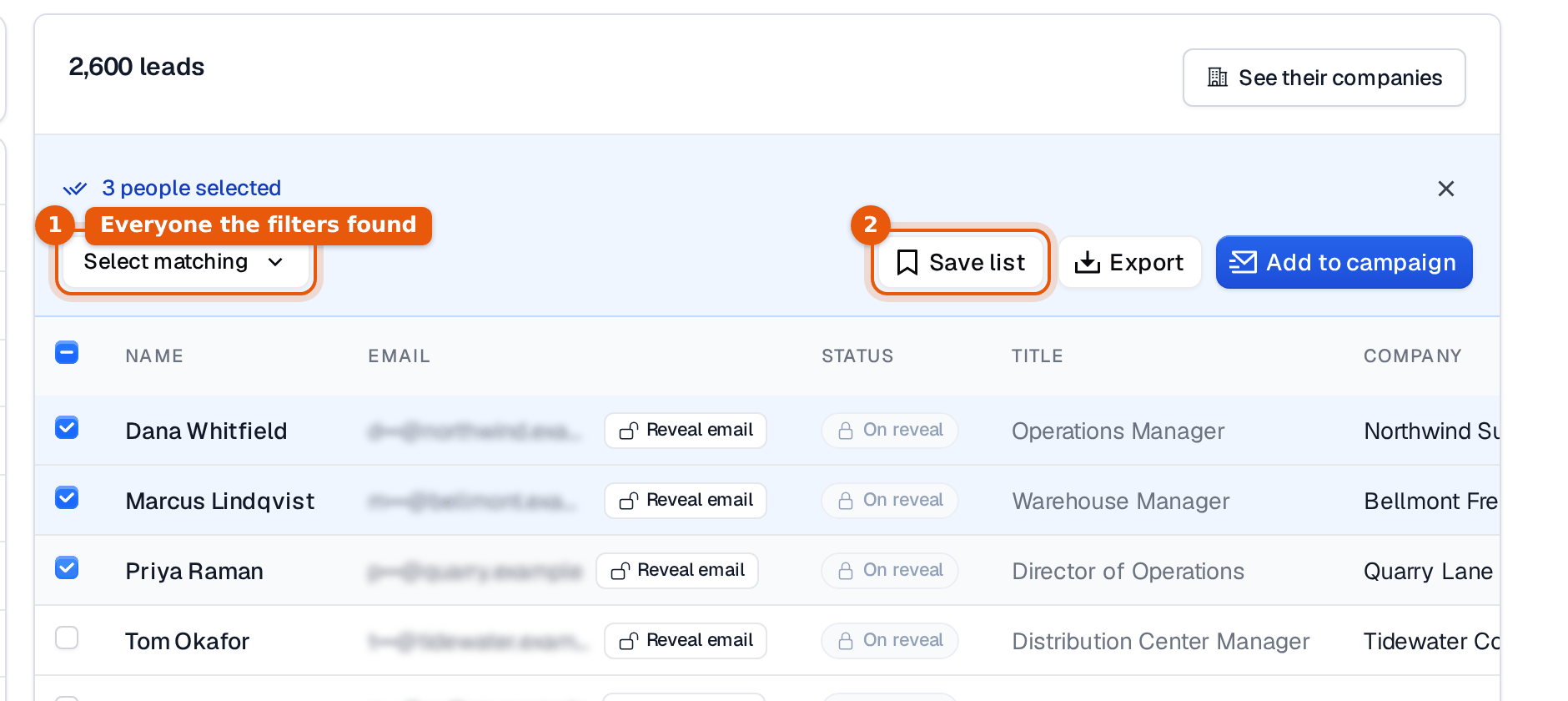
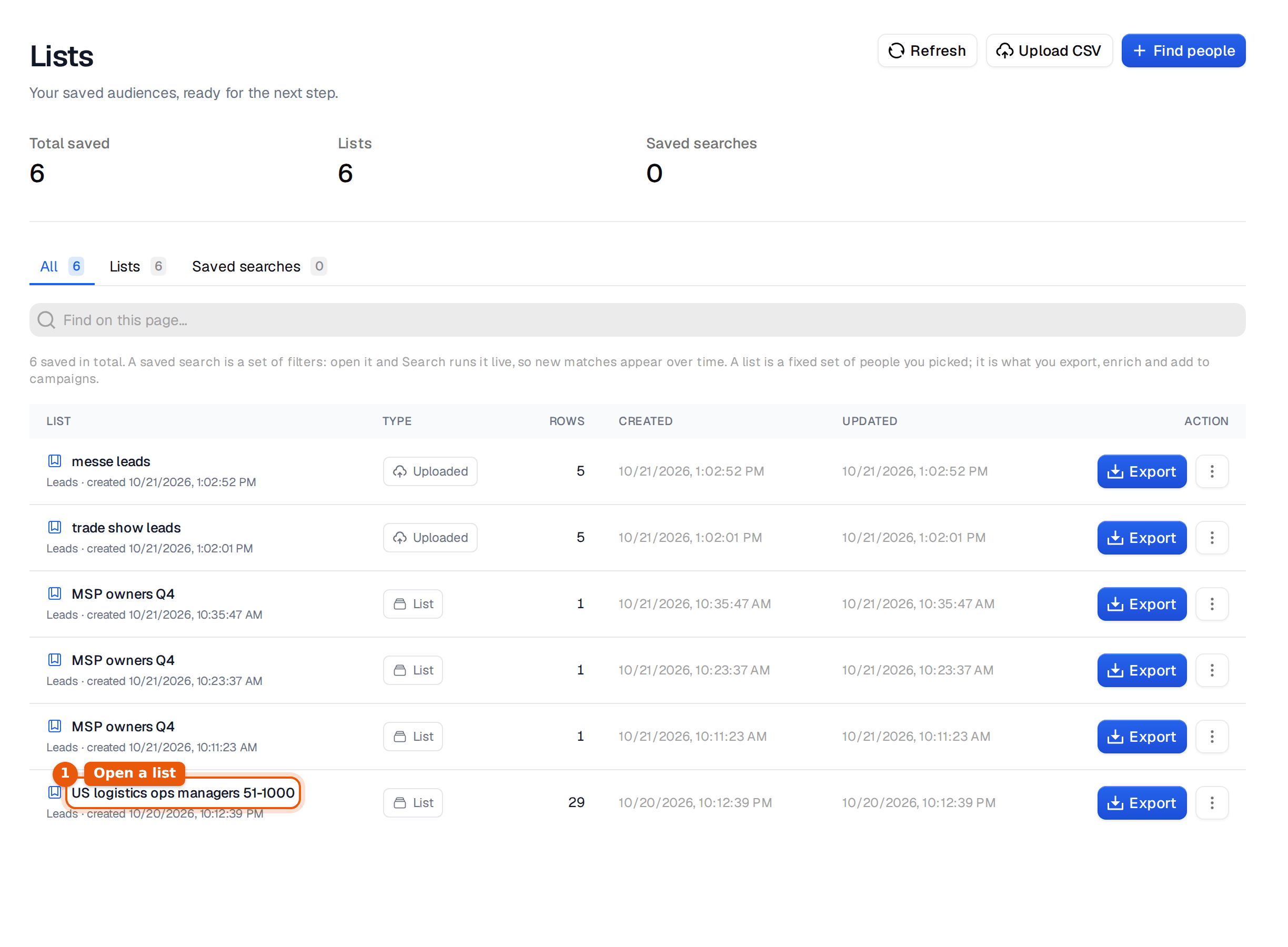
Click Save list and give it a name that describes the segment, not the campaign. "US logistics ops managers 51-1000" still makes sense in six months. "October push" does not. A saved list keeps up to 10,000 people.
Your list now sits under Lists in the sidebar, next to any CSV files you uploaded.
What to do next
From here a list goes one of three ways. You export it as a file, which is the next guide. You send it to your CRM or sending tool. Or you add it to a campaign and email the people from your own mailboxes. If you want to know the difference between a saved search and a list, read filter-based lists vs. selected-record lists.