Press New campaign on the Campaigns page. The wizard has five steps, Audience, Emails, Senders, Schedule and Launch. This lesson covers the first two, where most of the work is. Everything saves as you go, so you can close the wizard and come back.
Step 1, name and audience
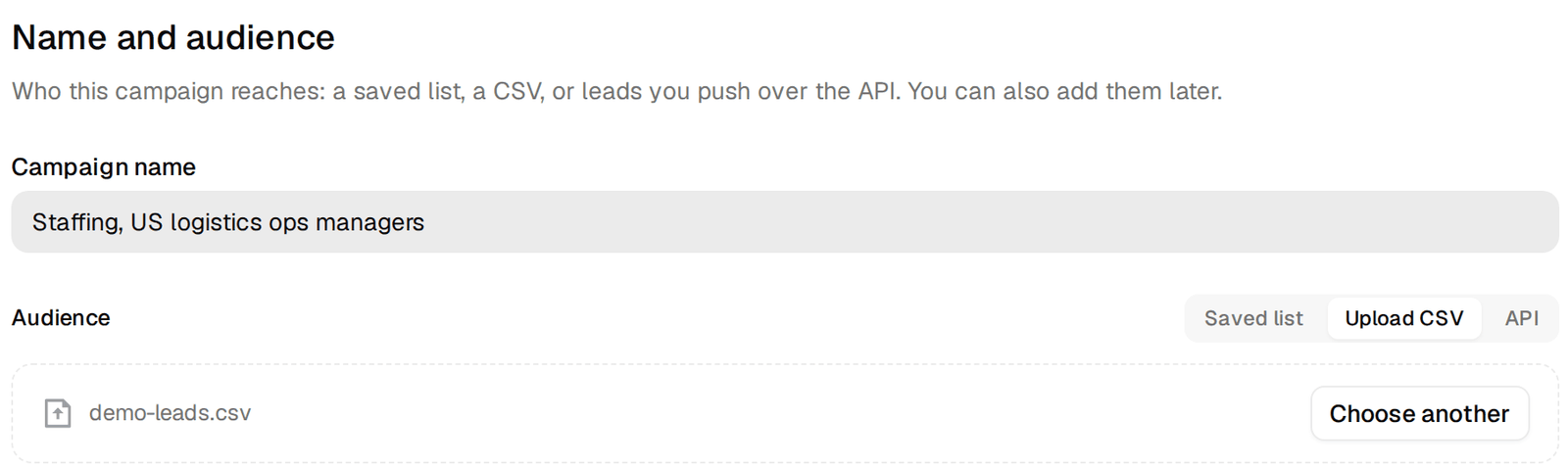
Give the campaign a name that says who it is for. Then choose where the people come from.
- Saved list attaches a list from the previous lesson.
- Upload CSV takes your own file. It needs an email column. Names, company, title and any other columns become merge fields, and your own rows use no credits.
- API is for leads you push from another tool. Save the step and copy the campaign ID it gives you.
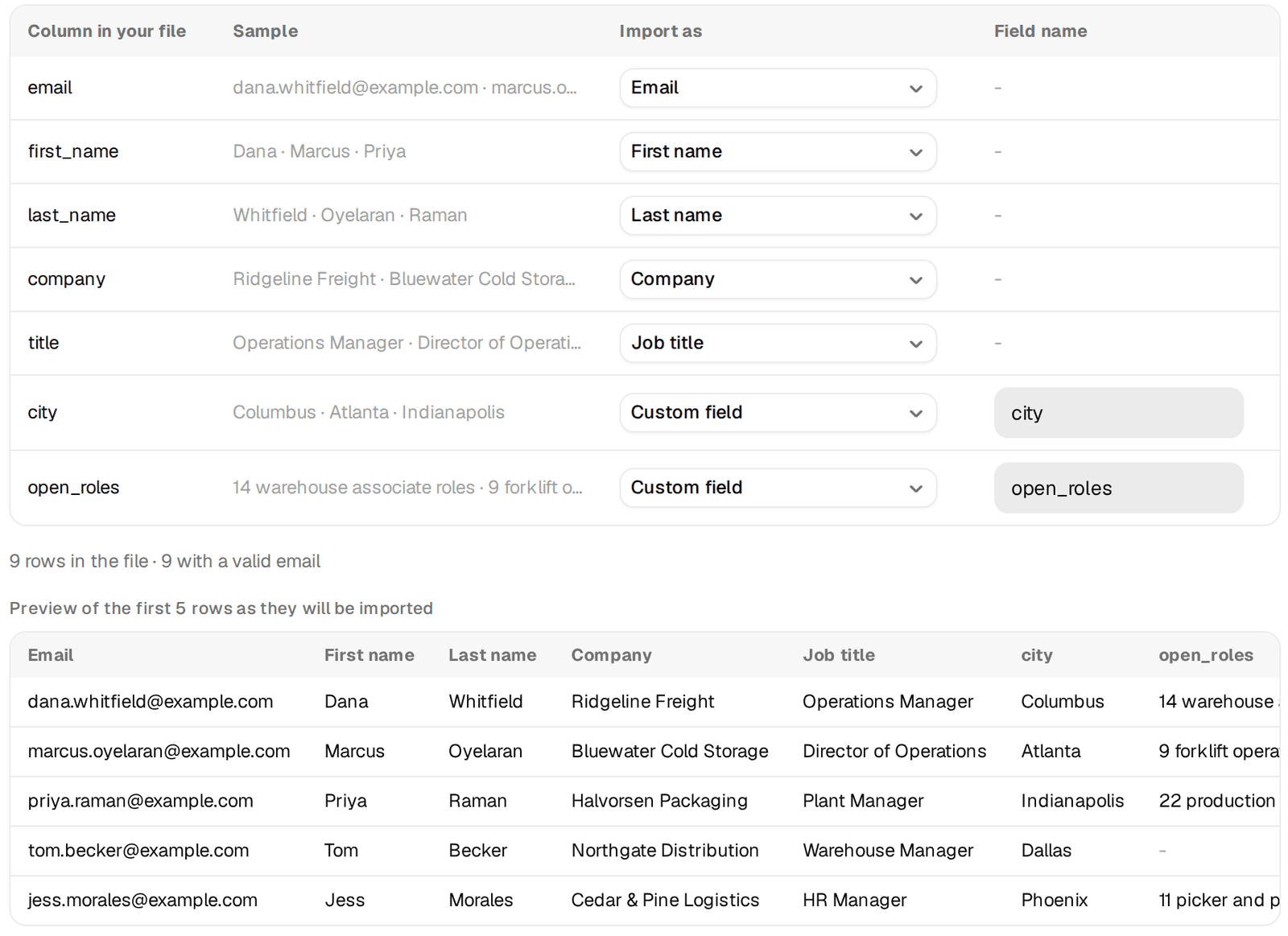
When you upload a CSV, you map each column. Standard columns map to the fields you would expect. Anything else can be kept as a custom field, and that is where good personalisation comes from. In our example the file has a column called open_roles, filled from job posts, with values like "14 warehouse associate roles". In the email it becomes {{open_roles}}.
Below the audience you choose which email grades go in. The first lesson explains the choice. For a first campaign, keep Valid only.
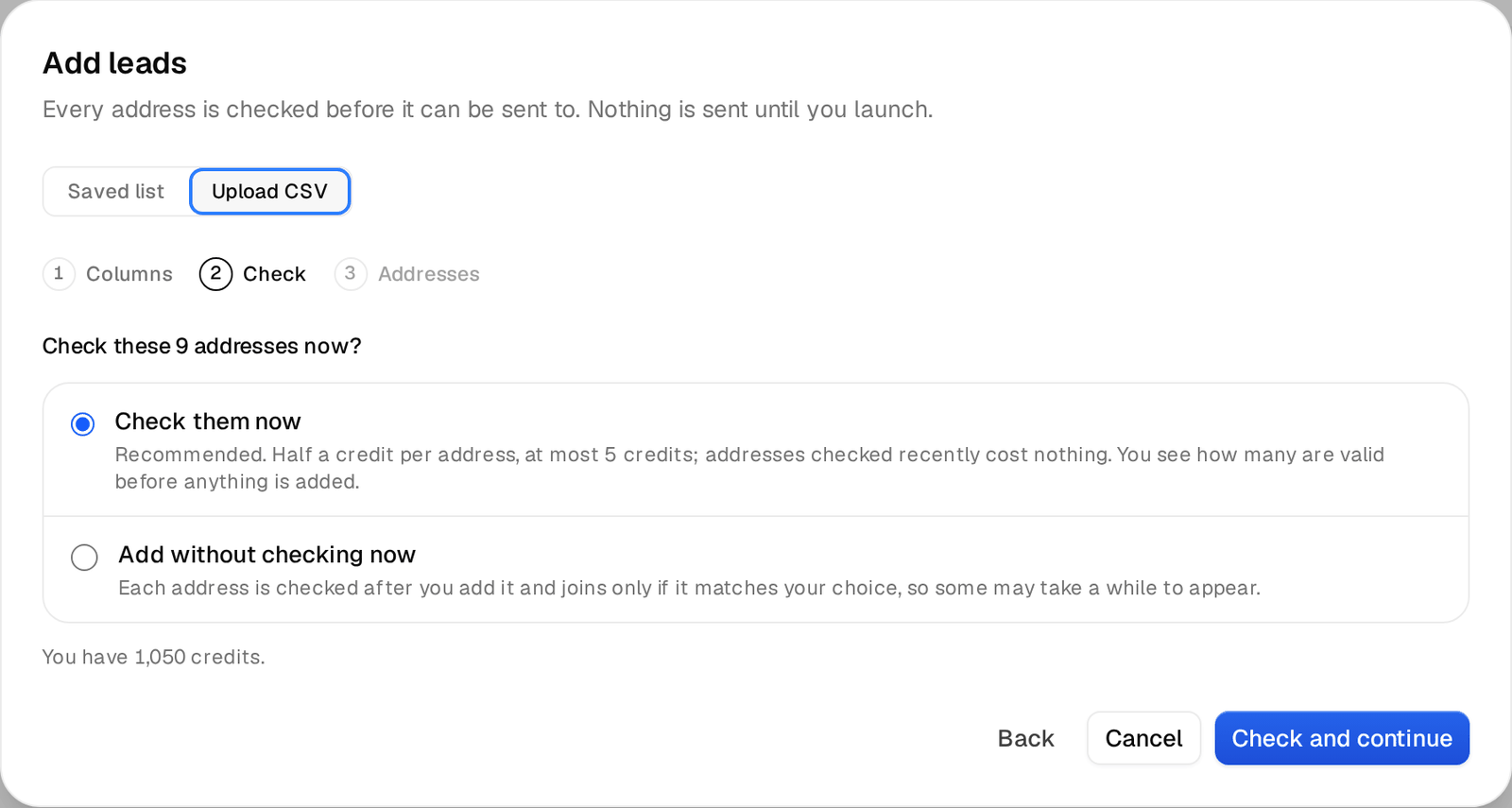
You can also add people later from the campaign's Leads tab, from a saved list or a CSV. Every address is checked before it can be sent to. You can check them right away and see how many are valid before anything is added, or add them without checking now, in which case each address joins once its check matches the grades you chose.
Step 2, the emails
The editor shows the first email and every follow-up as one sequence. Write the first email before anything else, it is the one that gets most of the answers. On our own largest campaign, 84% of the people who answered did so after the first email and 16% after the follow-up.
Variables
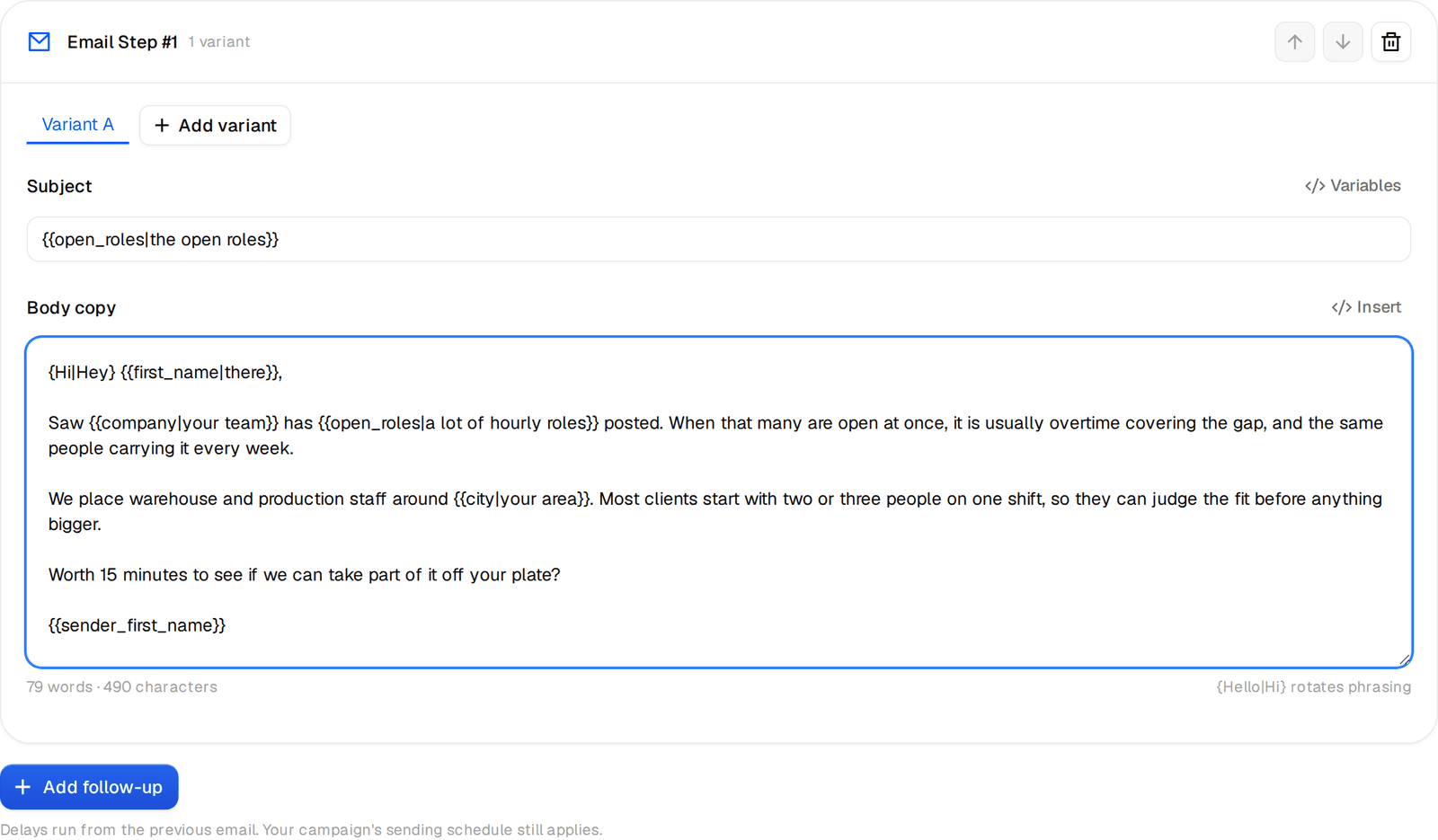
Variables are field names in double curly brackets. {{first_name}}, {{company}}, {{title}}, {{city}} and the other recipient fields come from the lead. {{sender_first_name}} and the other sender fields come from the mailbox that sends the email, so a signature stays right while sends rotate across mailboxes. The Variables menu lists the recipient and sender fields, so you do not have to remember spellings. Custom fields from your file work the same way, you type them by their column name, like {{open_roles}}.
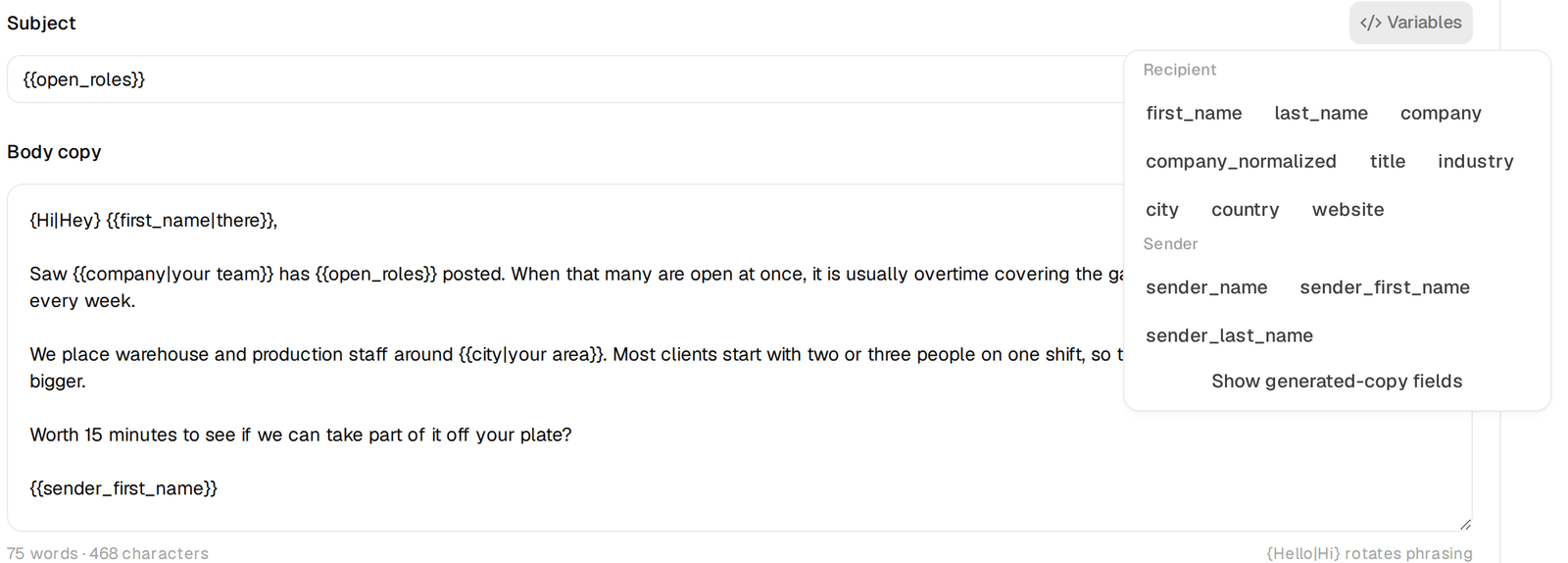
Fallbacks
Some people will have an empty field. For the standard fields the editor warns you when there is no fallback, in plain words. "{{first_name}} has no fallback. Contacts without that detail wait and get no email until it is filled in." Add the fallback after a vertical bar. {{first_name|there}} becomes "there" when the first name is missing. {{open_roles|a lot of hourly roles}} keeps the sentence readable for a company where you found no count. An empty fallback, {{title|}}, prints nothing.
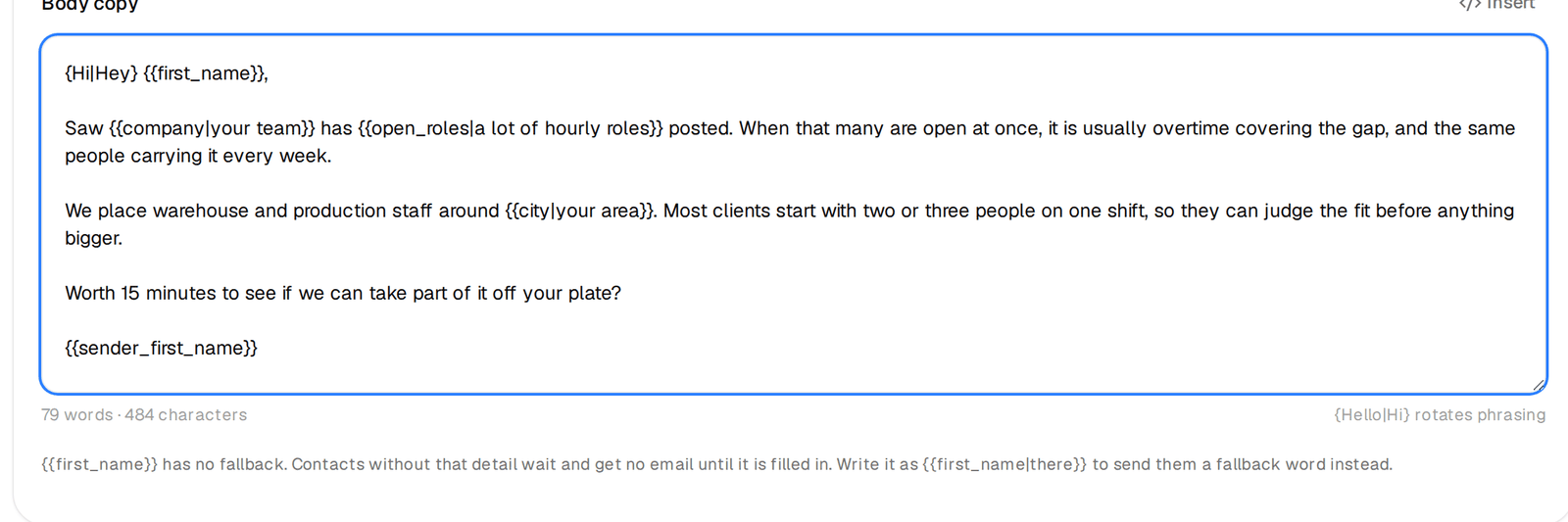
Read every sentence with the fallback in it. "Saw your team has a lot of hourly roles posted" is fine. "Hi there there" is not.
Spintax
Curly brackets with options split by vertical bars rotate the wording, so no two emails are identical. {Hi|Hey} {{first_name|there}} sends either greeting. Use it on the parts of an email that carry no meaning, such as greetings, openers and sign-offs, and write each option so it reads well next to every other option. Preview several versions to check.
A/B variants
Variants are whole alternative versions of an email, each with its own subject and body. Press Add variant to add Variant B and onward. Each variant has its own Enabled switch, so you can take a weak one out of rotation without deleting it. A blank subject or body in a variant reuses the main one, which is handy when you only want to test the opening line.
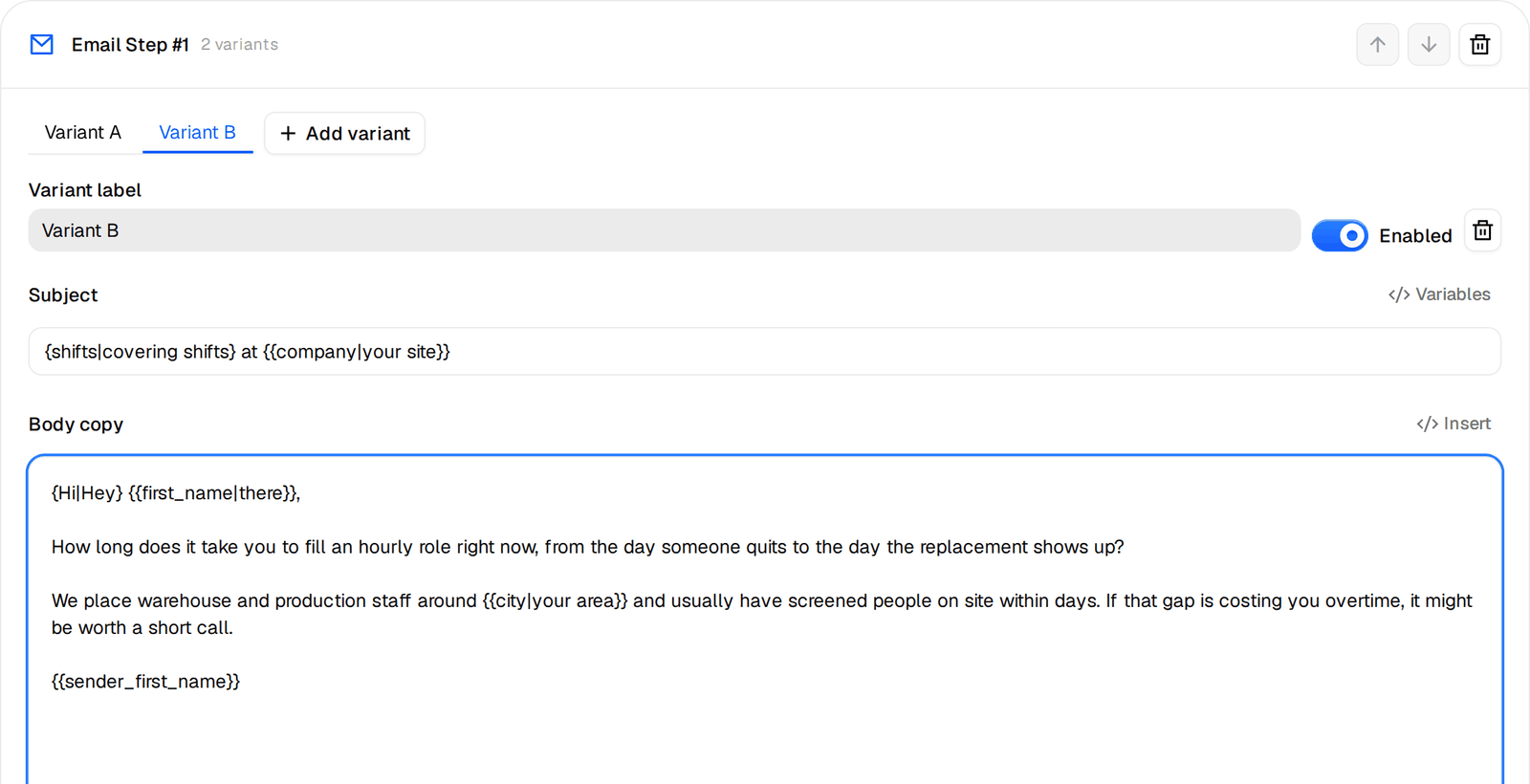
Test one idea per variant, such as a different opening line or a different ask. Two emails that differ in five places tell you nothing about which change worked.
Follow-ups in the same thread
Press Add follow-up for each next email and set the days after the previous email. The count starts when that email actually went out. Follow-ups reply in the same thread by default, so the subject becomes "Re:" plus the first subject and the earlier email sits underneath. Keep it that way. A follow-up in a fresh thread reads like a second cold email.
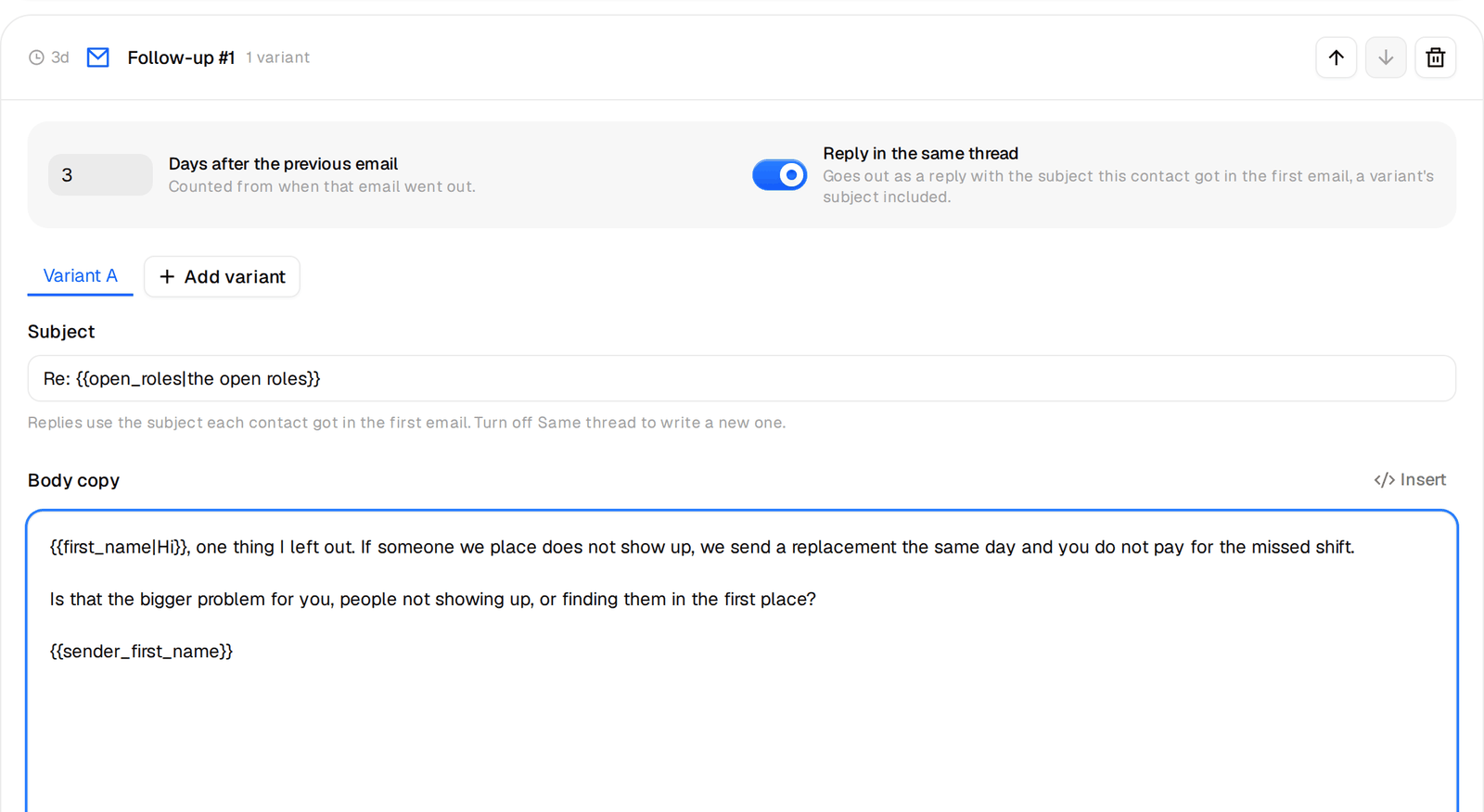
Two follow-ups is plenty. Each one should add one new thing, a different reason, a smaller ask or a straight question. "Bumping this" adds nothing.
Preview with a real lead
Press View preview. The preview fills every variable for one real person in your audience, never a made-up example. Pick another lead to check people with missing fields, switch the Version to see each variant, and press Another version to see other spintax combinations. Before any leads are in the campaign, the preview uses your own details, which is a quick way to see every fallback at work. You can send any version to yourself as a test. The campaign does not start when you do.
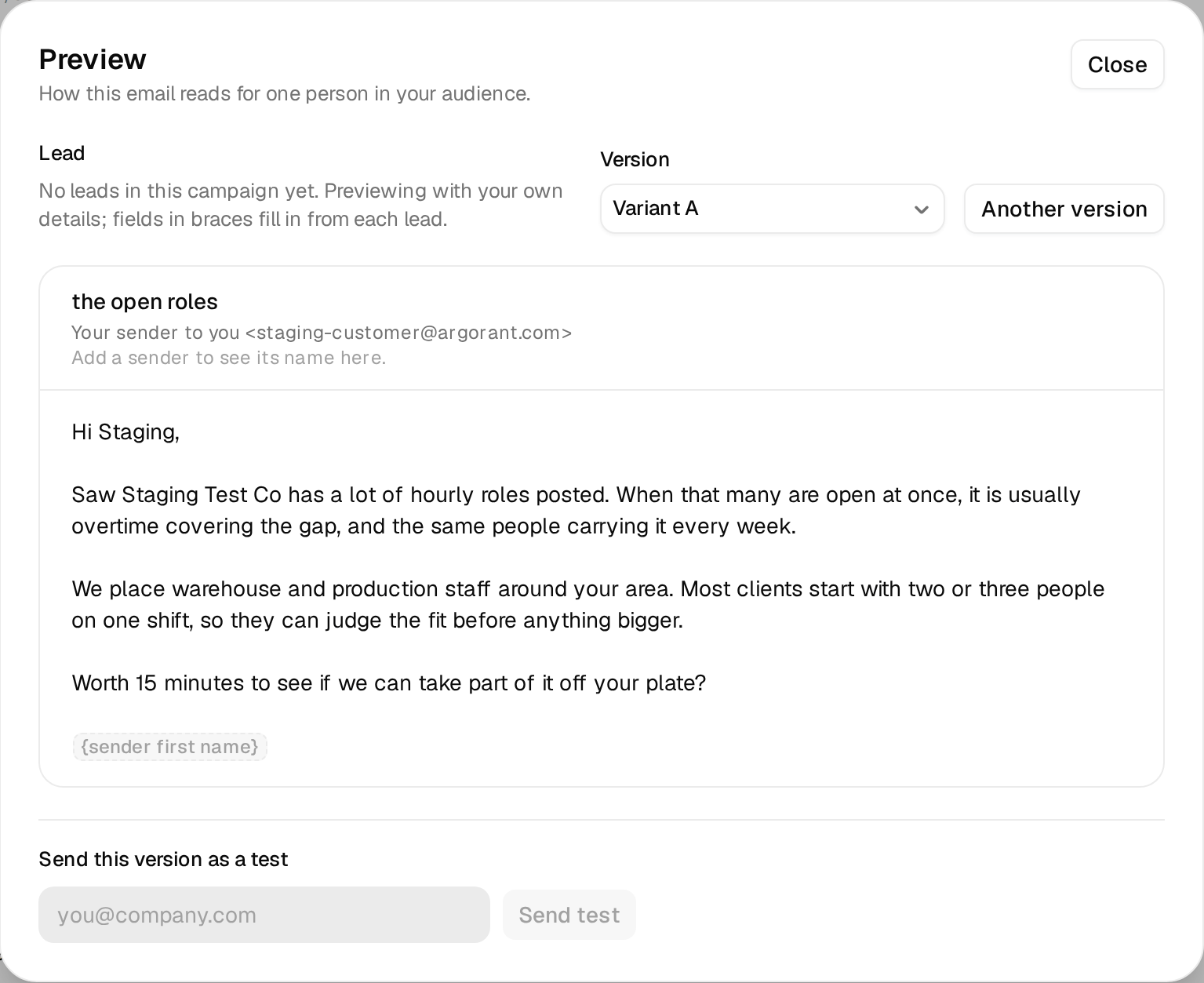
Two things stop a launch on purpose. Placeholders like "[link]" left in the text, and variables that resolve to nothing. The editor flags both so they never reach a prospect.
Before you move on
- The first email works without any variable filled in.
- Every variable has a fallback you have read in a sentence.
- Variants differ in one idea each.
- Follow-ups are threaded and each one adds something.
More on each piece in the help center, including all merge variables, fallbacks, spintax and A/B variants.