The last three steps of the wizard decide who sends, when, and how fast. They take a few minutes and they decide most of your deliverability.
Step 3, senders
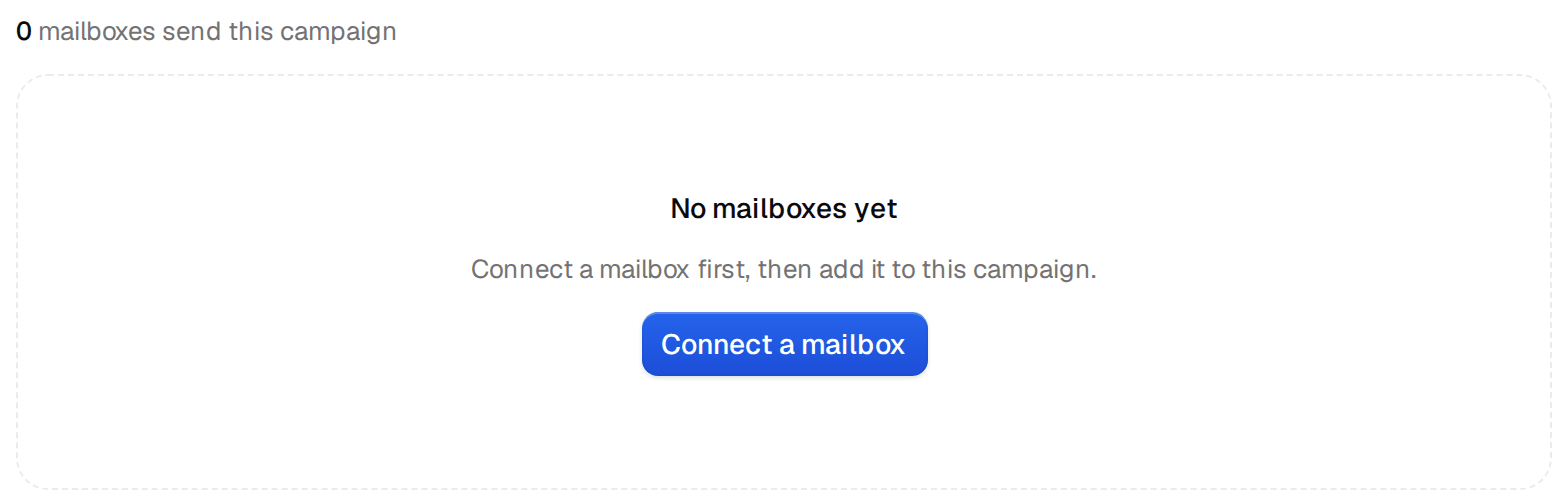
All connected mailboxes are listed and all are ticked by default. Untick the ones that belong to other campaigns or other brands. Sends rotate across the mailboxes you keep, and each mailbox still respects its own daily limit. You need at least one.
The same list lives on the campaign's Senders tab afterwards, where you add or remove mailboxes at any time. With nothing connected yet, both places send you to connect a mailbox first.
Step 4, schedule and settings
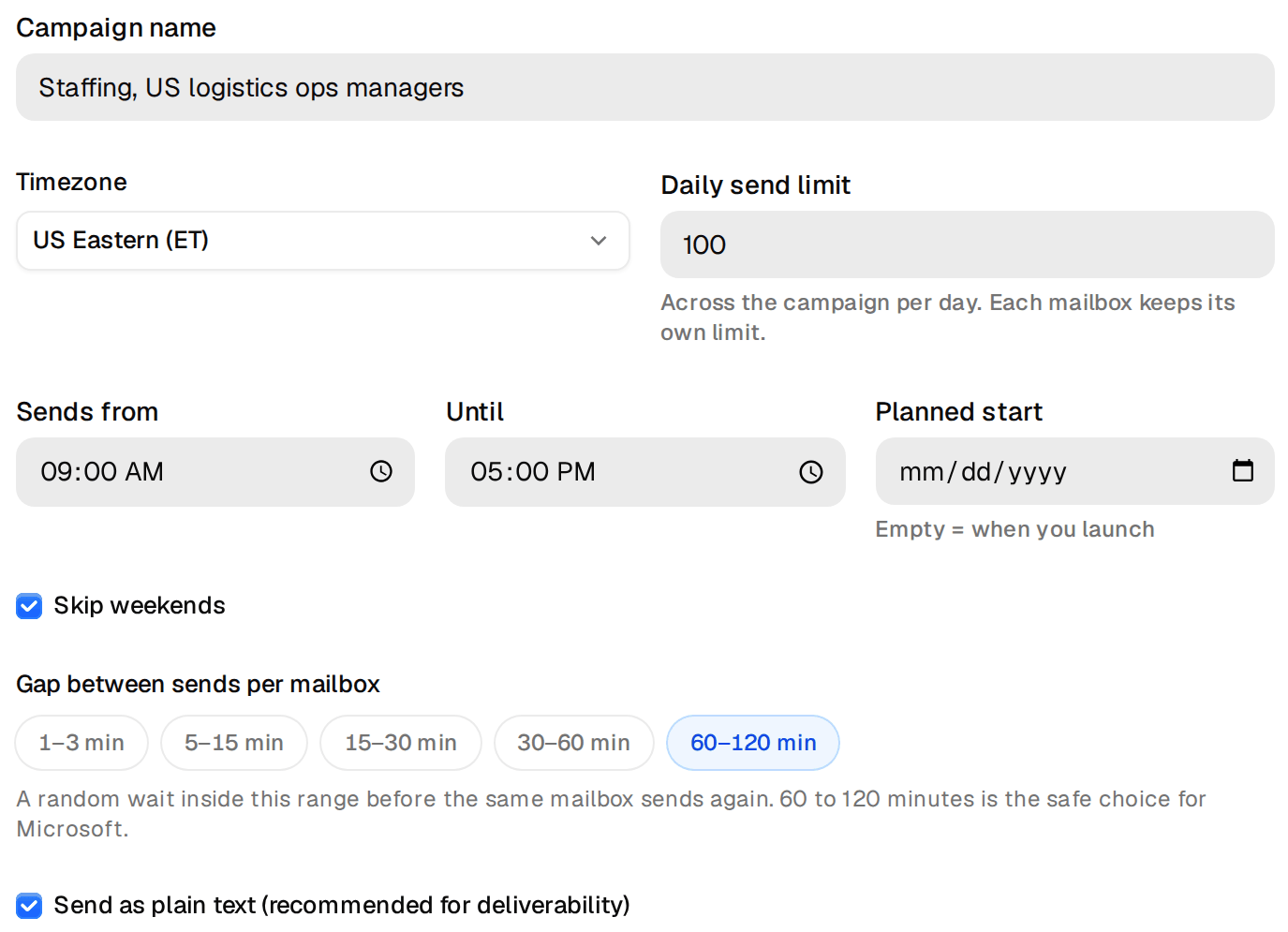
- Start is either when you press Launch or a date and time you pick.
- Timezone should be your prospects' timezone, not yours. Emails land in their working hours.
- Daily send limit caps the whole campaign per day. Set it from the mailbox math in lesson two. Each mailbox keeps its own limit on top.
- Gap between sends per mailbox spaces emails out so a mailbox never fires a burst. 60 to 120 minutes is the default and a good choice for Microsoft mailboxes.
- Send as plain text is on and recommended. Plain text looks like an email from a person and has no tracking pixels.
Step 5, review and launch
The review lists the name, the audience with the grades you picked, the sequence with its waits, the senders, the start and the pace. Read it as if somebody else built it. On launch the audience is checked and added, the emails are saved, the mailboxes are attached, and sending starts in the next sending window. Press Launch campaign, or Keep as draft if you are not ready.
Launch is not possible without senders and leads, and new mailboxes still in their first day hold the launch until they are ready. Nothing is scheduled before you press Launch.
Settings you should check after launch
Open the campaign and its Settings tab. Two settings deserve a look on every campaign.
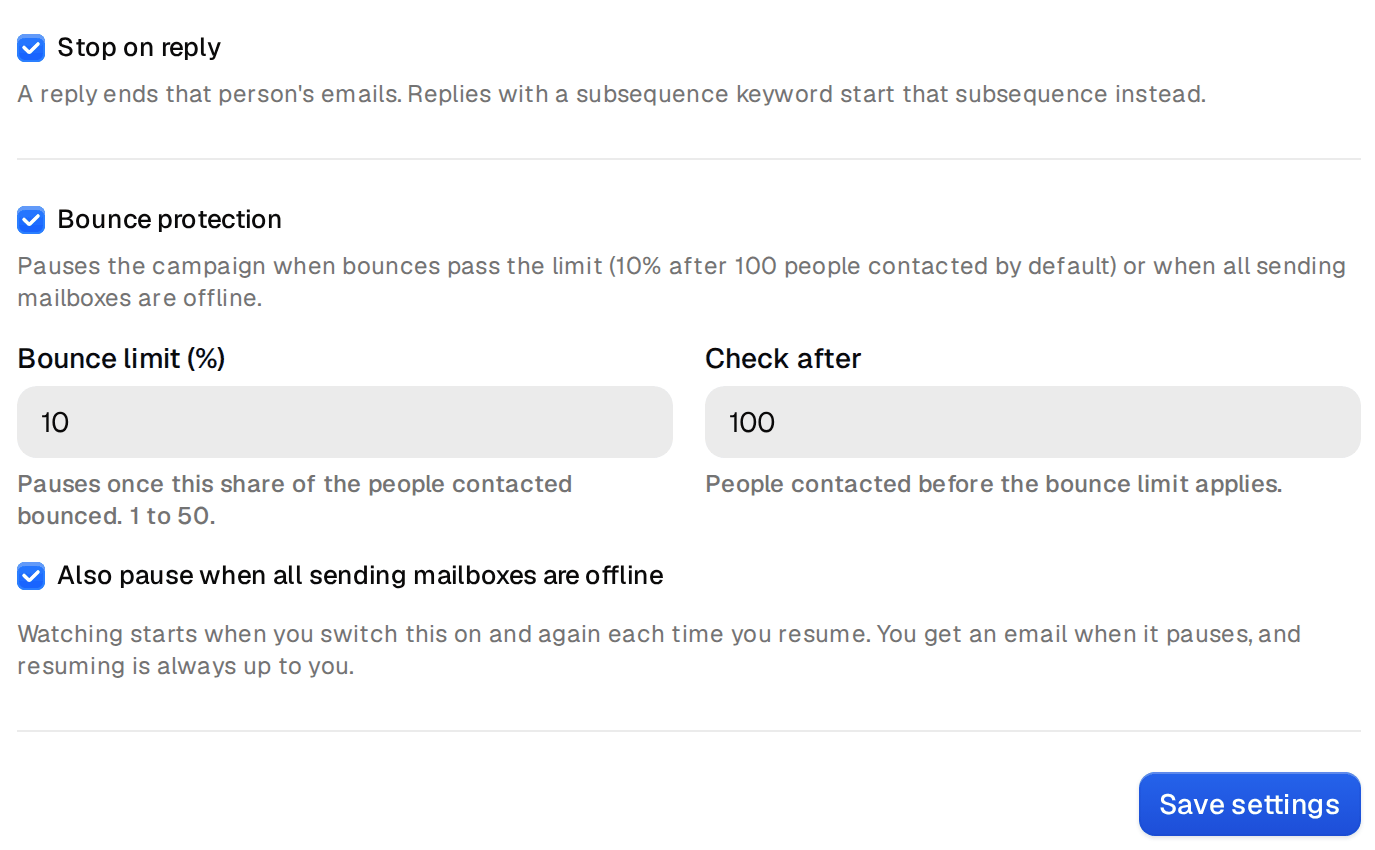
- Stop on reply ends the sequence for anyone who answers. It is on by default and should stay on. The only exception is built in. A reply that contains a subsequence keyword starts that subsequence instead, which lesson five covers.
- Bounce protection pauses the campaign when bounces pass a limit, by default 10% once 100 people have been contacted, and also when every sending mailbox is offline. It is on for new campaigns. You get an email when it pauses, and resuming is always your decision.
The same tab holds the sending window, by default 09:00 to 17:00, and Skip weekends, which is on.
Pause, Stop and Resume
The campaign header always shows where things stand, with leads, sent, replies and senders in one line, and the actions next to it.

- Pause holds sending. Nothing is lost, and Resume carries on where it stopped.
- Stop ends the campaign. People still in the sequence get no further emails. It asks before it does it.
- Editing emails on a running campaign is fine. The next send uses the new text.
If the Launch button stays grey, the help center lists everything that can hold a launch. The settings are explained one by one in schedule settings and bounce protection.