
Everything in the other use cases also works as a conversation. You connect Argorant to Claude or ChatGPT once, then you describe who you want to reach, and your assistant does the filters, the list, the personal lines, the emails, the campaign and the replies. It counts and previews for free, and it asks before anything costs credits, money or sends email. This page walks the whole path once, with the Texas staffing campaign from the first use case as the running example.
- Argorant connected to Claude or ChatGPT, with your own sign-in.
- A saved list, a draft campaign with three emails, personal lines and a subsequence, all built from chat.
- A morning routine where your assistant reads the replies, sorts them and drafts answers you approve.
Step 1. Connect Claude
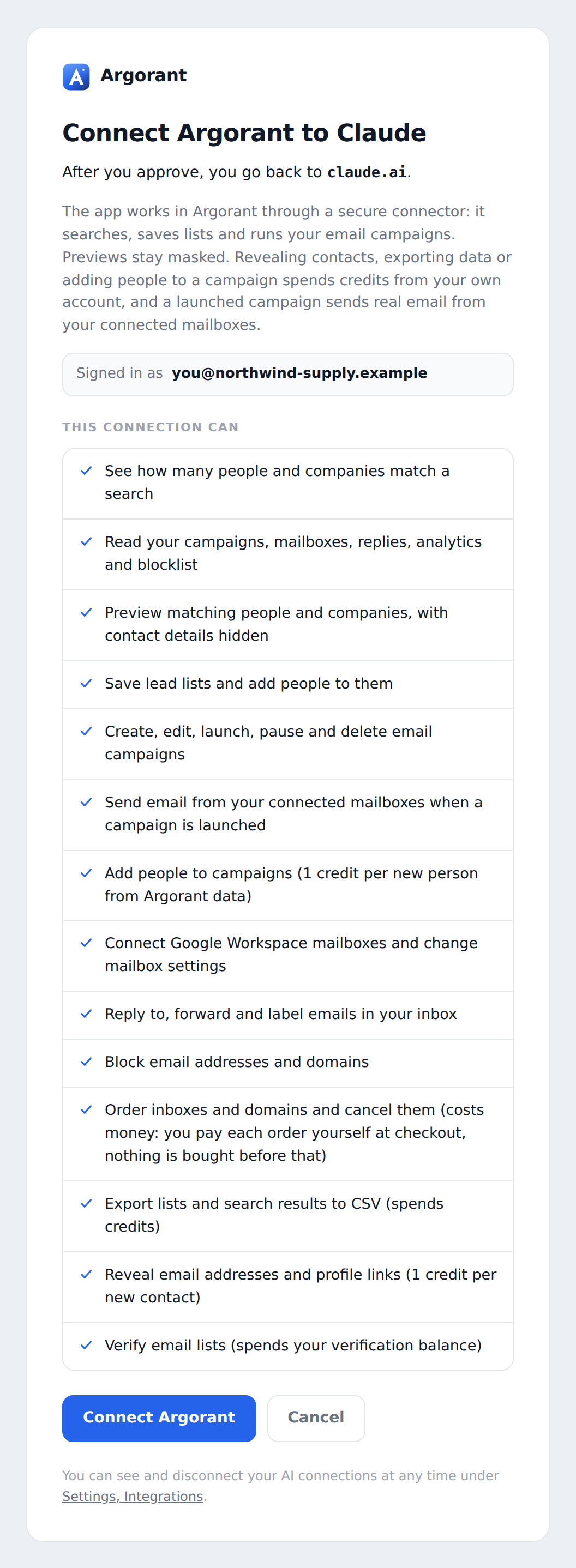
These are the same steps and the same pictures as in the onboarding. You add Argorant as a custom connector with one address, sign in, and allow access. You never paste a key into a chat.
Or connect ChatGPT
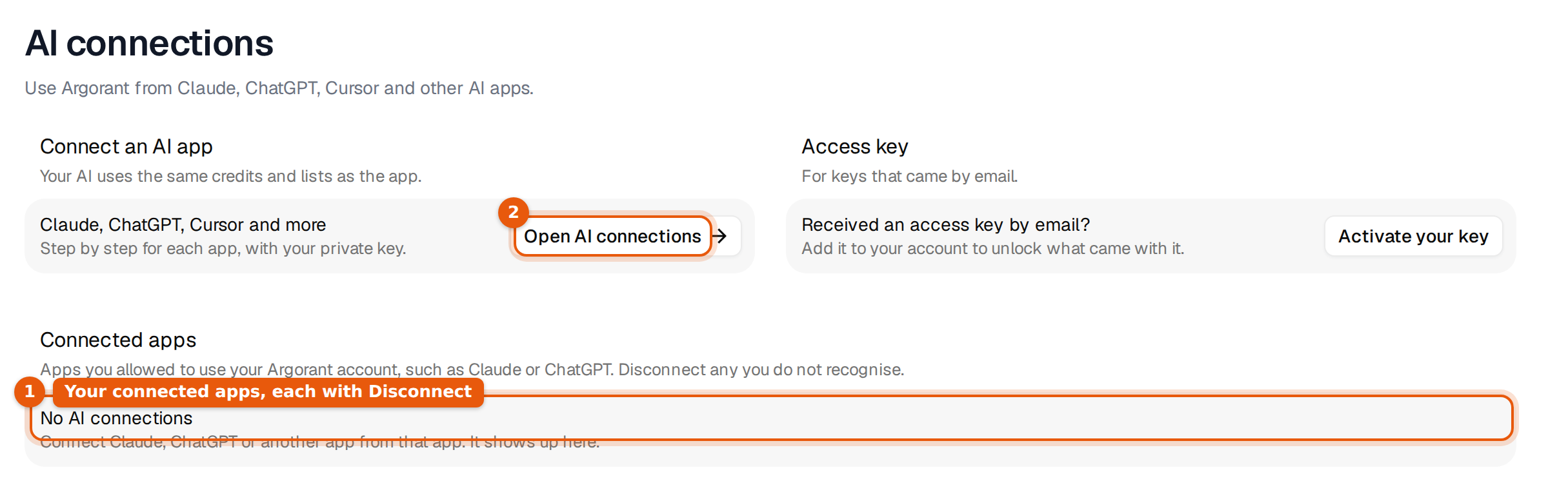
In ChatGPT the server is added as a plugin from the web app. Whether you can add your own depends on your plan and workspace settings, and in a company workspace an admin decides.
In ChatGPT you mention Argorant with @ in every message where you want it, also in follow-ups. Temporary chats do not use plugins.
Step 2. Describe the buyer and look before you spend
Start with one sentence, the same one you would write before setting filters. Your assistant turns it into filters, counts, and shows masked sample rows. Counts and previews cost nothing.
Push back like you would with a colleague. "Leave out fleet managers", "only 201 to 1,000", "show me the count per industry". Every change is free until you add people to something.
Step 3. Save the list
Step 4. Create the campaign and write the emails
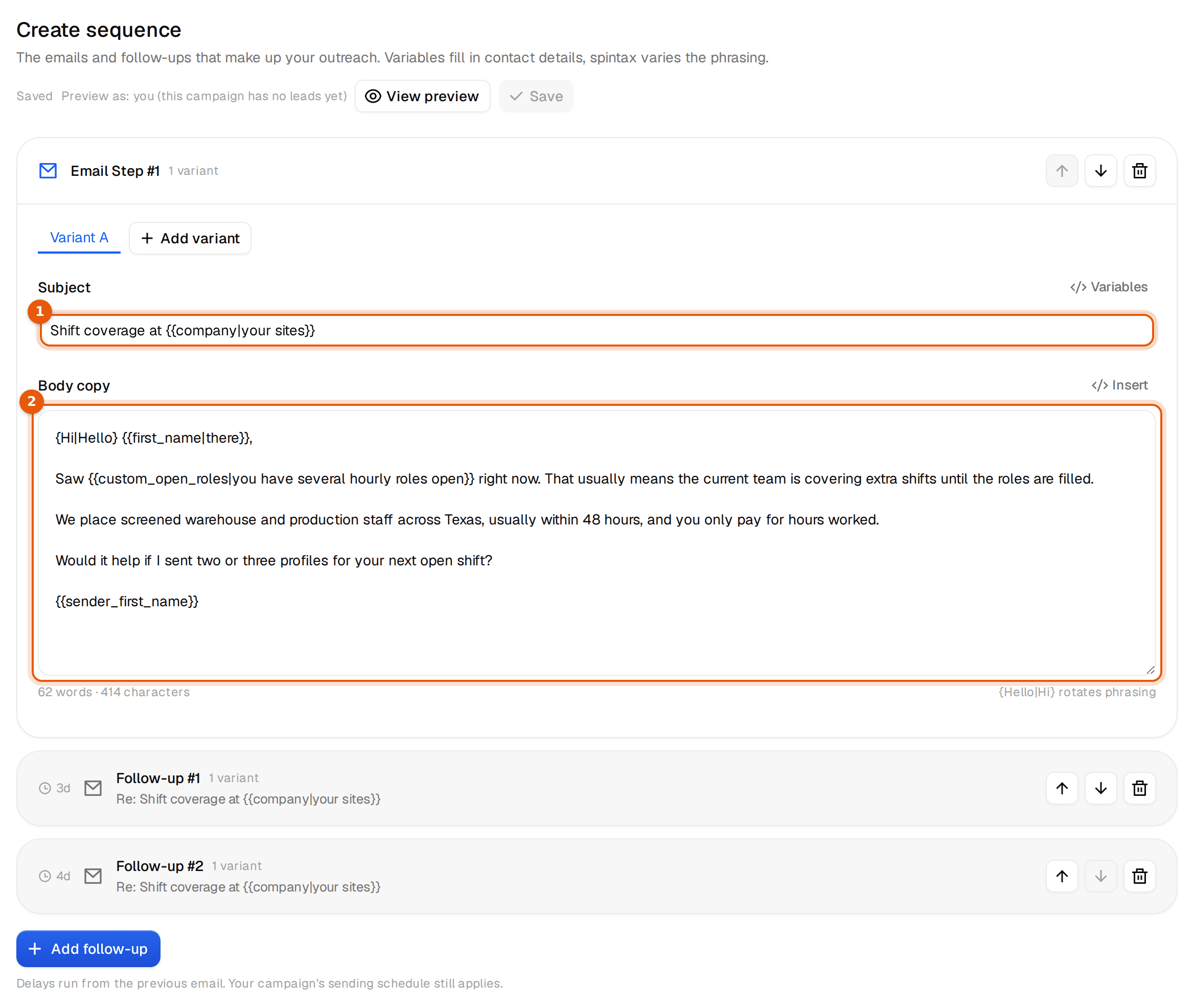
Give the assistant your offer in two or three sentences and the rules you care about. It writes the sequence, saves it to a draft campaign and shows you the text. Nothing is sent by creating a campaign.
Create a draft campaign "TX hiring managers, wave 1".
Our offer is that we place screened warehouse and production staff across Texas, usually within 48 hours, and clients only pay for hours worked.
Write a first email and two follow-ups in the same thread, 3 and 4 days apart.
Plain text, under 90 words each, one small ask, no links, a fallback for every variable.
First email opens with {{custom_open_roles}}, fallback "you have several hourly roles open".
Add an Interested subsequence with two concrete call times in Central time.
Then open the campaign in the app. What the assistant built is a normal campaign you can read and edit, with the same editor and preview as when you build it by hand.
Step 5. The personal lines
This is where an assistant saves you the most time. For each company it looks up one fact, here what the company is hiring for, writes one line, and saves it to that person. It shows you five first and waits for your yes. Where it finds nothing, the fallback stays, so the campaign can launch at any time.
Read the five like a prospect would. If one sounds odd inside the sentence, say what to change and the assistant adjusts the instruction before it writes the rest.
Step 6. Add the people, which costs credits
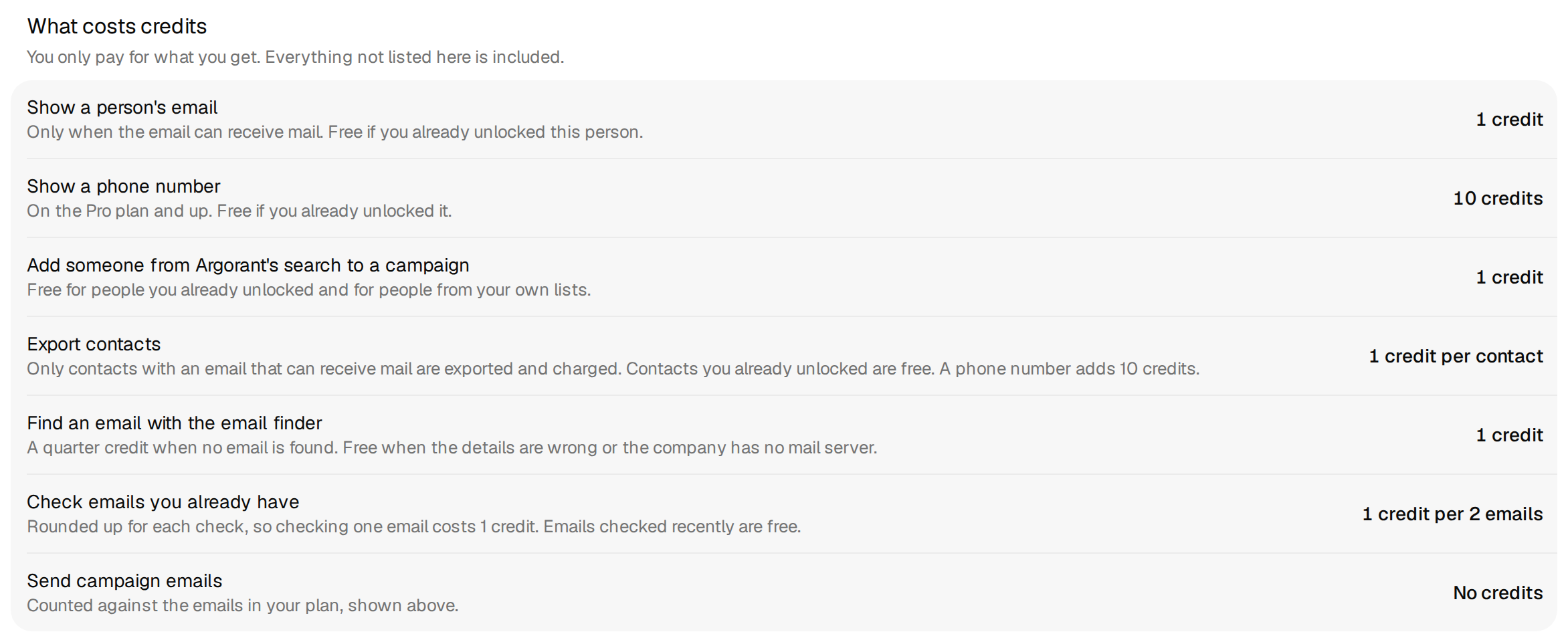
Adding people from Argorant's search to a campaign costs 1 credit per new person, and only addresses that can receive mail are added. Your assistant asks before it does this and tells you the number.
Step 7. Mailboxes and a test email
Your assistant lists the mailboxes you have connected and attaches the ones you pick. For new ones it gets you a quote for Microsoft 365 mailboxes on new domains. You see the full price first, and you pay the order yourself at checkout. Nothing is bought before that.
Read the test in your own inbox before anything else. It is the only way to see the email exactly as a prospect will.
Step 8. Launch, only on your word
Launching sends real email from your mailboxes, so your assistant never does it on its own. Say it plainly when you are ready.
Step 9. Replies, every morning
Replies land in the Unibox with a label. Your assistant reads them from there, groups them and writes answers. Answering sends real email, so it shows you each draft and sends only what you approve.
When a call is booked, ask the assistant to set the label to Meeting booked, so the campaign numbers count it. If it labelled something wrong, tell it, and the label changes in the Unibox as well.
Step 10. Read the numbers
The numbers in that answer are an example of the shape, not a promise. What healthy looks like, from our own sending, is in the staffing use case under What to expect.
The rules your assistant keeps
- Counting, previews, saving lists and drafting campaigns cost nothing and send nothing.
- Adding people, revealing contacts and exports cost credits. It says how many and waits for your yes.
- Mailbox orders cost money. You get the full quote first and pay at checkout yourself.
- Launching a campaign and answering a reply send real email. It waits for your word every time.
- It writes personal lines from facts it looked up. Where it finds nothing, the fallback stays.
Every other use case ends with the request that starts it from chat. Pick the one closest to your business and paste it in.

 Claude
 Argorant
 ChatGPT