
You run a staffing agency in Texas and fill hourly roles in warehouses, distribution centers, food plants and factories. The people who say yes to you are the ones who feel the open roles every day: the HR manager who cannot hire fast enough and the operations or plant manager covering shifts with overtime. This use case builds that list, writes to them with a line about their actual open roles, and turns the replies into calls.
- A saved list of about 2,000 hiring and operations managers at Texas companies with 51 to 1,000 employees.
- A campaign with three emails in one thread, each opening with what that company is hiring for.
- Mailboxes that send at a safe pace, and a subsequence that answers every yes with two call times.
Step 1. Write the sentence first
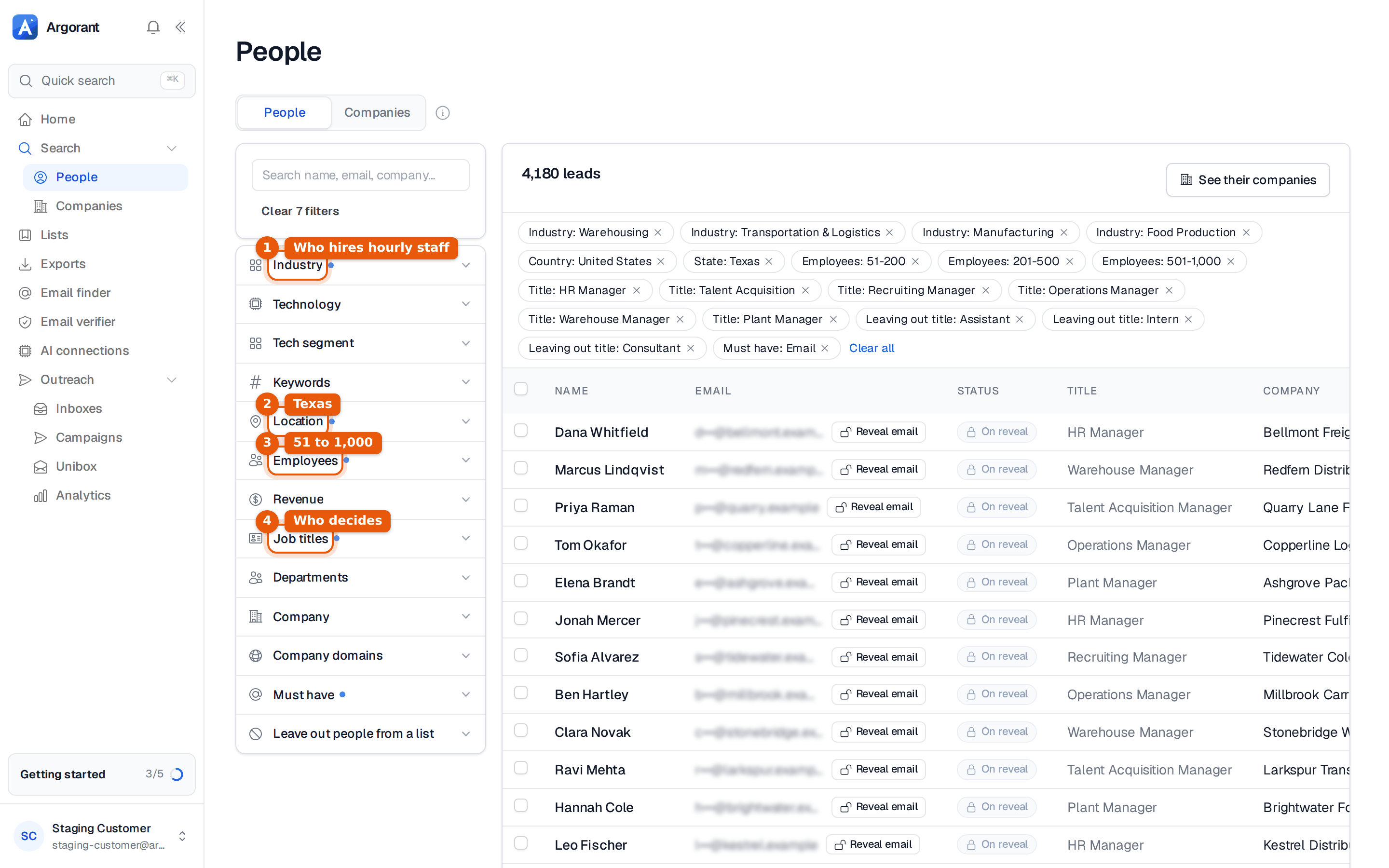
Before any filter, write one sentence that names the buyer. Ours is this. "HR, recruiting and operations managers at Texas warehouses, logistics companies, food plants and manufacturers with 51 to 1,000 employees." Every filter below is one part of that sentence. If a filter is not in the sentence, leave it out.
Step 2. Set the filters
Open Search, then People, and set these. The order matters less than reading the count after each one.
| Filter | Value | Why |
|---|---|---|
| Location | United States, then the state Texas | Your branches serve Texas. Pick the state, not single cities, so suburbs and industrial parks count. |
| Industry | Warehousing, Transportation & Logistics, Manufacturing, Food Production | The four industries that hire hourly shift staff in volume. |
| Employees | 51-200, 201-500, 501-1,000 | Below 50 there is rarely an HR person. Above 1,000 hiring runs through vendor programs you cannot email your way into. |
| Job titles | HR Manager, Talent Acquisition, Recruiting Manager, Operations Manager, Warehouse Manager, Plant Manager | The people who feel the open roles. Titles match whole words, so HR Manager also finds Senior HR Manager. |
| Must have | Only people you can actually write to. |
Assistants, interns and outside consultants slip in through these titles. The link below leaves them out already, and they show as chips you can remove.
Step 3. Read the count, then twenty rows
For this sentence the count in your account should land in the low thousands. That is the right size. Here is how to read it.
- Above 10,000 means a filter did not apply. Usually the state is missing and you are looking at the whole country.
- 1,500 to 6,000 is the working range. Plan a first wave of about 2,000 and keep the rest for wave two.
- Under 500 means the titles are too narrow. Remove Recruiting Manager and Talent Acquisition first, then add Food Production back if you took it out.
Then scroll at least twenty rows and ask one question per row. Would I write to this person about hourly staff? If three or four are drivers, buyers or IT people, the title list is pulling the wrong function. Fix the titles, not the copy.
Step 4. Save the list, keep only valid emails
Click Select matching, choose how many people you want, then Save list. Name it so you still know what it is in three months, for example TX - Warehousing, logistics, food, mfg 51-1000 - HR and ops.
When you attach the list to a campaign, choose Valid under which emails to include and nothing else. Every address is checked before it can be sent to, and catch-all addresses are where bounces come from. Each person from search costs 1 credit, unless you already unlocked them before.
Step 5. Add the open-roles line
The filters cannot tell you which of these companies is hiring this week, and nothing in a filter panel can. Their careers pages and job posts can. That one fact is what makes the email worth reading, so it gets its own variable, {{custom_open_roles}}, with a fallback for every company where you found nothing.
There are two ways to fill it.
- From a file. Export the list, add a column called
custom_open_roleswith what each company is hiring for, and upload it to the campaign with Upload CSV. Columns you keep as custom fields become variables with the same name. - From Claude or ChatGPT. Connected to Argorant, your assistant reads each company's careers page, writes the line, shows you five examples first and saves the rest when you agree. It never invents a number. If a company has nothing posted, it keeps the fallback.
For my campaign "Demo: Texas hiring managers", set up a personal line called custom_open_roles.
It says what the company is hiring for right now, from its careers page or job posts,
as a phrase that fits after "Saw", 5 to 12 words, e.g. "14 warehouse associate openings posted for the Dallas site".
Fallback: "you have several hourly roles open".
Show me five examples with the source first. Never guess a number.| Company | Personal line | How the sentence reads |
|---|---|---|
| Bellmont Freight | 14 warehouse associate openings posted for the Dallas site | Saw 14 warehouse associate openings posted for the Dallas site right now. |
| Quarry Lane Foods | second-shift line operator roles open in San Antonio | Saw second-shift line operator roles open in San Antonio right now. |
| Copperline Logistics | forklift and order picker jobs posted again this month | Saw forklift and order picker jobs posted again this month right now. |
| No line of its own | you have several hourly roles open | Saw you have several hourly roles open right now. |
Step 6. Write the three emails
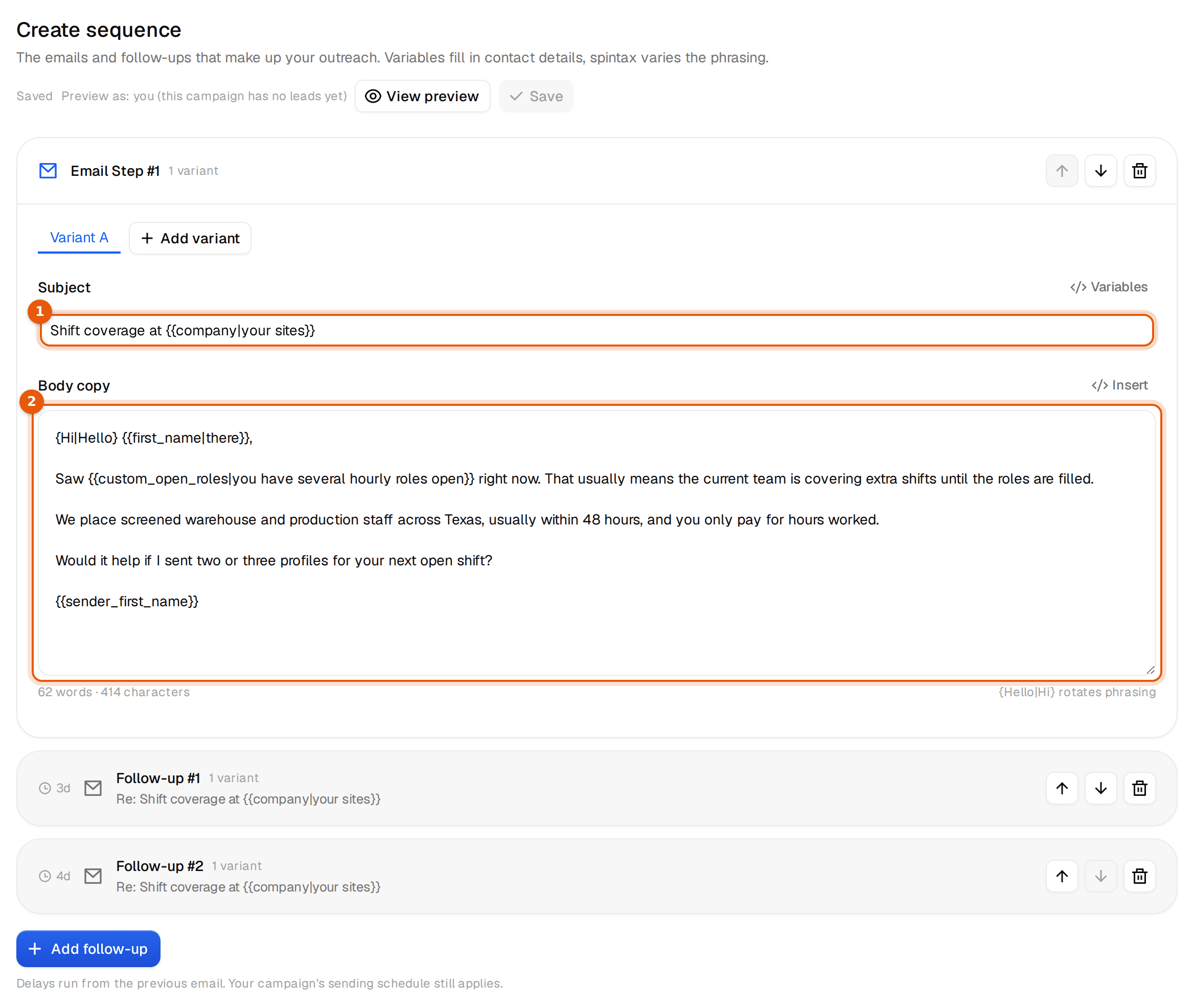
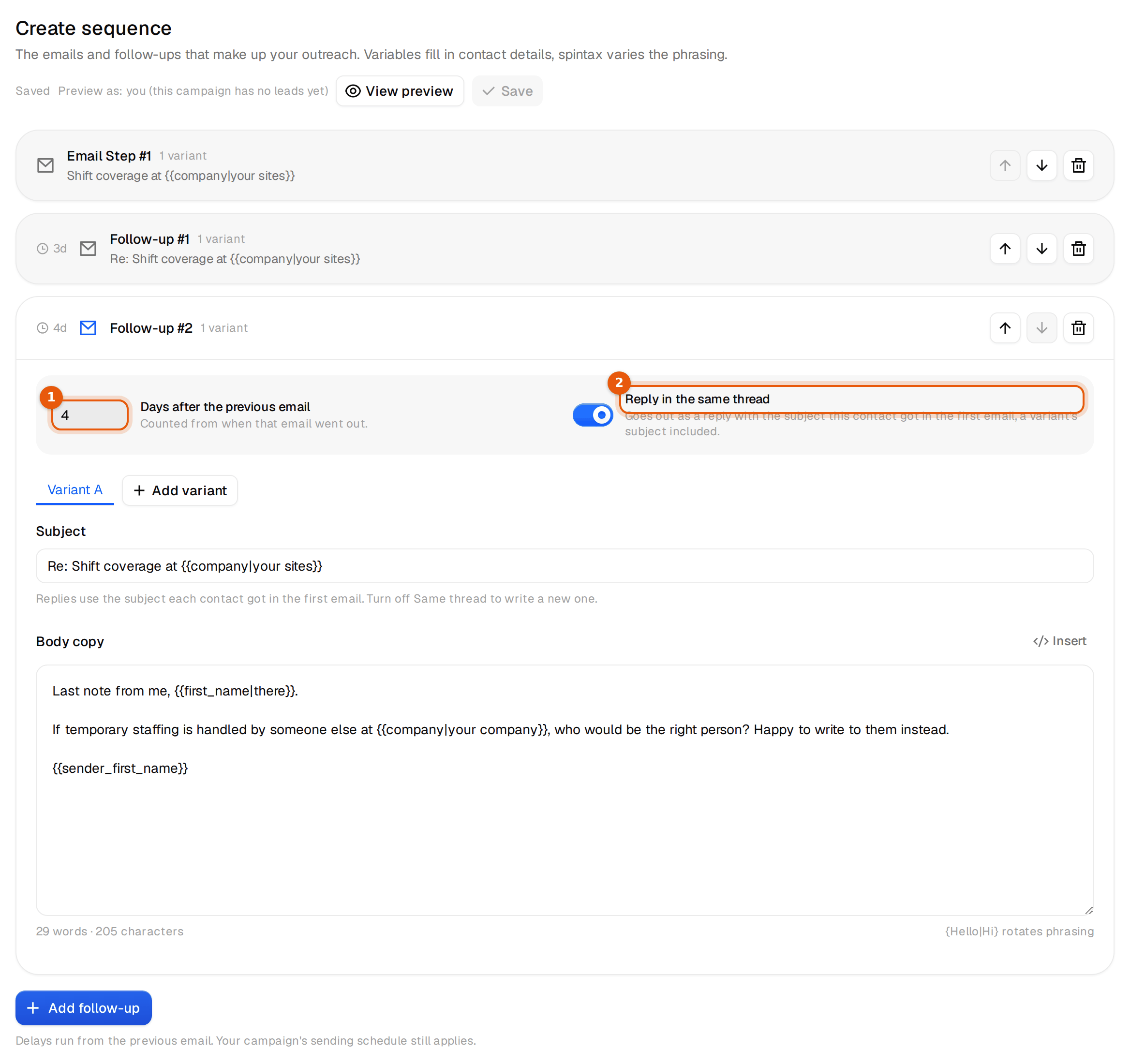
Press New campaign on the Campaigns page, name it, attach the list, and go to Emails. Here is the whole sequence. Change the 48 hours to your real number. Nothing in a cold email hurts more than a claim the reader can check and you cannot keep.
One fact about them, one sentence about you, one small question. Two or three profiles is an ask a busy manager can say yes to.
A new reason, not a bump. Overtime cost is what the operations manager already worries about.
The polite exit that asks for a referral. In our own sending, one in four human replies pointed us to a colleague.
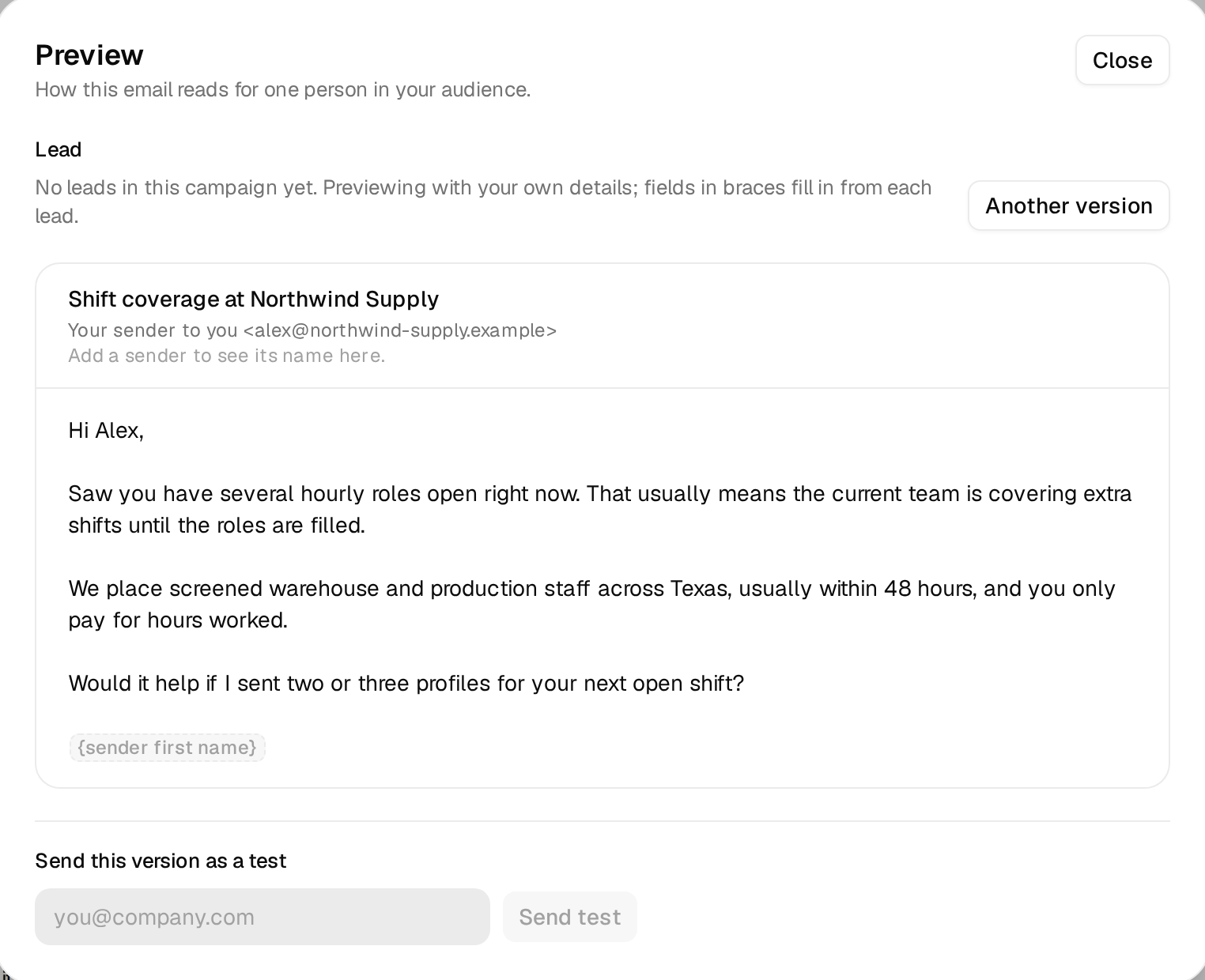
Press View preview before you go on. With no leads yet, it fills every variable with your own details, which shows each fallback at work. Read the fallback sentences out loud. "Saw you have several hourly roles open right now" is fine for a company where you found nothing.
Step 7. Mailboxes for 2,000 people in 4 weeks
Cold email never goes out from your main domain. It goes out from separate mailboxes on domains that look like yours, for example a short variation of your brand name. If one of them gets tired, you retire it and your real domain never notices.
Here is the math for this campaign. 2,000 people over 4 weeks is about 100 new people per weekday. Each gets three emails, so once the follow-ups overlap you send roughly 300 emails a day. At 5 cold emails per mailbox per day, that is about 60 mailboxes.
| Input | Value |
|---|---|
| New people per weekday | 100 |
| Emails per person | 3 |
| Emails per day once everything runs | about 300 |
| Cold emails per mailbox per day | 5 |
| Mailboxes | about 60 |
There are two ways to get there. Under Outreach, Inboxes you connect mailboxes you already have, from Google, Microsoft or any other provider. Or you have new Microsoft 365 mailboxes set up on new domains. Those come in bundles from 100 mailboxes, you do not need a plan to buy them, and they connect to your campaigns on their own. 100 mailboxes carry 500 cold emails a day, which leaves room for a second campaign.
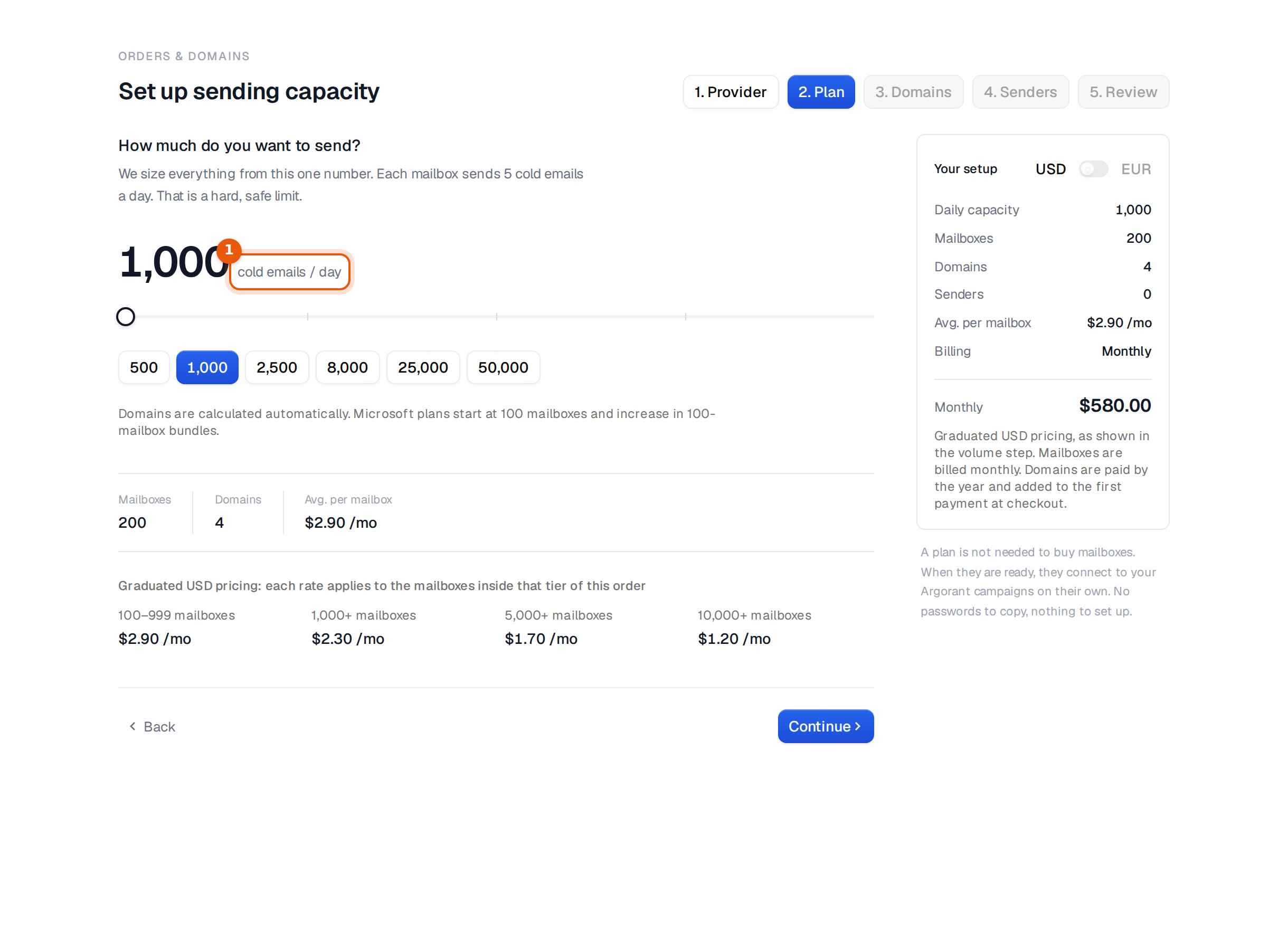
New mailboxes wait at least 24 hours before they send anything. Warm-up is included and starts switched off. Switch it on for new mailboxes and give them one to two weeks before full volume. Never raise the limit per mailbox to go faster. More mailboxes is the right lever.
Step 8. Schedule and launch
In the Senders step of the wizard, every connected mailbox is ticked. Untick the ones that belong to other campaigns or brands. Sends rotate across the ones you keep, and each one still respects its own daily limit.
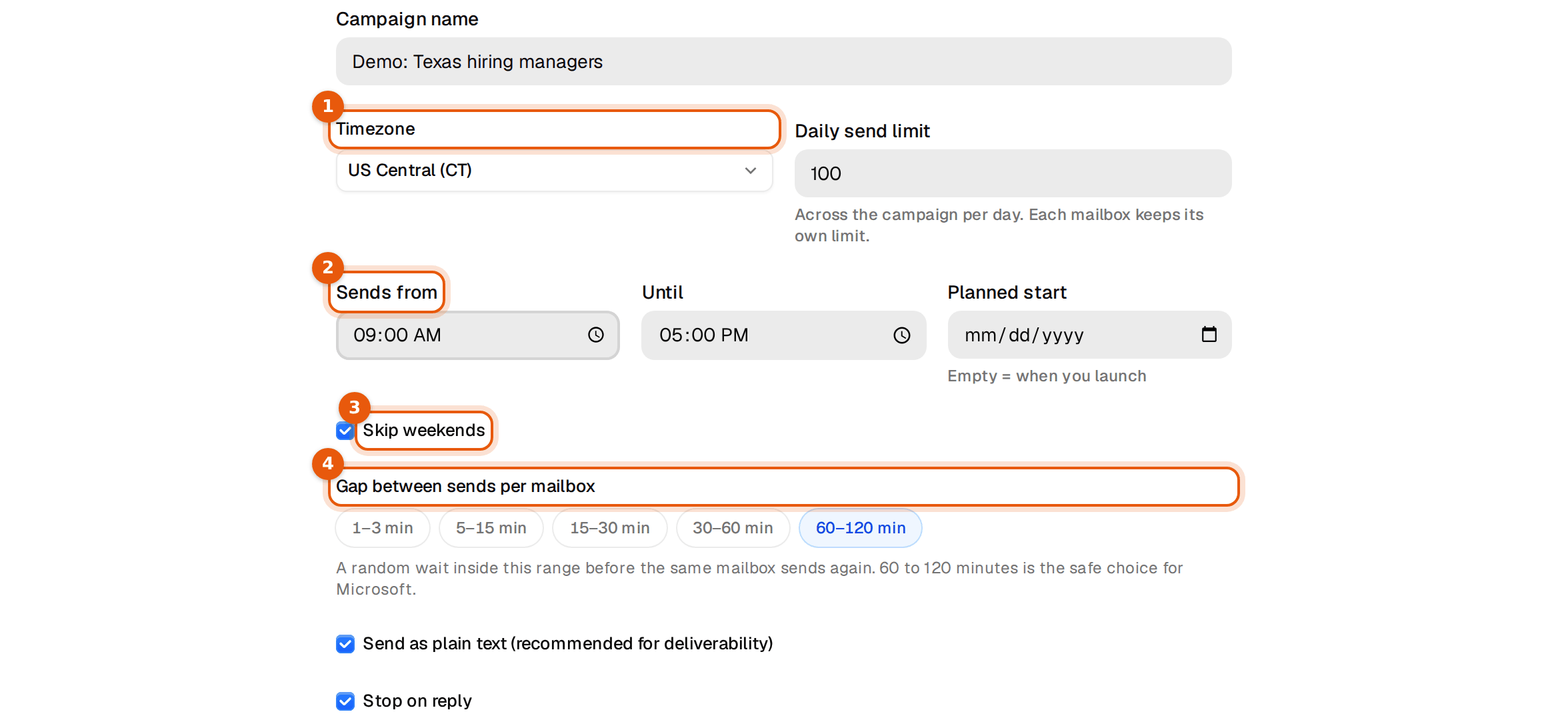
In the Schedule step, set the timezone of the people you write to, here US Central (CT), not your own. Keep the sending window at 09:00 to 17:00, keep Skip weekends on and keep the gap between sends per mailbox at 60 to 120 minutes. Plain text stays on, so the email looks like it came from a person and carries no tracking pixel.
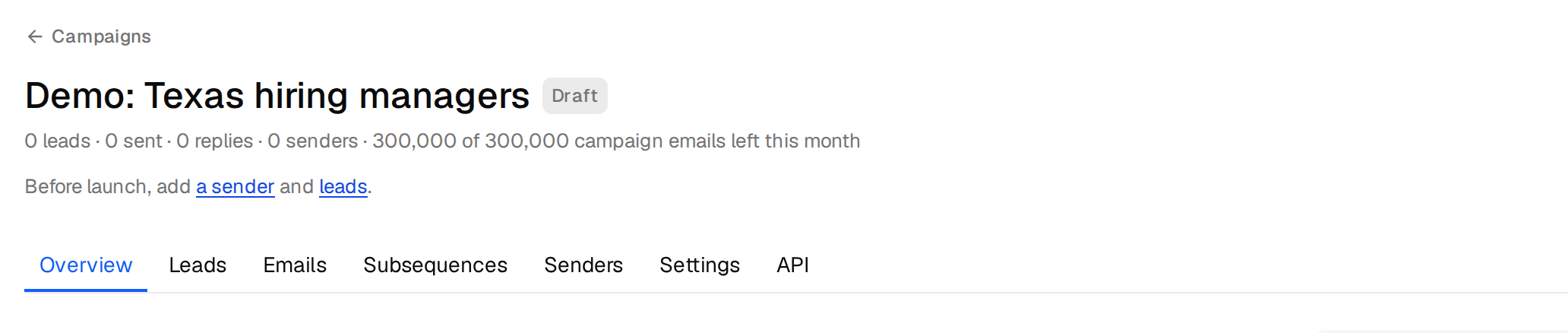
The last step is the review. Read it as if somebody else built the campaign. The audience with the grades you picked, the sequence with its waits, the senders, the start and the pace. Then press Launch campaign. Launch is not possible without senders and leads, and mailboxes still in their first day hold the launch until they are ready. Afterwards, open the Settings tab and check that Stop on reply and Bounce protection are on. Bounce protection pauses the campaign when more than 10% bounce once 100 people have been contacted.
Step 9. Replies and booked calls
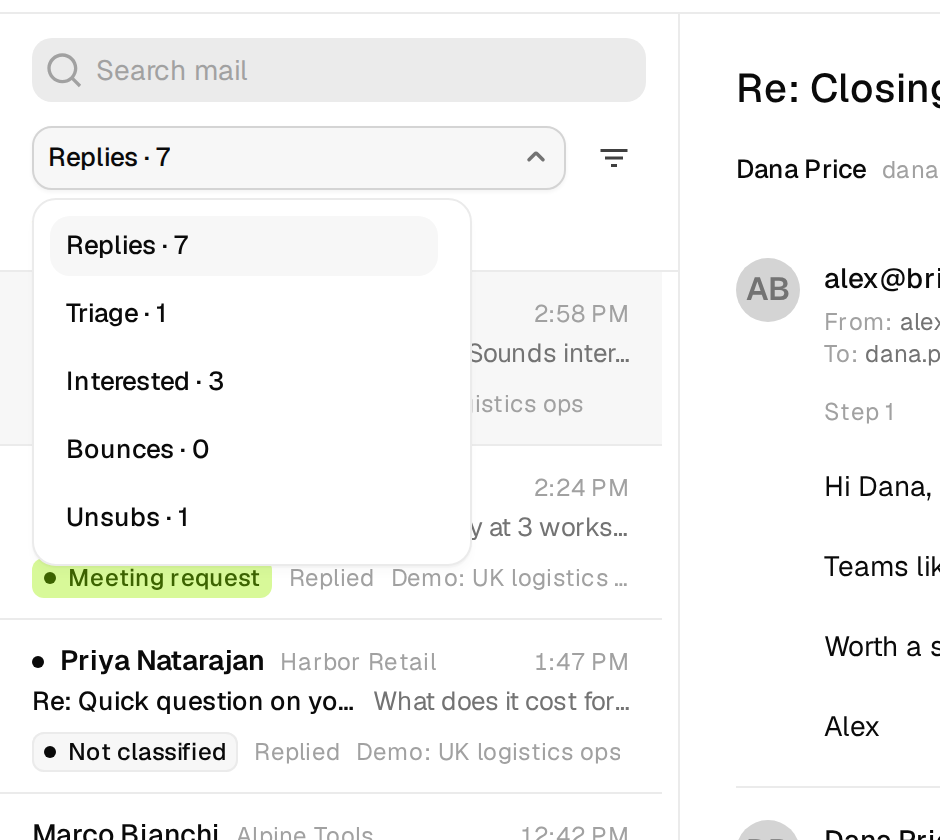
Every reply lands in the Unibox, from every mailbox and campaign, and gets a label on its own. The standard labels are Interested, Meeting request, Out of office, Unsubscribe and Other. Switch on Referral and Wrong person in the settings as well. On our own largest campaign, one in four human replies pointed us to a colleague, more often than a straight yes.
A yes gets answered by the campaign itself, with a subsequence. It starts when a reply contains one of your keywords, takes the person out of the main sequence and answers in the same thread in the next sending window. A reply that says "not interested" or asks you to stop never triggers one.
Open the campaign's Subsequences tab, press Add subsequence and use these keywords. interested, send profiles, tell me more, rates, pricing, sure. Then write the first email.
Two concrete times in their timezone. A yes to a time is one reply, a yes to a link is a task.
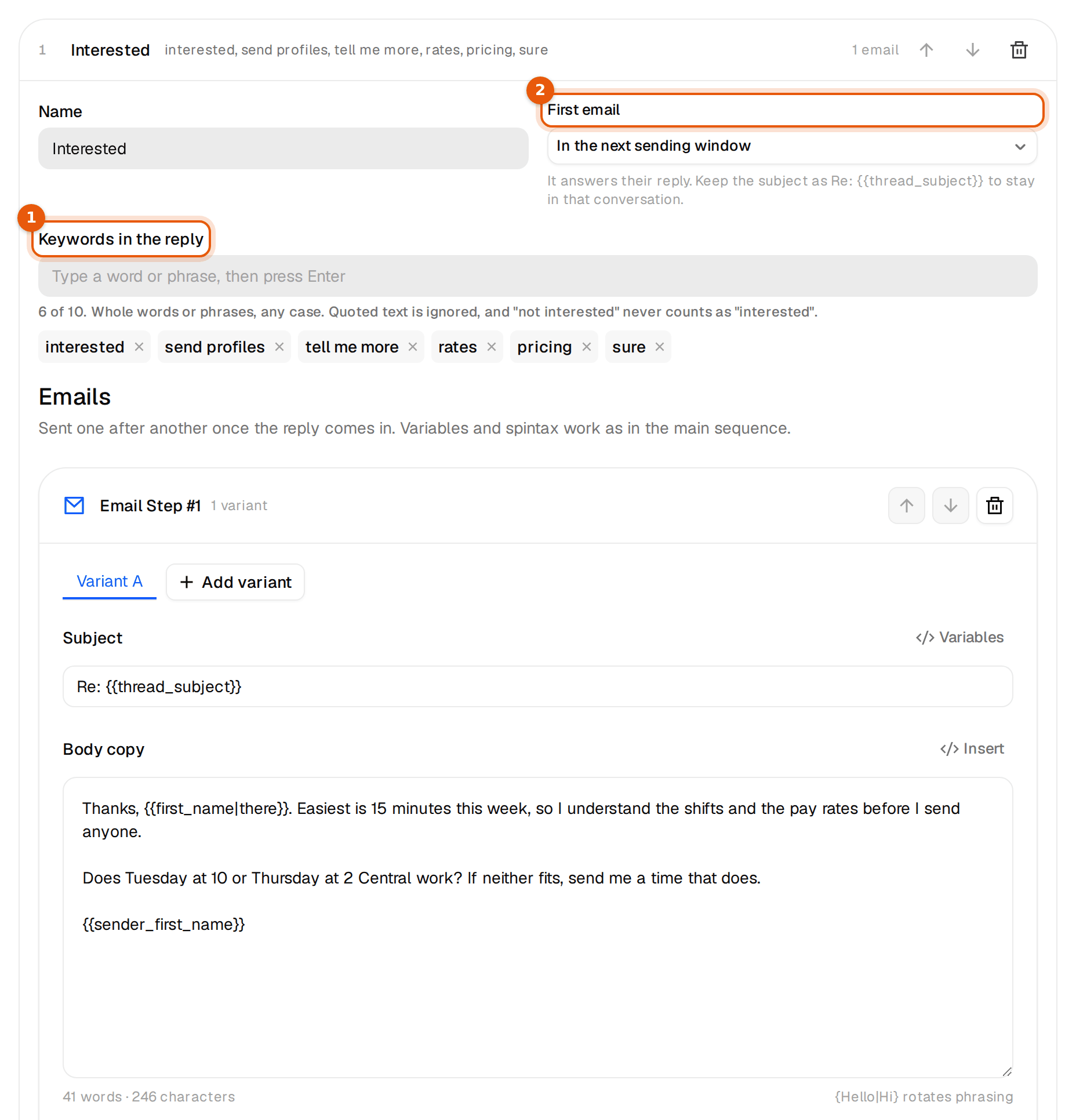
Every morning, filter the Unibox by Meeting request and Interested. Those are the conversations one answer away from a call. Propose a specific time instead of just a link, and add your booking link as the second option. When the call is set, change the label to Meeting booked so your numbers count it. Answer referrals the same day. Thank them, write to the person they named, and mention who sent you.
If you would rather work from Claude or ChatGPT, your assistant can read the Unibox, sort replies by label and draft answers. Nothing is sent until you confirm. The use case Run it all from Claude or ChatGPT shows how.
What to expect
The ranges below come from our own sending, scaled to 2,000 people. Our healthy campaign, two emails to a valid-only list from mailboxes at 5 cold emails a day, got human replies from 1.3% of the people contacted. Campaigns from overworked mailboxes sat at 0.3%. About one in five human replies says yes, and about one in four points you to a colleague. These are reference points, not promises. Your offer, your segment and your copy move them a lot. The reply rate in Argorant also counts out-of-office notes, so it reads higher. Compare these numbers with the reply rate excl. OOO.
| Number | For 2,000 people |
|---|---|
| Human replies (0.3 to 1.3%) | 6 to 26 |
| Of those, interested | 1 to 5 |
| Referrals to the right person | 2 to 7 |
| Bounces with valid-only addresses | under 1% |
| Booked calls if you answer the same day | 2 to 8 |
Staffing is a market where timing beats copy. A company with roles open for three weeks answers, the same company a month later does not. That is why the open-roles line matters more than any other sentence, and why wave two should go out with fresh lines, not the old ones.
On the calendar it looks like this. The first replies arrive in week one, 65% of all replies come within an hour of the email landing and 84% answer the first email. After 4 weeks everyone has had the full sequence, and a week later nearly everything that will come is in. If human replies stay near zero after a few hundred people, check delivery first and copy second.
Do the same from Claude or ChatGPT
Every step above also works as a conversation, once Argorant is connected to your assistant. This is the request that builds the list. Your assistant counts, shows sample rows and asks before it spends a credit.
The full setup, from connecting the assistant to launching and handling replies, is in Run it all from Claude or ChatGPT.

 Claude
 Using Argorant