An API key lets a program act for your account. The command line tool, the REST API, a Zapier step or your own script all use one. AI apps that support sign-in, such as Claude and ChatGPT, do not need a key at all.
Create a key
Open Settings and choose API keys.
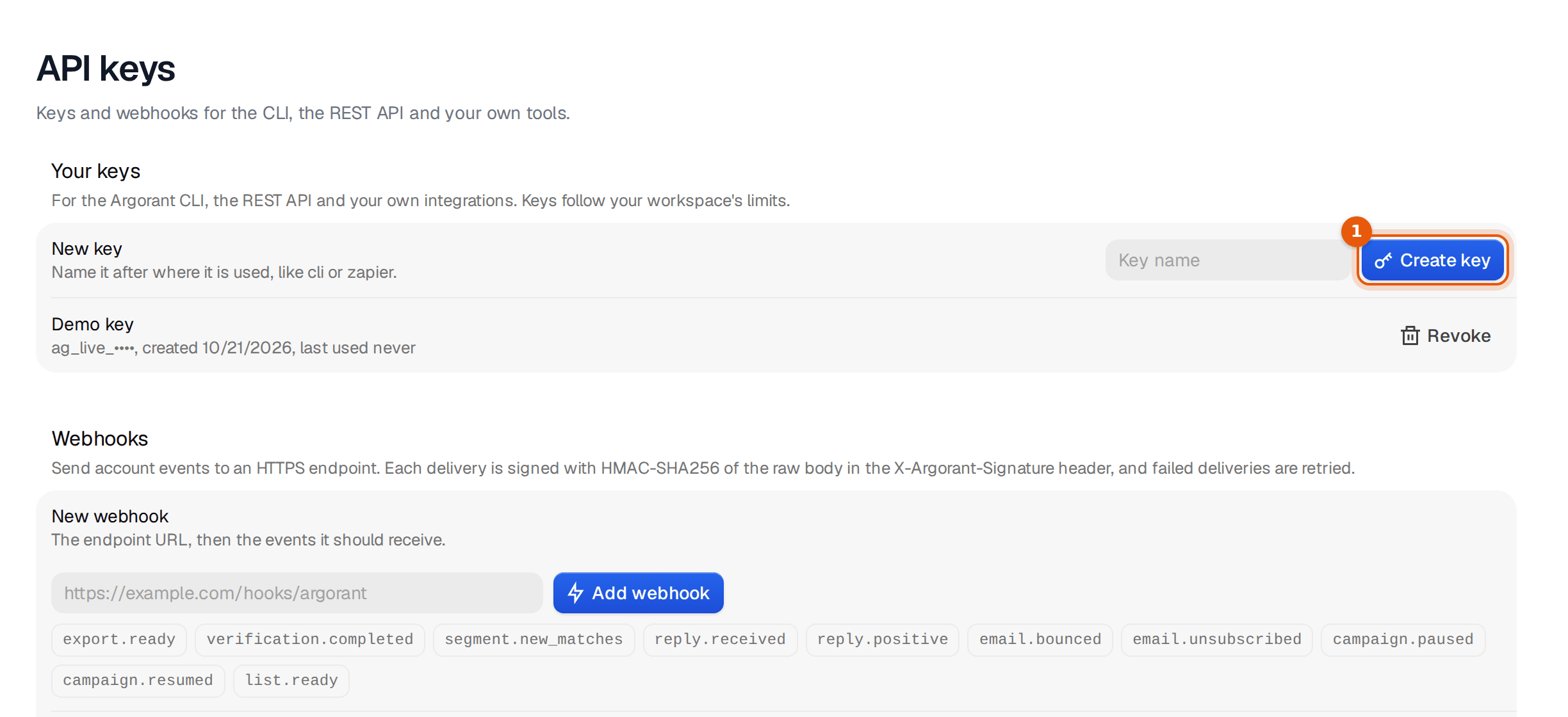
- Type a name into the field next to New key. Name it after where it will be used, such as "cli on my laptop" or "zapier".
- Click Create key.
- Copy the key straight away. It starts with
ag_live_and is shown in full only once. Afterwards the list shows the first characters, when it was created and when it was last used.
Store the key in a password manager or in your tool's secret settings. Never put it in a shared document, a screenshot or a chat.
Use the key
The command line tool asks for the key once when you run npx argorant login and keeps it on your computer. For the REST API you send it in a header with every request.
curl https://app.argorant.com/api/mcp/account \
  -H "Authorization: Bearer ag_live_..."
That first call shows your plan and balance, which is a good way to check that the key works. API keys and the REST API lists the main endpoints, and the Argorant CLI covers the command line tool.
One key per tool
Give every tool and every person its own key. You then see which key was used when, and you can switch one off without breaking everything else. Keys share your account's credits, so a key does not come with its own balance. Each key has its own speed limit, and searches have daily limits during the trial. Rate limits and daily quotas has the numbers for each plan.
Rotate and revoke
To replace a key, create the new one first, put it into the tool, check that it works, and then click Revoke next to the old one. Revoking works at once. The next request with the old key is refused.
If a key ends up somewhere it should not be, such as a public code repository or a shared screen, revoke it right away and create a new one. Then look at your recent exports to see whether anything ran that you did not start. What to do if an API key leaks has the full checklist.
Webhooks
Below the keys you can add a webhook. Argorant then calls your address when something happens, for example when an export is ready, a list finished filling, a reply came in or a campaign was paused. Paste the address under New webhook, pick the events and click Add webhook. Each call is signed, so your server can check that it came from us. Webhooks shows what each event contains.