Argorant works inside the AI apps your team already uses. Once it is connected, you can type "find operations managers at logistics companies in Ohio and count them" and the AI does the searching for you. It uses the same account, lists and credits as the app.
Where the steps live
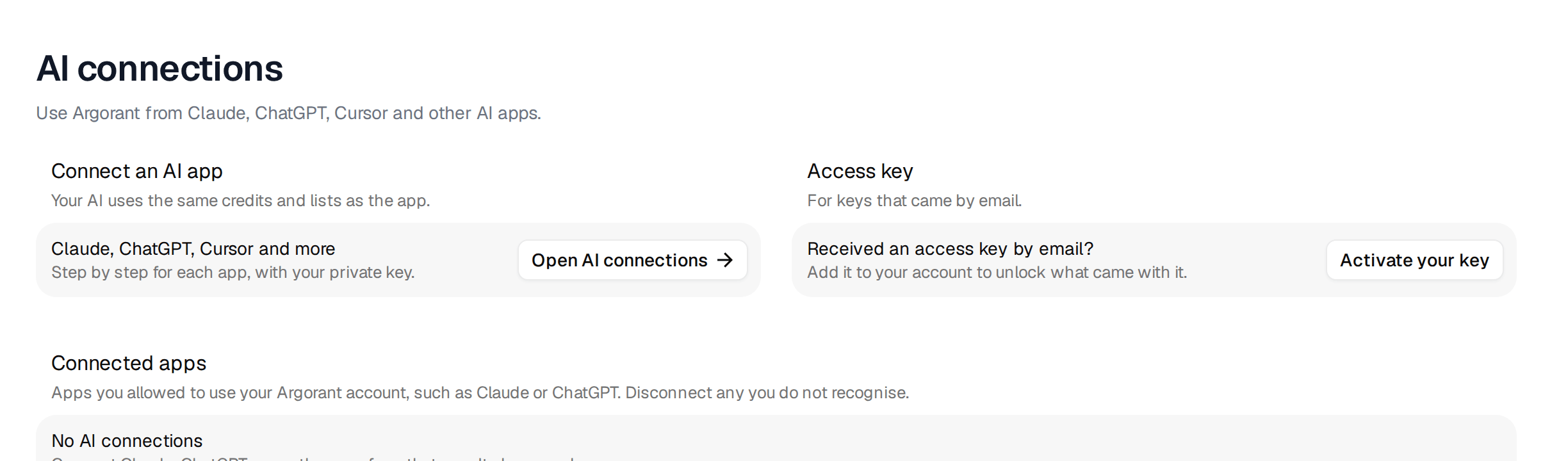
Open AI connections in the sidebar. Each AI app has its own tab with the exact steps for that app, the server address with a copy button, and a ready prompt for the first search. The steps below match those tabs.
For most apps you need one address.
https://mcp.argorant.com/mcpYou sign in with your Argorant account when the app asks. You do not paste a key into the address, and pasting a key into a chat does not connect anything.
Claude
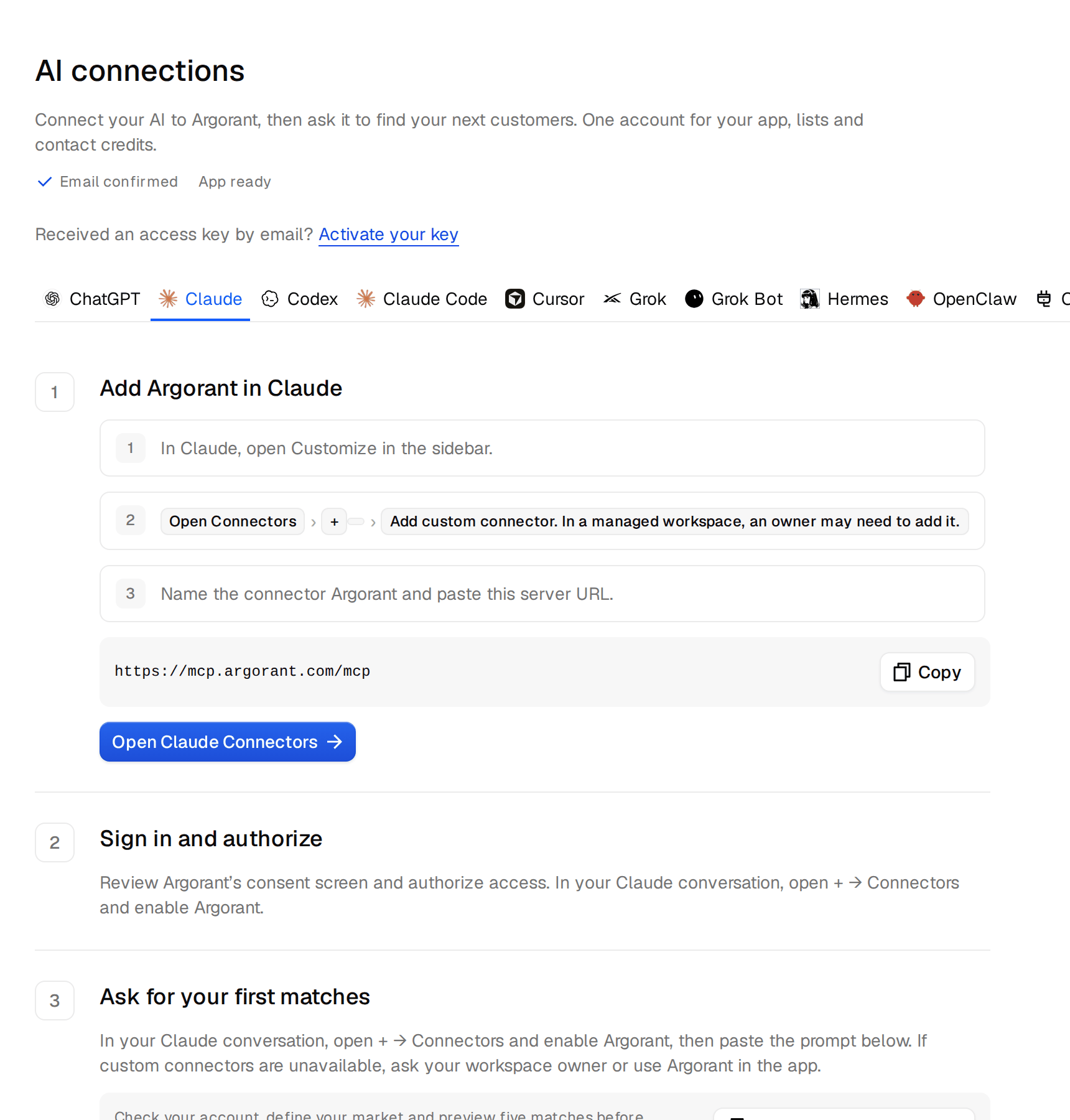
- In Claude, open Customize in the sidebar.
- Open Connectors, click + and choose Add custom connector. In a managed company workspace, an owner may need to add it for you.
- Name the connector Argorant and paste the server address.
- Review the Argorant sign-in screen and allow access.
- In a conversation, open +, then Connectors, and switch Argorant on.
Claude Code has its own tab with a command to copy. Set up Argorant in Claude has the details and screenshots of each screen in Claude.
ChatGPT
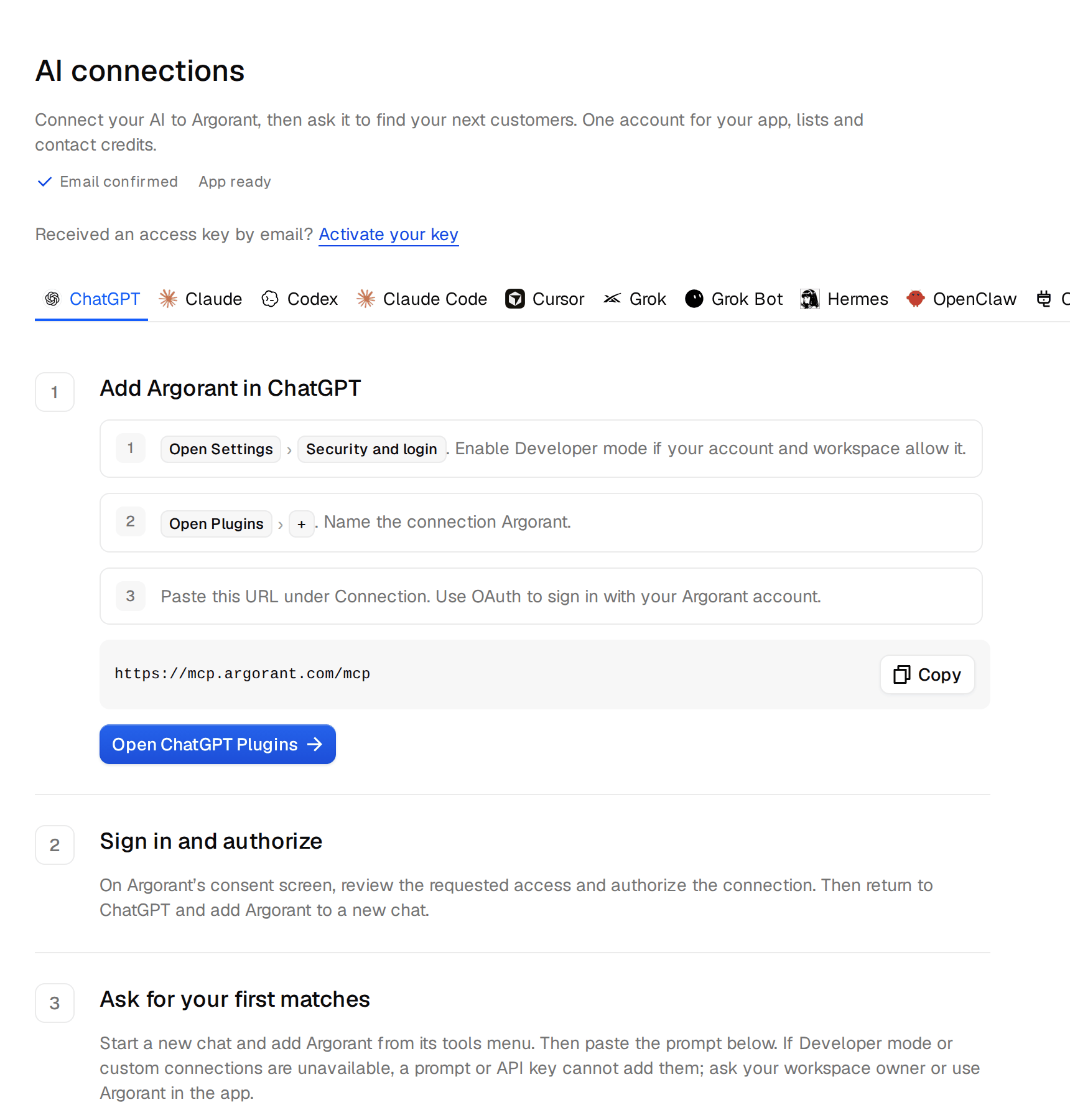
- In ChatGPT on the web, open Plugins. If there is no option to add your own server, go to Settings, then Security and login, and turn on Developer mode, if your account and workspace allow it.
- Click + and choose Add custom MCP server. Name it Argorant.
- Paste the server address under Connection and keep OAuth. Tick that you understand, then create it.
- Click Connect, review the Argorant sign-in screen and allow access.
- Start a new chat, type @ and pick Argorant.
In Business and Enterprise workspaces an admin decides who may add servers. If you cannot, ask your admin, or use Argorant in the app. Set up Argorant in ChatGPT covers every case.
Codex
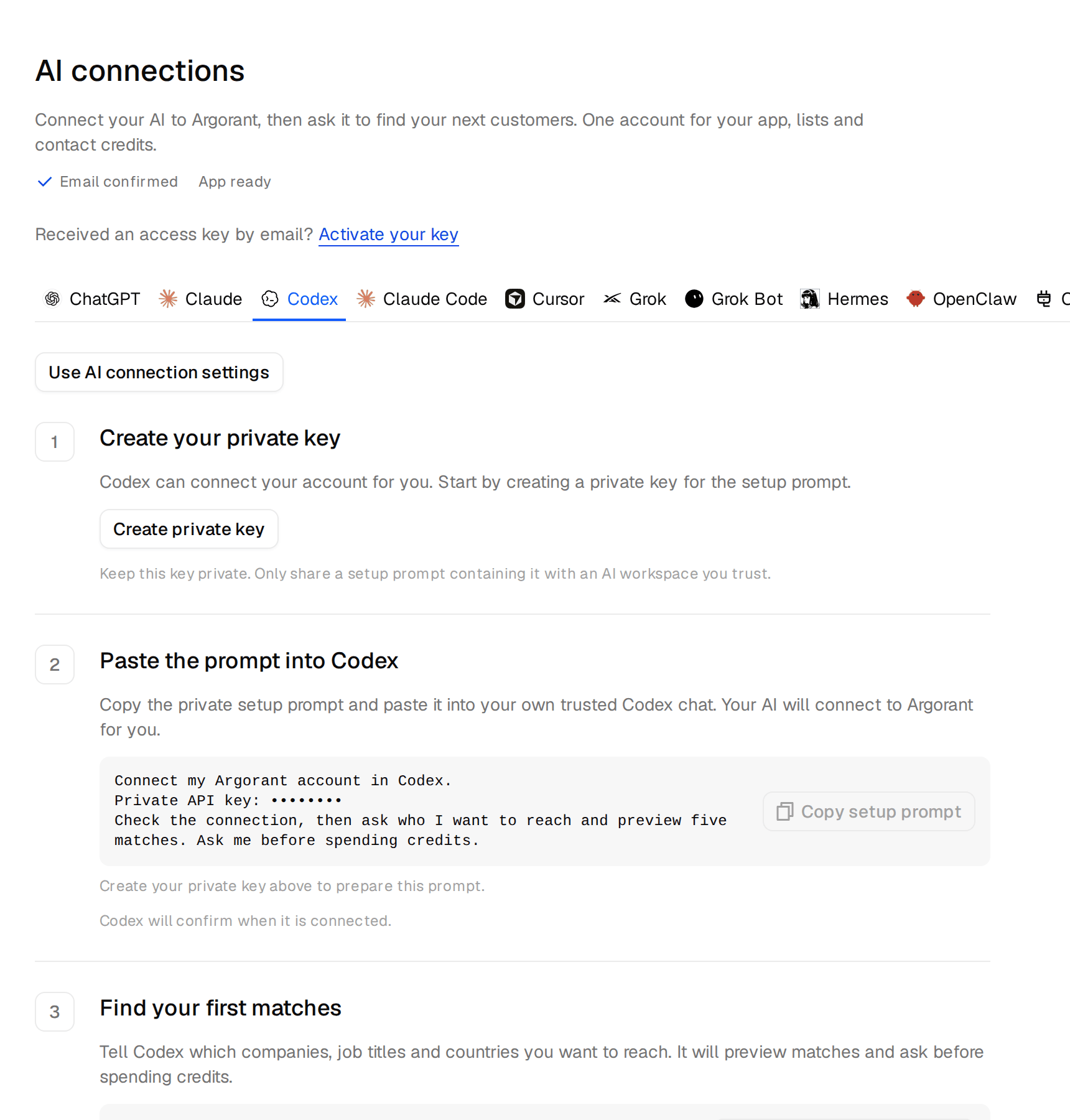
- On the Codex tab, click Create private key. The key is placed into the setup prompt for you.
- Click Copy setup prompt and paste it into Codex. Codex connects your account and checks the connection.
- Tell Codex which companies, job titles and countries you want. It previews matches and asks before it spends credits.
Treat that prompt like a password, because it contains your key. Only paste it into an AI you trust. Set up Argorant in Codex has more.
Cursor
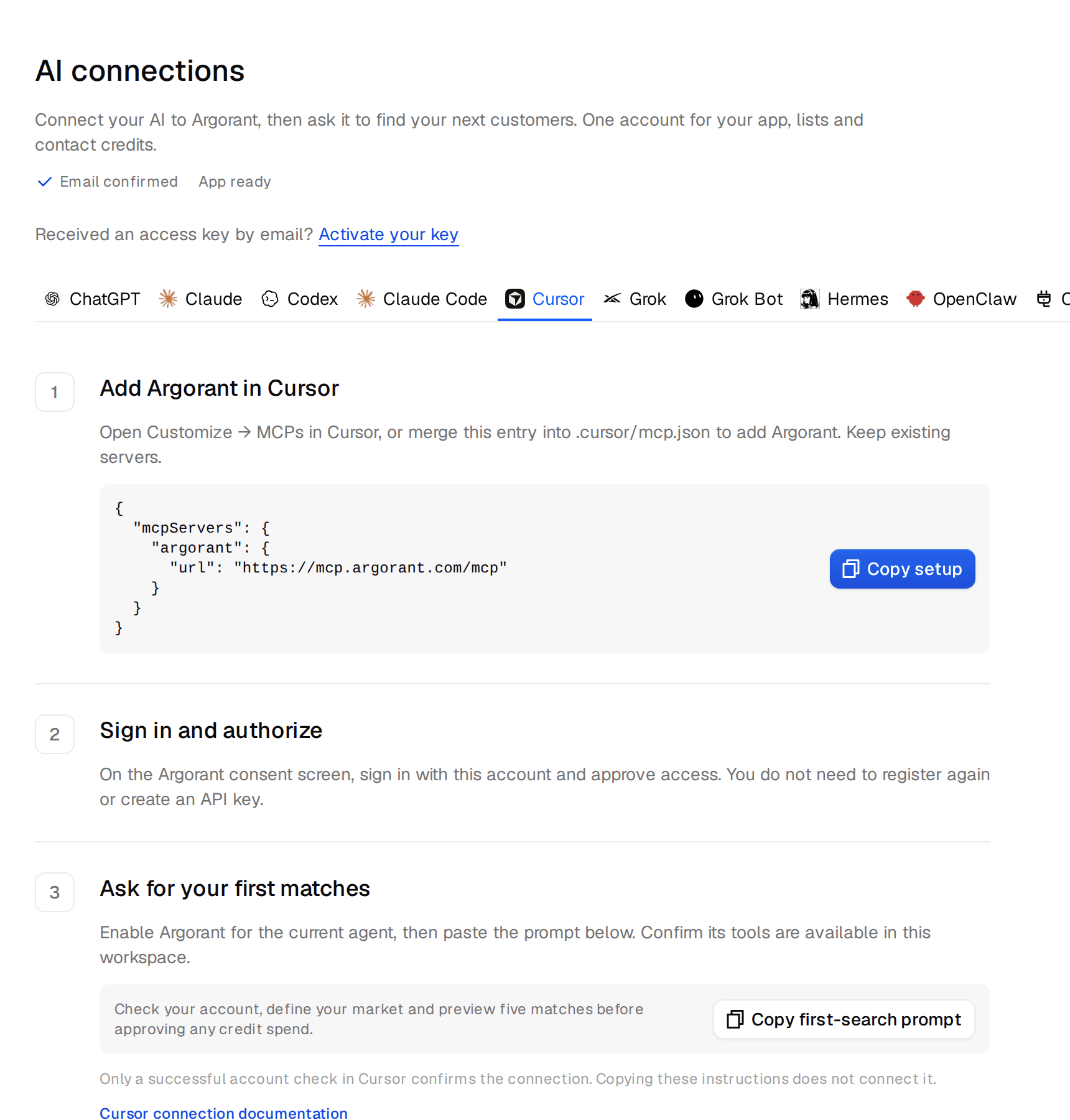
- Click Copy setup on the Cursor tab.
- In Cursor, open Customize, then MCPs, and add the copied entry. You can also merge it into the
.cursor/mcp.jsonfile of your project. - Sign in on the Argorant screen that opens and approve access. You do not need a second account or an API key.
Set up Argorant in Cursor explains the Cursor side in more detail.
Your first request
Each tab ends with a ready prompt. It asks the AI to check your account, describe your market and preview five matches before it spends anything. Start with that. Searches, counts and previews are free. Revealing contacts and exports use credits, and a well set up AI asks before it does either. Write your limits into the chat, for example "never spend more than 200 credits without asking me". Spending guardrails has more sentences like that.
See and remove connections
Every app you allowed shows up in Settings under AI connections, in the Connected apps list. Disconnect anything you do not recognise there.
For a deeper walk through with the REST API and every error you might meet, read the lesson Connect your AI agent to Argorant.