Campaigns send cold emails and follow-ups from your own mailboxes, so replies land in a real inbox and in the Unibox. This guide is the short version of the whole path. Each step links to the lesson in the campaign track that goes into detail.
Campaigns need a plan. During the free start you can try them with a small allowance of campaign emails.
1. Connect the mailboxes that will send
Open Inboxes under Outreach in the sidebar. Choose Connect existing to add Google, Microsoft or any other mailbox with SMTP and IMAP, or order new Microsoft 365 mailboxes on new domains, set up for you.
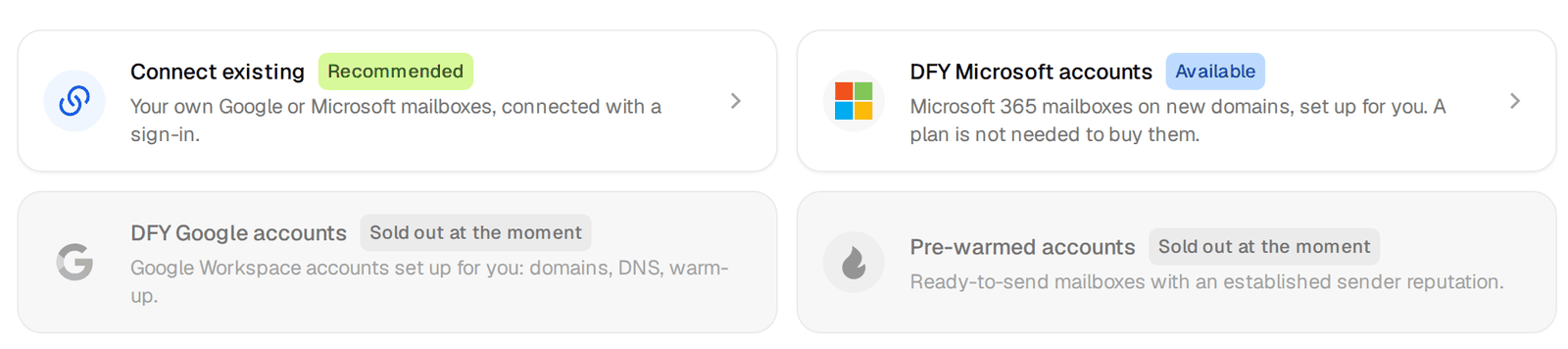
Never send cold email from your main company domain. Use a separate domain that looks like yours. The guide on deliverability basics explains why. The full lesson is mailboxes, warm-up and daily limits.
2. Turn on warm-up and set a daily limit
Open the menu of each new mailbox, choose Edit sender, switch Warm-up on and set Cold emails per day. Start low. To send more, add mailboxes rather than pushing each one harder. Warm-up is included in every plan and never counts against your sending limits.
3. Create the campaign and add the audience
Open Campaigns and click New campaign. Give it a name, then add the people. The easiest way is a saved list. You can also add leads from a CSV file, or from a search with Add to campaign. Keep Valid as the only email result for your first campaign.
4. Write the emails
Write a short first email and two follow-ups that reply in the same thread. Use variables such as the first name and company name, and give every variable a fallback so no email ever reads "Hi ,". Preview the email for a real lead before you go on.
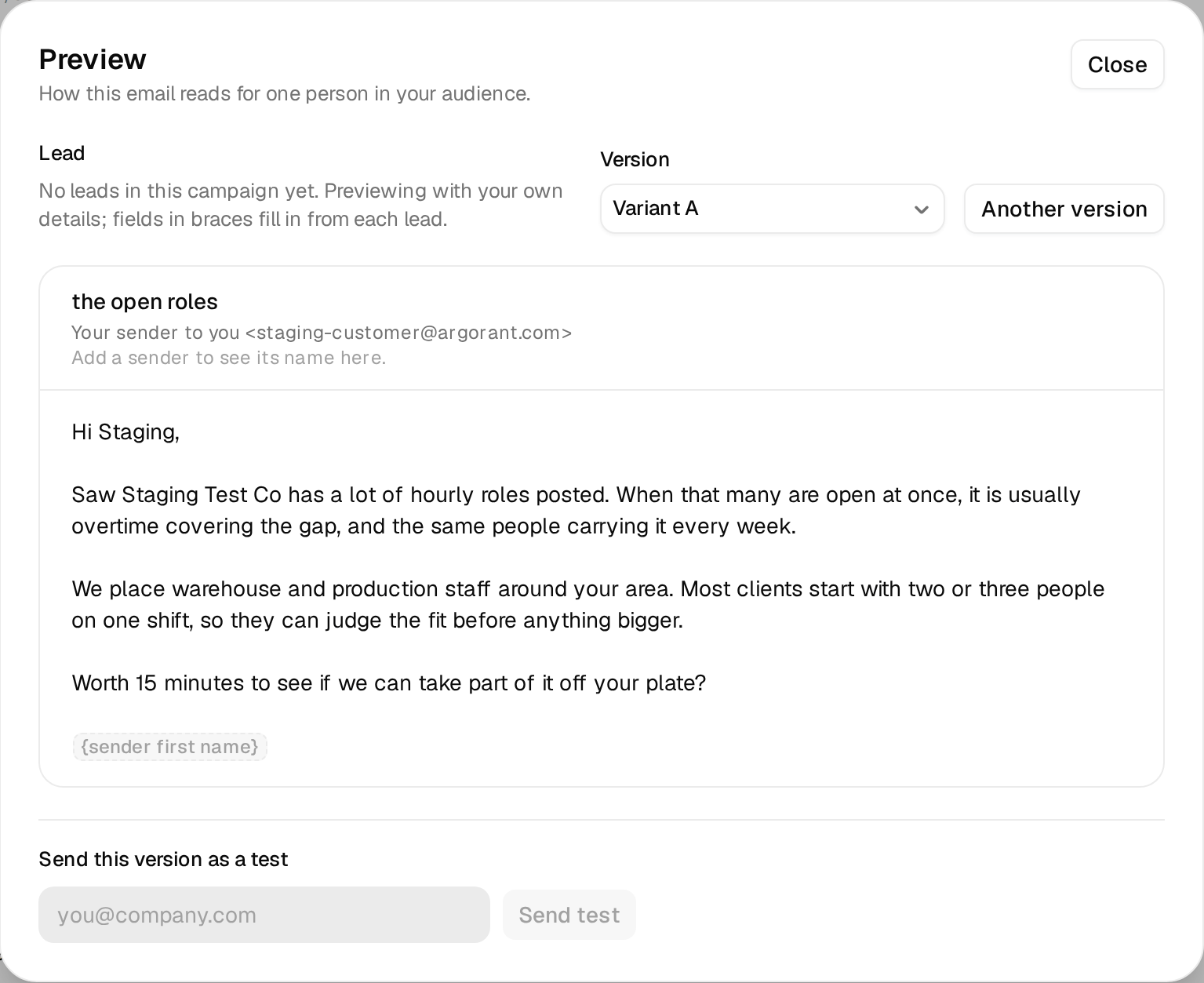
The lesson build the campaign audience and write the emails covers variables, fallbacks, spintax and A/B variants.
5. Choose senders, schedule and launch
Attach the mailboxes that should send, set the sending days and hours in your leads' time zone, and check the daily limit for the campaign. Leave stop on reply and bounce protection on. Bounce protection pauses the campaign if too many emails bounce, before your mailboxes get hurt.
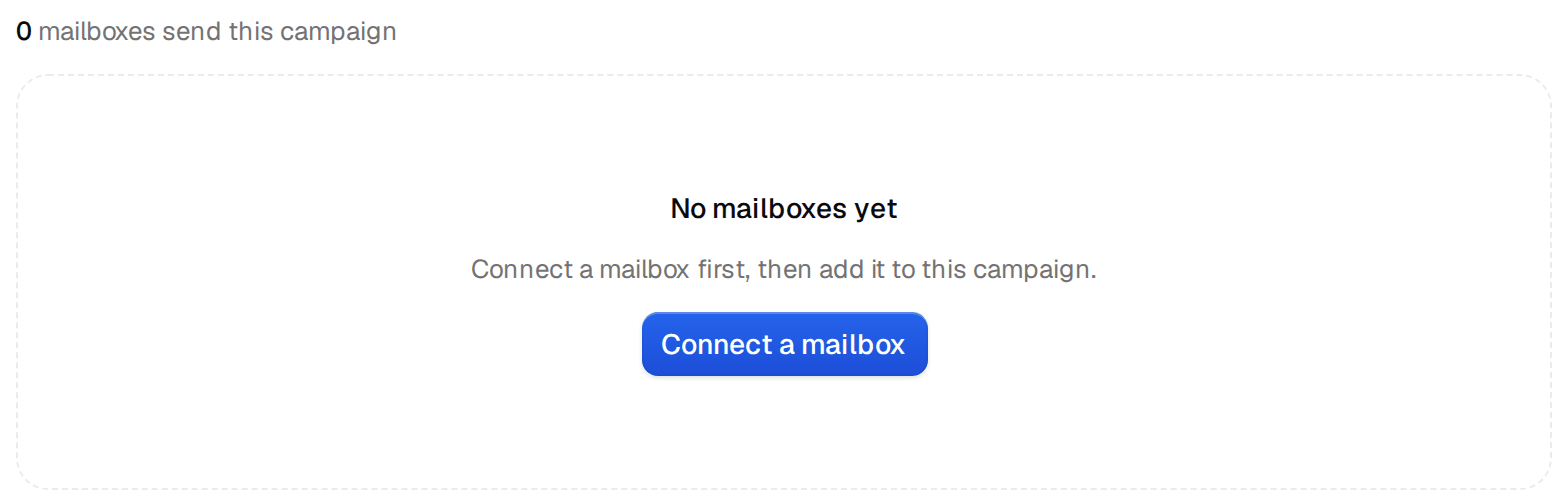
When everything is green, click Launch. You can pause, resume or stop at any time. Senders, schedule and launch explains every setting, and why the Launch button is blocked helps when it stays grey.
6. Answer replies
Replies arrive in the Unibox, sorted by labels such as interested or not now. When someone replies, they stop getting follow-ups. Answer interested people the same day. The lesson turn replies into meetings shows labels and subsequences, and read the numbers tells you what to change after the first week.