Downloading a CSV and importing it somewhere else works, but it is slow and easy to get wrong. If your team lives in a CRM or already sends from another tool, connect it once and send contacts straight there.
Connect your tools
Open Settings from the account menu at the bottom left and choose Connected tools. The page has two groups.
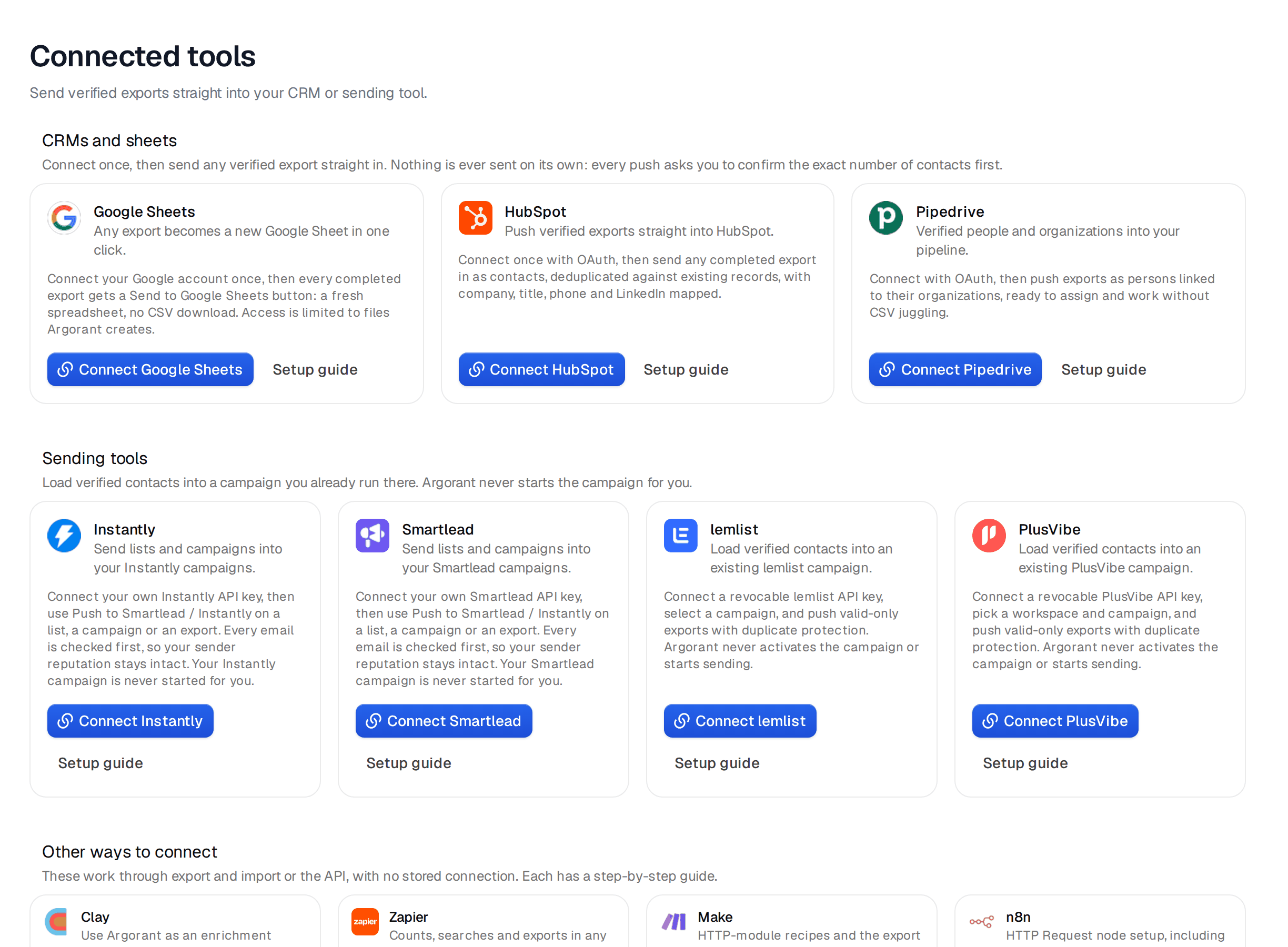
CRMs and sheets are Google Sheets, HubSpot and Pipedrive. Click the connect button and sign in to the tool. Nothing is sent on its own after that. Every push asks you to confirm the exact number of contacts first.
Sending tools are Instantly, Smartlead, lemlist and PlusVibe. Copy the API key from your account in that tool, paste it here and save. Argorant can then load contacts into a campaign you already run there. It never starts that campaign for you.
Connected tools need a paid plan. Each card has a Setup guide link with the steps for that tool.
Send a list or an export
- Open the list under Lists.
- For Smartlead or Instantly, you can click Push to Smartlead / Instantly right on the list, pick the campaign in that tool and confirm.
- For every other tool, export the list first. Then open Exports and use the buttons on the finished file. Push to your sequencer loads it into a campaign in a connected sending tool. The CRM and sheet buttons send it to HubSpot, Pipedrive or a new Google Sheet. HubSpot gets contacts with company, title, phone and LinkedIn where we have them.
Only addresses that passed our checks go to sending tools, and duplicates the tool already holds are skipped, so your sending reputation in that tool stays safe.
Tools without a button
Clay, Zapier, Make and n8n work through exports and the API instead of a stored connection. Each one has a step by step guide under Other ways to connect on the same page. If you are writing your own integration, the guide on API keys is the place to start.
If you prefer files
Every export is a normal CSV, so you can still import it by hand. The help center has import guides for HubSpot, Salesforce, Smartlead, Instantly and lemlist.
Removing a connection
Use the disconnect button on the tool's card. Contacts you already sent stay in that tool. To remove every connection at once, use Disconnect all connected tools in the danger zone on the Workspace page. Connected tools in the help center lists what each tool receives.